Tutorial 3 - Geometry
Geometry is represented by construction lines and circles which can
be used as guidelines for:
The following geometric constructions are available.
Properties of Geometry
Geometry has the following properties:
It has no end points and continues
into infinity.
It is not printed or plotted.
It is common to all layers.
- Geometry is automatically stored when you save a drawing.
Using Geometry as Guidelines to Trace Over
To use geometry as guidelines to trace over, you must first draw the
geometry using the options above.
You can trace over it by selecting Draw ► Geometry
Trace Over. The most useful of these functions is Fill
Geom, which allows you to trace over geometry lines and circles by
specifying intersections and the geometry lines and circles connecting
them.
- For example, if this is the geometry you have created, you might
specify an intersection.
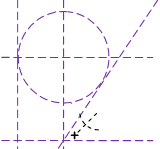
Now specify a line between intersections.
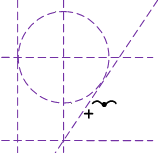
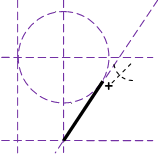
Specify another intersection. The
line is automatically drawn as a solid line. You can also draw over
arcs in this way.
Projecting Solid Lines and Arcs to Geometry Lines and Circles
The Geometry ► Make
Geometry function projects solid lines and arcs into geometry
lines and arcs. This is useful for projecting lines into another part
of the drawing, or for finding the intersection point between projected
lines and arcs.
Jumping to Geometry Lines, Arcs and Intersections
The following Jumps will jump to Geometry. These can be found in Tools ► Jumps.
Jump
|
Icon |
Key |
Function |
Geom Intersection |

|
[I] |
Jump
to geometry intersections and tangency points. |
Any Intersection |

|
[0]
(Zero) |
Jump
to intersections between geometry and solid lines and arcs. |
Nearest Entity |

|
[N] |
Jump
to the nearest line or arc, be it solid or geometry. |
Snapping to Geometry Lines, Arcs and Intersections
The following Snap modes will
snap to Geometry.
Snap
|
Icon |
Key |
Function |
Grab All |

|
[Shift+A] |
Snaps
to a geometry intersection, tangency point, or intersection between
geometry and solid lines and arcs, if this is within specified
snap distance. |
Geometry Intersection |

|
[Shift+I] |
Snaps
to a geometry intersection or tangency point. |
Intersection |

|
[Shift+Z] |
Snaps
to intersections between geometry and solid lines and arcs. |
Nearest Entity |

|
[Shift+N] |
Snaps
to the nearest line or arc, solid or geometry. |
Perpendicular |

|
[Shift+P] |
Snaps
lines, including geometry lines, to other lines or arcs so that
they are perpendicular to each other. This mode only works when
you are drawing lines, including polylines and geometry point
to point lines. |
For example, if you
have selected the Geometry ► Lines ► Point-to-Point
Line function, you are prompted to:
Indicate start position of
line
- Position the cursor at a point the geometry line must pass through,
and then click or press [Enter].
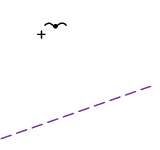
You are prompted
to:
Indicate end position of line
Enter Perpendicular snap mode by
clicking the Perp snap icon. The cursor changes shape.
- Position the cursor close to the line that the geometry line you
are drawing must be perpendicular to, and then click or press [Enter].
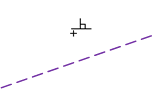
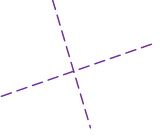
The geometry line is drawn perpendicular
to the other line.
Tan Mode
Snaps lines and arcs, including geometry lines and circles, to other
lines or arcs so that they are tangential to each other.
Click the Tan snap icon
 or type press [Ctrl+T]
as a shortcut. Tan snap only works when you are drawing lines or arcs,
including polylines and geometry lines and circles.
or type press [Ctrl+T]
as a shortcut. Tan snap only works when you are drawing lines or arcs,
including polylines and geometry lines and circles.
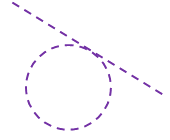
- For example, if you have selected the Geometry
► Lines ► Point-to-Point Line function, you are prompted to:
Indicate start position of
line
- Position the cursor at a point the geometry line must pass through,
and then click or press [Enter].
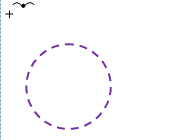
You are prompted
to:
Indicate end position of line
Enter Tan mode by clicking the
Tan Snap icon, or pressing [Ctrl+T]
as a shortcut to this mode. The cursor changes shape.
Position the cursor close to the arc that the geometry line
you are drawing must be tangential to, and then click or press [Enter].
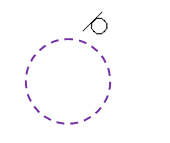
- The geometry line is drawn tangential to the arc.
Switching Geometry On and Off
If you no longer need your geometry, you can delete it or switch it
off.
To switch the geometry off:
- Select Geometry ► Switch
Geometry On/Off. The following message briefly displays
in the prompt area:
Geometry display is now OFF
- The geometry disappears from view, although it is still there.
Even though you can’t see the geometry you are still be able to jump
to it (see Jumping and Snapping above). You can switch it on again
at any time by selecting Geometry ► Switch Geometry
On/Off again. The following message displays briefly in the
prompt area:
Geometry display is now on
Deleting Geometry
To delete a single geometry line or circle, select Geometry
► Delete Geometry
Entity.
To delete all your geometry, select Geometry ►
Delete All Geometry.
Geometry deletion is permanent. The Undo
function does not restore a deleted geometry element.


