Icon
Command
Shortcut Key
Toolbar

GEOMLINETANCC
Geometry
Draw a geometry line tangent to two geometry circles.
|
Icon |
Command |
Shortcut Key |
Toolbar |
|
|
GEOMLINETANCC |
|
Geometry |
This function allows you to draw a geometry line tangent to two geometry circles by indicating the two geometry circles.
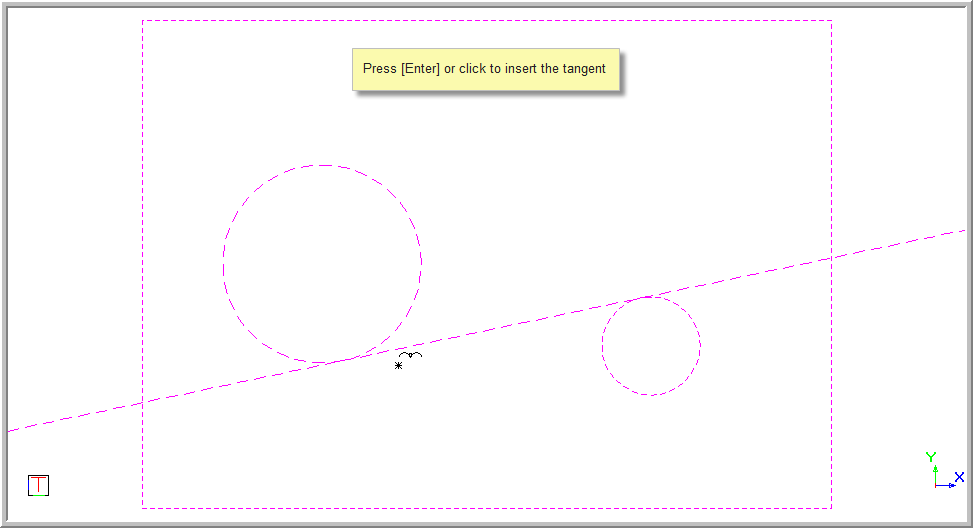
Tangent points are indicated relative to the position of the cursor on each of the circles. Indicate the correct tangent by positioning the cursor near the desired result and pressing enter or clicking.
Either of the indicated geometry circles cannot be enclosed inside the other indicated geometry circle.
 Geometry lines are infinite lines that never print or plot, and are seen in all layers. To change the appearance of all geometry, see Geometry Settings under System Settings.
Procedure
To draw a geometry line tangent to two geometry circles:
Select Geometry ► Lines ► Tangent to ► 2 Circles, or click the icon in the Geometry toolbar.
Indicate first geometry circle
Position the cursor near the first geometry circle and press [Enter] or click to indicate the correct geometry circle. The circle is now highlighted.
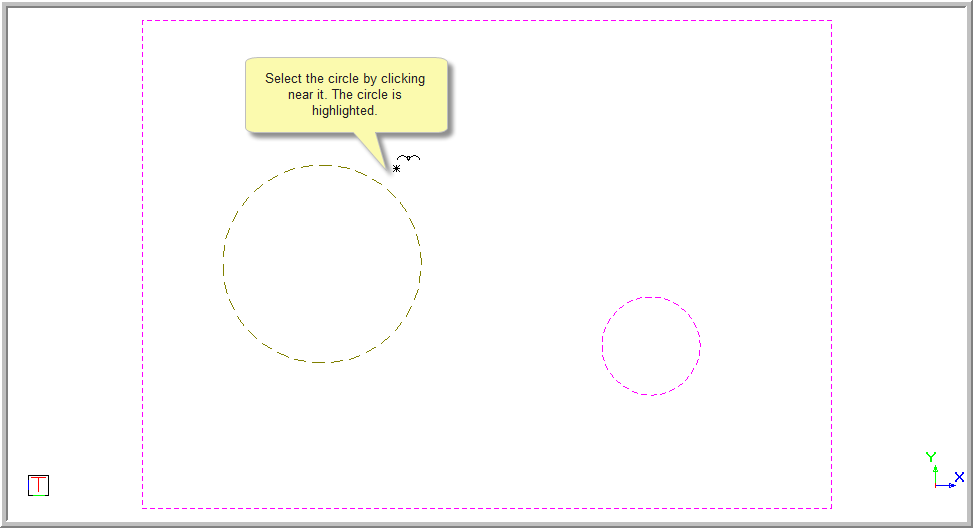
You are prompted to:
Indicate second geometry circle
Position the cursor near the second geometry circle and press [Enter] or click to indicate the correct geometry circle. Both circles are now highlighted, and tangent through points are indicated relative to the position of the cursor.
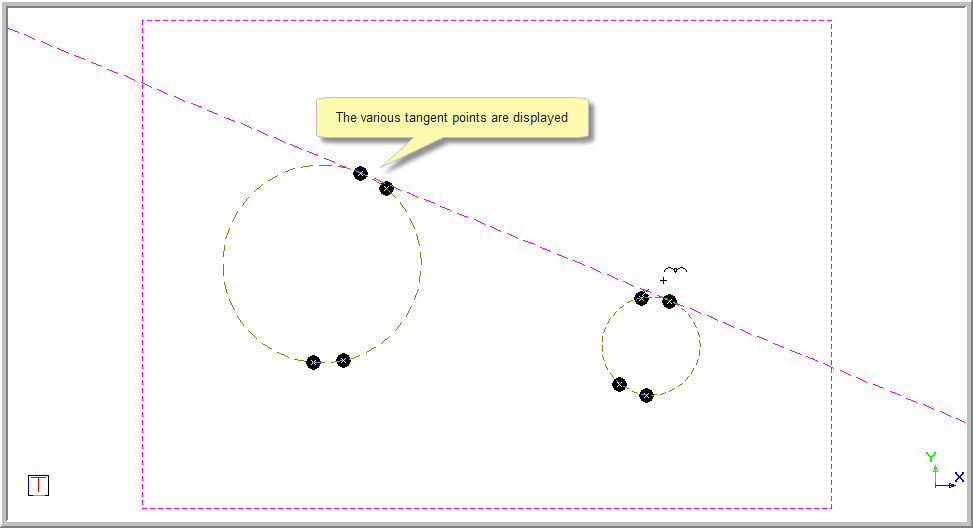
You are prompted to:
Indicate tangent point
As the cursor is moved nearer the tangent point options the tangent line is updated.
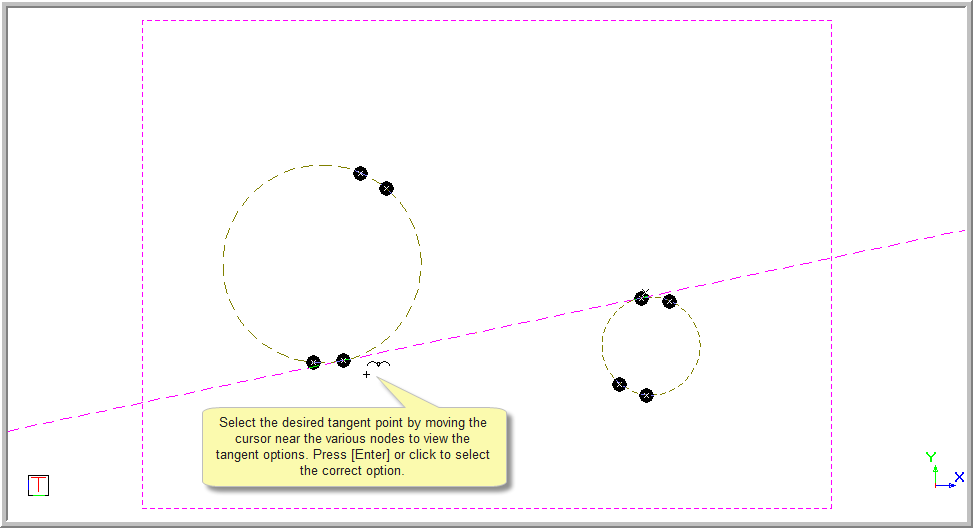
Press [Enter] or click near the desired tangent point to insert the tangent.
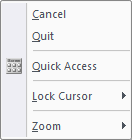
Right-click on the screen and select Quit to end the function. Alternatively, press [Esc].