Icon
Command
Shortcut Key
Toolbar

GEOMDELENT
Geometry
Delete individual geometry lines or circles.
|
Icon |
Command |
Shortcut Key |
Toolbar |
|
|
GEOMDELENT |
|
Geometry |
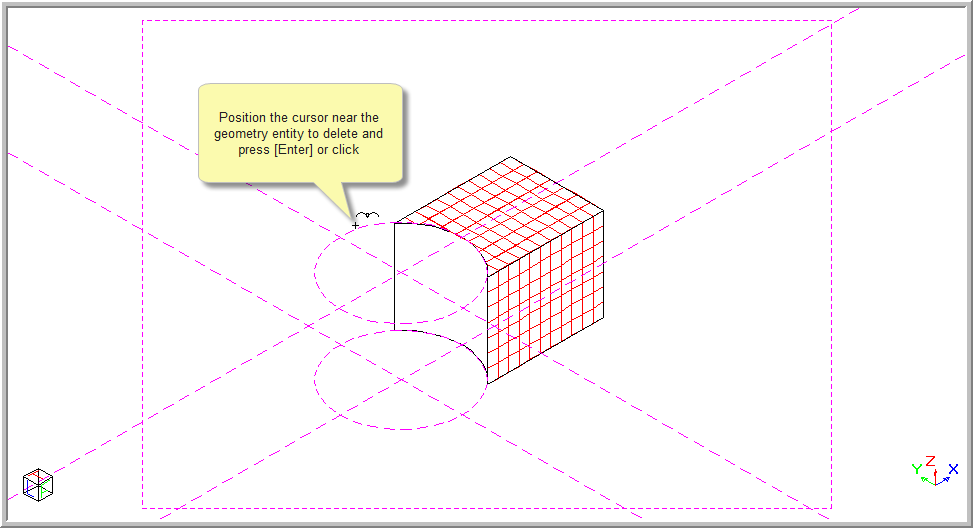
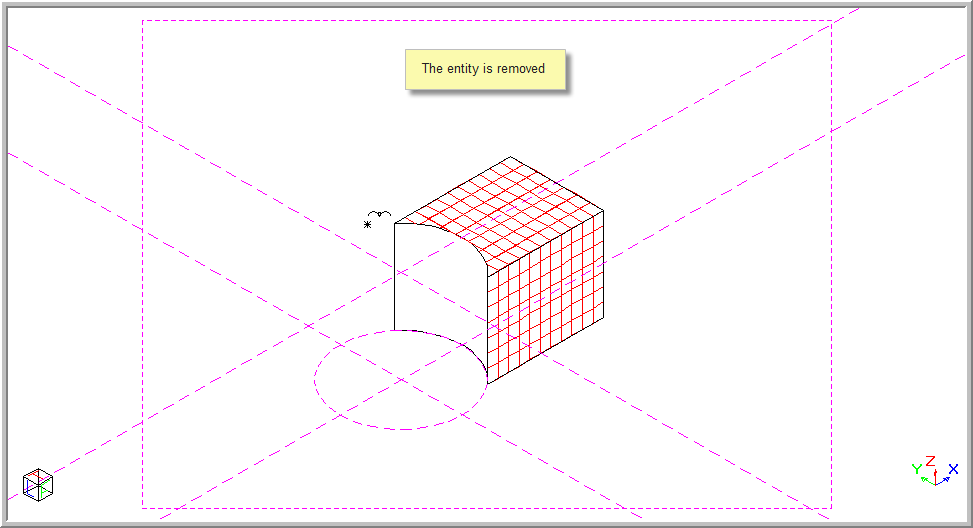
This function allows you to delete a specific geometry element by positioning the cursor near it, and then pressing [Enter] or clicking.
You can see the Undo command to restore any deleted geometry entity.
You can elect to receive a Confirmation message to ensure you are preforming a valid delete. To do this, go to System Settings.
Procedure
To delete a geometry element:
Select Geometry ► Delete Geometry Entity or click the icon in the Geometry toolbar.
Indicate geometry to delete
If you have selected the Confirm on entity deletion option in the System Settings, the following message displays:
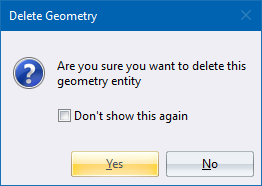
Select the Don't show this again checkbox if you would like the geometry entity deleted without being asked to confirm the deletion.
Click Yes to delete the entity and No to continue with a new selection.
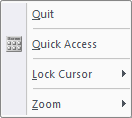
Right-click on the screen and select the Quit option to end the function. Alternatively, press [Esc].