Icon
Command
Shortcut Key
Toolbar

GEOMPARLINE
Geometry
Draw geometry lines or circles parallel to another entity, solid or geometry, either by a specified distance or through a specified point.
|
Icon |
Command |
Shortcut Key |
Toolbar |
|
|
GEOMPARLINE |
|
Geometry |
This function allows you to draw geometry lines or circle parallel to an entity (solid or geometry) by a specified distance or through a specified point, by indicating the number of times to copy the entity and pressing enter or clicking on the side to insert the parallel entities.
For Planar entities, the Distance option uses the entities plane. The Distance option is invalid if the entity is perpendicular to the drawing plane.
For Non-Planar entities, the drawing plane direction is used.
 Geometry lines are infinite lines that never print or plot, and are seen in all layers. To change the appearance of all geometry, see Geometry Settings under System Settings.
Procedure
To draw geometry lines or circle parallel to an entity (solid or geometry) by a specified distance or through a specified point:
Select Geometry ► Parallel Line or click the icon in the Geometry toolbar.

This example uses solid entities to parallel copy using geometry. The function would work the same when copying geometry entities.
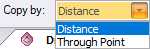
You can edit the distance by clicking in the text box, or pressing [Tab] to move into the text box, and then typing in the distance to space the parallel entities.

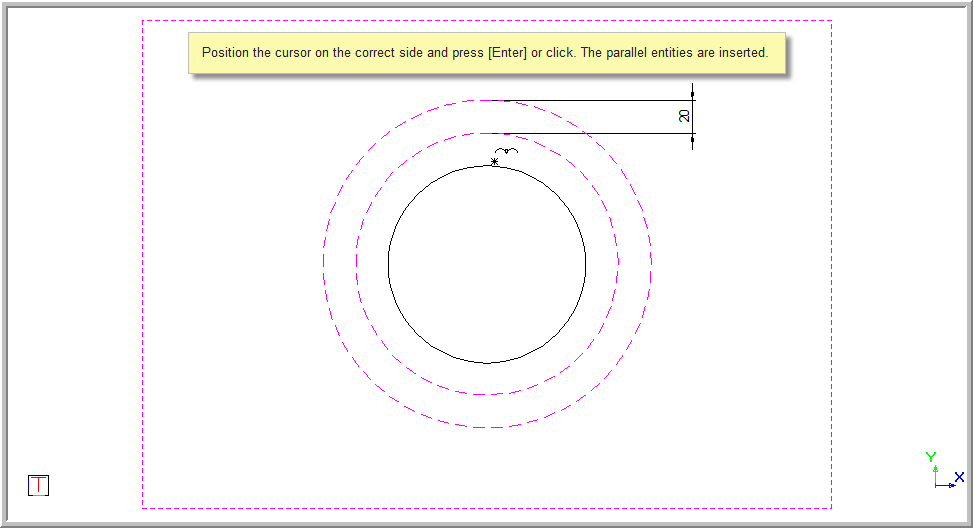
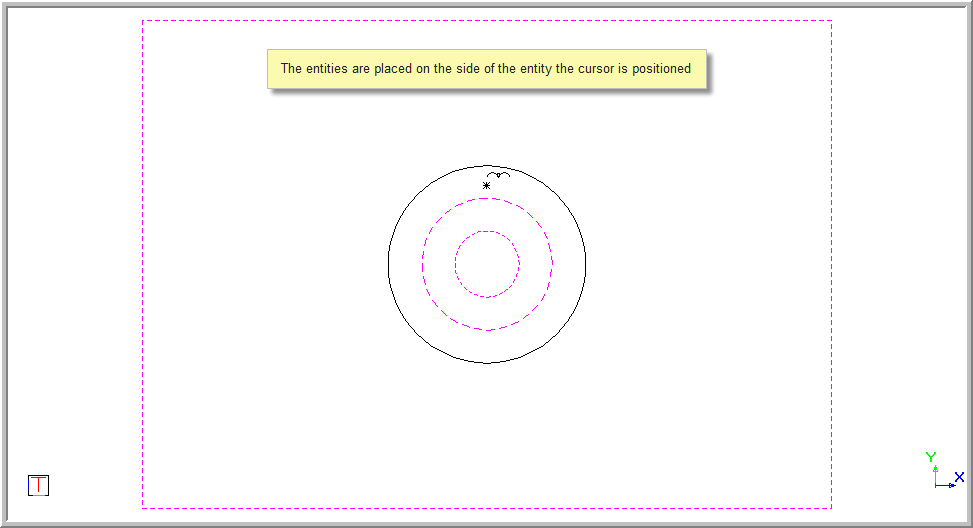

You can again change the number of times to copy the entity by clicking in the text box, using the [Tab] key to move to the text box, or using the counter select arrows to indicate the No. lines to draw.
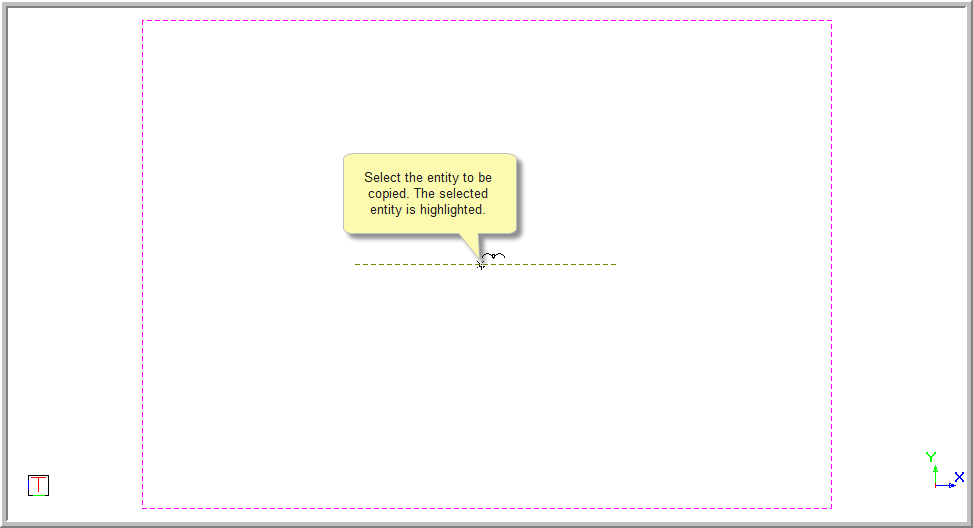

You can now move the cursor to the required position, or use the snap or jump functions to move to the desired position, and then press [Enter] or click to insert the parallel entities.
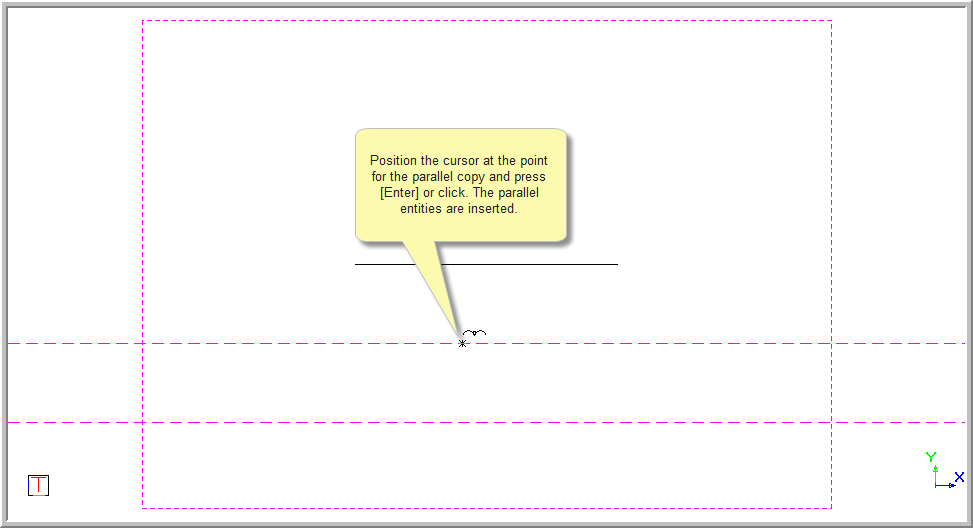
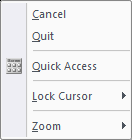
The function repeats and you can make any changes and continue to add parallel geometry entities to the drawing.