 The implementation
of product licensing is no longer dependent on physical hardware dongles,
which brings benefits to both customers and ourselves.
The implementation
of product licensing is no longer dependent on physical hardware dongles,
which brings benefits to both customers and ourselves.From Version 2015 onwards, Knowledge Base has introduced an additional licencing scheme based on the SafeNet Sentinel product. It involves the use of software-based licences installed on:
The computer where the products are installed (stand-alone or timed licences).
A specific computer acting as a licence server (network or multi-seat licences).
The implementation
of product licensing is no longer dependent on physical hardware dongles,
which brings benefits to both customers and ourselves.
Our improved security system offers the following benefits:
Licence authorisation and updating is carried out via email.
No waiting for delivery of hardware dongles.
No failure of hardware dongles.
Customers can transfer (rehost) licences (including network licences) between computers without recourse to us.
Customers with network (multi-seat) licences can detach a seat for use on a computer which will not be connected to the network for a period of time.
Network licence consumption can be monitored through the use of a Licence Manager.
When the Product Installer is run, the Licence Manager and the required drivers are automatically installed as part of the installation process. The Licence Manager and/or drivers are updated as needed, when patches to the products are installed.
The Licence Manager is required on the computer for the use of stand-alone or timed licences, and is also required to communicate with the Licence Manager installed on a remote computer that is hosting a network licence.
There is a specific installer for computers that will act as licence servers. This installs, along with the Licence Manager and required drivers, a simple program that allows various licencing tasks to be carried out without having to have one of the products installed. This program is usually installed and operated by a designated licence administrator as it needs to be done on the computer which hosts (or will host) the network licence.
The first time AllyCAD is run on a particular computer after installation, it automatically creates and authorises a seven day temporary licence. This licence allows you to evaluate the program and make sure it suits your needs before carrying out the permanent activation procedure. At any time during this trial period, you can activate the permanent licence. If you fail to do this within the trial period, the software will change into demo mode where all functionality relating to the saving of drawing files is disabled.
In order to receive a permanent licence, you need to email a fingerprint file to our authorisations department who will set up the necessary licence details and email back a licence file to be installed on your computer.
The procedure is the same for stand-alone, timed and network licences except that stand-alone and timed licence tasks are undertaken from within AllyCAD, while network licence tasks are undertaken utilising the specialised program referred to in the previous section.
Updates to installed licences, such as activating another module, changing the expiry date of a timed licence, or changing the number of seats available in a network licence, are carried out in the same way except that a special copy of the current licence is emailed to our authorisations department. We then update the necessary licence details and email back a licence file to be installed on your computer.
Installed licences can be transferred (re-hosted) between computers in an email conversation. In the case of stand-alone or timed licences, this is carried out within the product itself. In the case of network licences, the specialised program is used to carry this out.
The recipient computer (the one that will have the licence when the re-host is complete) emails a recipient fingerprint file to the host computer (the one that currently has the licence). The host computer utilises the recipient fingerprint and generates a licence file to be returned to the recipient. This licence file is then installed on the recipient computer (who is now the new host).
The host computer will no longer have a licence when the new licence file is generated, while the recipient computer will host the licence once the returned licence file is installed.
The generated
licence file can only be installed on the computer that supplied the recipient
fingerprint file.
Network seats can be borrowed (detached) from the network licence pool so a computer can operate with a valid licence for a period of time while not connected to the network licence server. Detaching is similar to re-hosting in that the destination computer will operate as if it had an installed licence, but only for a specified period.
The recipient computer (the one that will host the detached licence) emails a recipient fingerprint file to the network licence computer. The network licence administrator utilises this fingerprint file and generates a detached licence file, which is valid for a specific period of time, to be returned to the recipient. The recipient installs this licence, at which point the recipient computer can now operate without connecting to the network licence server.
The generated
licence file can only be installed on the computer that supplied the recipient
fingerprint file.
Detaching a licence will take away one seat for all relevant modules in the network licence pool, for the specified period. At the end of this period, the licence will automatically be returned to the pool, and will stop working on the original recipient computer.
If the recipient no longer requires the detached licence, it can be returned to the network licence pool before the specified expiry date.
Select File ► Security to open the menu.
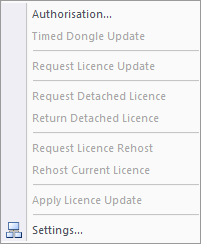
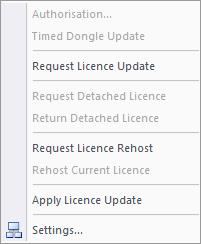
Option |
Description
|
|
|
Only valid when using a legacy stand-alone or network dongle. |
Update a timed dongle online. |
|
Generate a fingerprint file when requesting a new licence or a current licence file when requesting a change to an existing installed licence. |
|
|
|
Generate a fingerprint file for a licence to be detached from a network licence pool. |
|
|
Generate a licence return file when returning a detached licence before the specified expiry date. |
|
|
Generate a fingerprint file for the re-hosting of a licence currently held by another computer. |
Process the fingerprint file generated by another computer using the previous menu item in order to transfer the installed licence to the requesting computer. |
|
|
|
Process a licence file returned after using Request Licence Update or Request Detached Licence. |
|
|
Set various options relating to licensing. |