Icon
Command
Shortcut Key
Toolbar

AUTHORISE
Misc
Authorise the security device to enable the program to run without restrictions.
|
Icon |
Command |
Shortcut Key |
Toolbar |
|
|
AUTHORISE |
|
Misc |
This function, which is only available if the Security Settings specify the use of legacy dongles, allows you to authorise the program or modules installed on your system depending on your registered licences.
Procedure
The Authorisation options display in the Module Authorisation window.
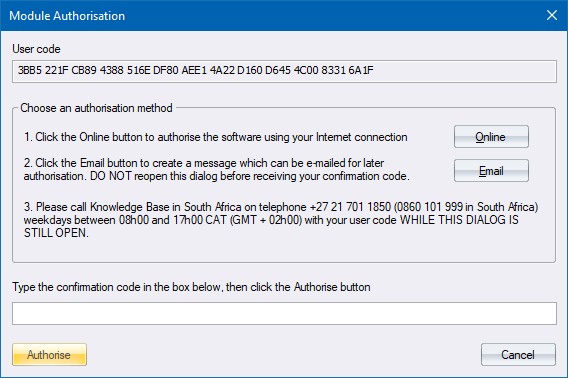
The user code needs to be transmitted to Knowledge Base, who will in return supply a confirmation code that authorises the program. Specify which authorisation method you want to use to receive you confirmation code - Online, Email or Support Centre.
The first, and preferred method as it can be carried out at any time, carries out an online authorisation using your Internet connection. If you use any sort of dial-up connection then this must be active and connected before starting the process.
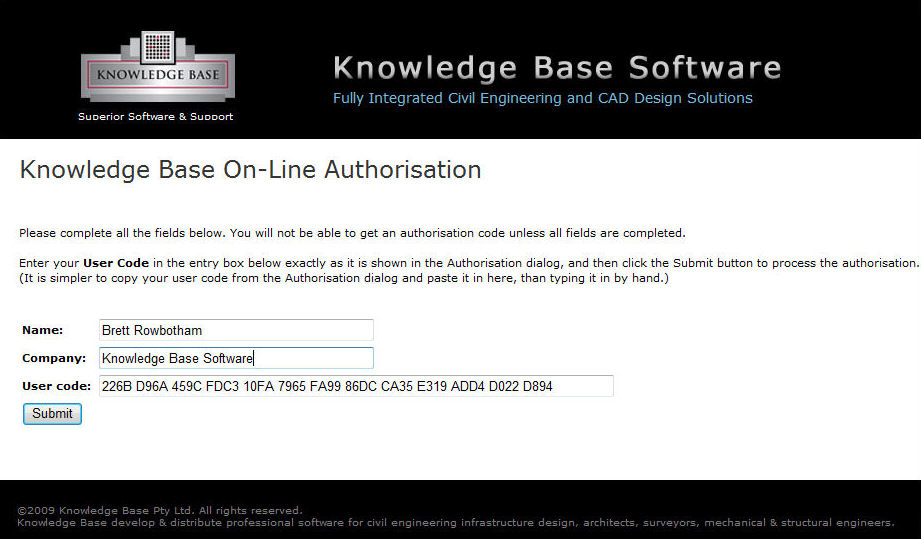
Click Submit to process the request.
If the request succeeds, you receive a confirmation code.
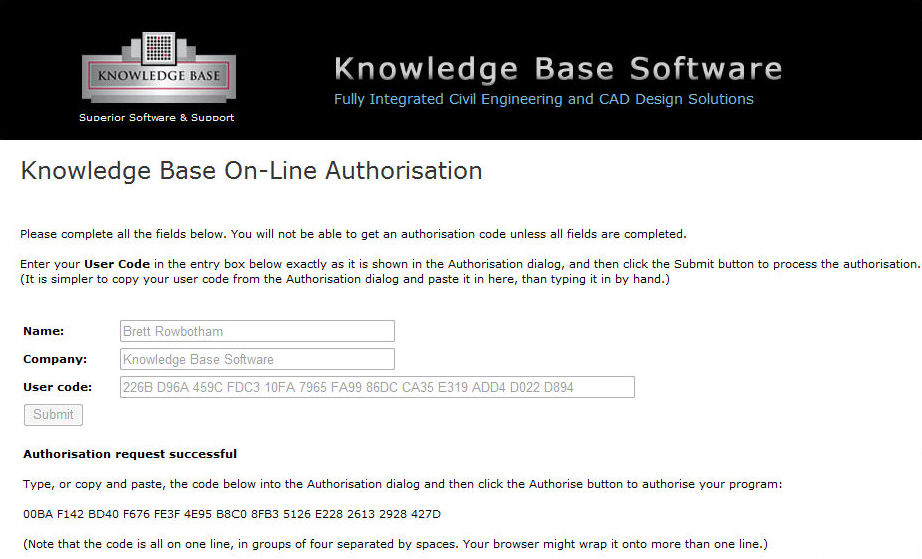
Enter the confirmation code in the Module Authorisation window. It is easier to copy and paste the confirmation code than typing it in.
If the request does not succeed use Method 2 or 3, as detailed below.
The second method, which can only be processed during office hours, uses email.
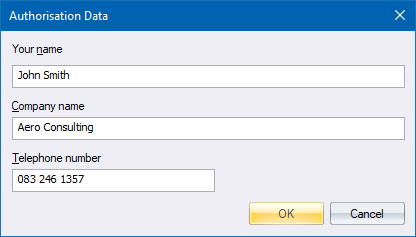
Click OK to create an email that you can then send to the auto-populated address.
We will then email the confirmation code back to the address you sent the email from. If we have problems getting back to you, we will call you using the supplied telephone number.
 Both the Authorisation Data and Authorisation windows close when you click OK. It is imperative that you do not re-run the authorisation process before receiving your confirmation code. The user code is encrypted using a randomly generated key, and that key is stored for only a single re-use when using the Email option. Should you re-run the authorisation process before receiving your confirmation code, this key will change and the confirmation code you receive will no longer match the user code. You will then have to start the process all over again.
The third method is to contact us via telephone. The numbers are shown on the Authorisation window and can be found in the Contact Us section, along with the relevant office hours. You need to keep this window open until we give you the confirmation code.
For all methods of authorisation:
Enter the confirmation code in the Authorisation window.
Click Authorise to complete the process.
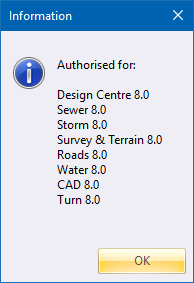
If the confirmation code verifies correctly, a message stating what modules are authorised, and for which program version, displays.
Confirmation Code Does Not Verify
If the confirmation code does not verify then there is probably a typing mistake; or, for method two, the authorisation process was re-run before receiving the confirmation code. Check carefully to ensure that the code has been entered correctly.
The code consists of the letters A to F and the numbers 0 to 9, presented in groups of four letters and/or numbers with a space separating each group.
The most common typing mistake is to use the letter O instead of the number 0. If possible, copy and paste the confirmation code rather than typing it in.
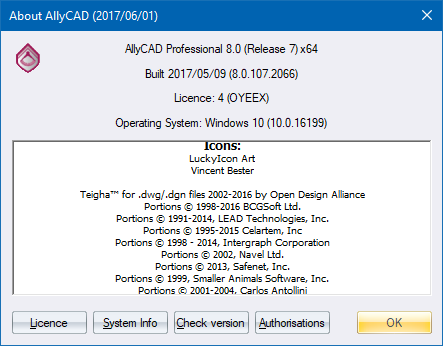
In the latest version of AllyCAD there is a function to find out what is authorised on a dongle that is plugged into the computer.