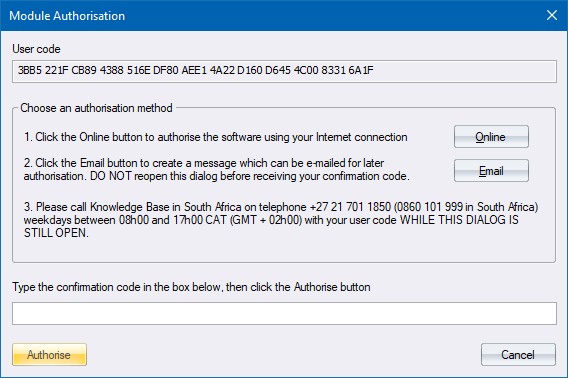
This window displays the user code required to get an authorisation confirmation code that will authorise your copy of the program to run normally.
|
Option
|
Description |
|
User code |
Read only. Displays the unique user code that is required in order to authorise the program. Note that the code consists only of the numbers 0 to 9 and the letters A to F. Do not use the letter O in place of the number 0. |
|
Online button |
Click to process authorisation through our support website. This is the preferred method as it can be carried out at any time. |
|
Email button |
Click to create an email for authorisation. Once you have clicked this button and provided the required data, this window will close. DO NOT try to run authorisation again until you have received your confirmation code. If you do so, the unique user code will change and the confirmation code you receive will not be valid. |
|
Confirmation code |
Enter the confirmation code, obtained either from our website, via email, or over the phone into this area. Note that the code consists only of the numbers 0 to 9 and the letters A to F. Do not use the letter O in place of the number 0. |
|
Authorise button |
Click to verify the confirmation code. If the code is correct, authorisation will be completed. |