Icon
Command
Shortcut Key
Toolbar

ALIGN
Modify
Aligns selected entities horizontally and/or vertically.
|
Icon |
Command |
Shortcut Key |
Toolbar |
|
|
ALIGN |
|
Modify |
This function allows you to align selected entities horizontally and/or vertically according to the Align Settings.
Procedure
To align entities horizontally and/or vertically:
Select Modify ► Align or click the icon in the Modify toolbar.
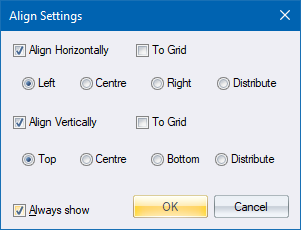
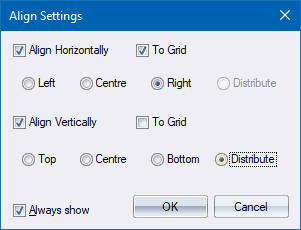
If you select the Always show checkbox, the Align Settings dialog will display each time the Align function is selected.
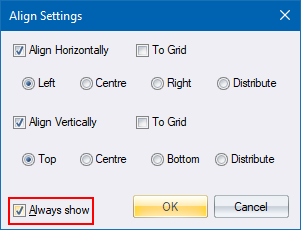
If you do not select the Always show checkbox, the settings you have selected will be used whenever you use the Align function in the current drawing.
To reset your Align options, go to Settings ► Align Settings.
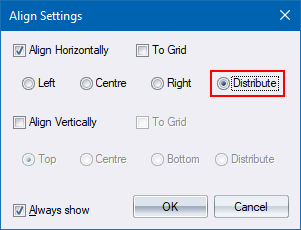
Specify if you want to align the selection set horizontally and/or vertically by selecting the appropriate checkbox.
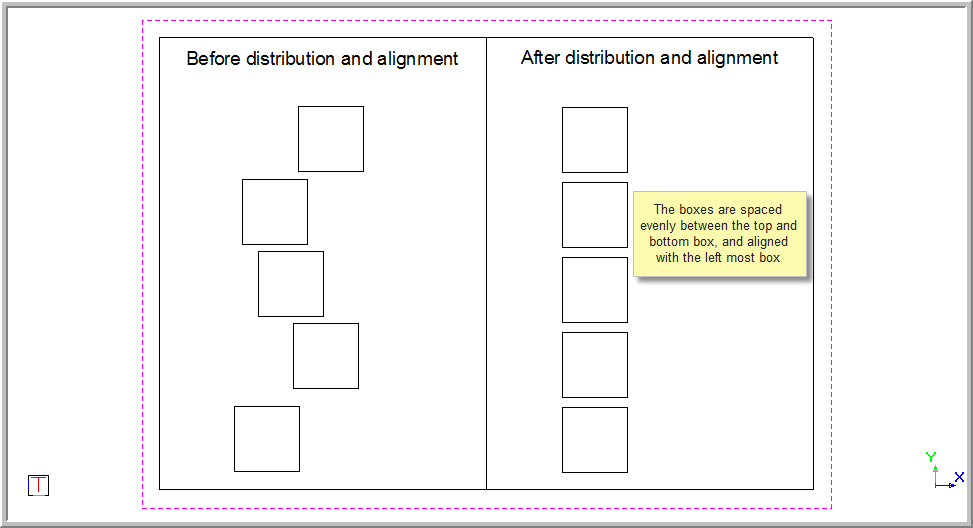
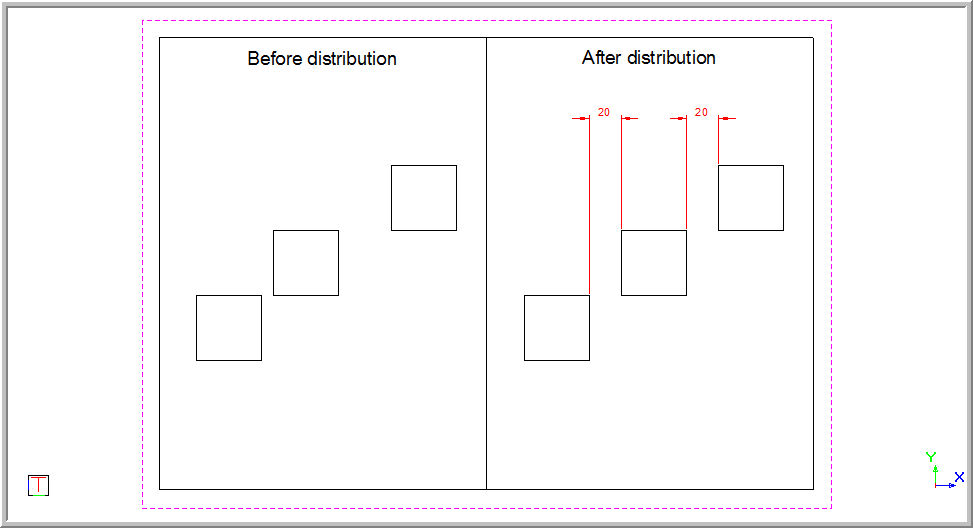
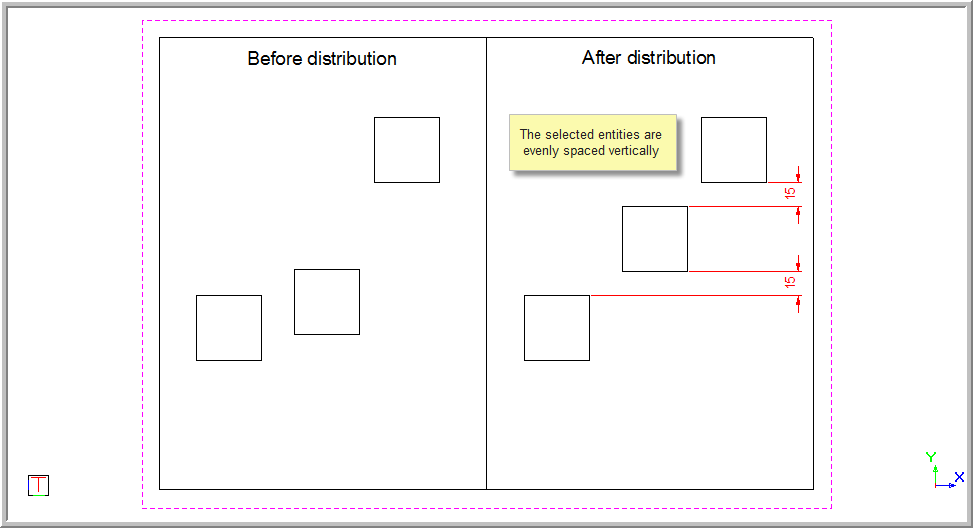
If the squares are not evenly spaced and you select to horizontally align them using the Distribute option, the selected entities are spaced evenly as shown below.
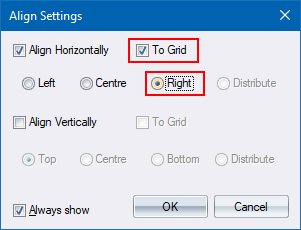
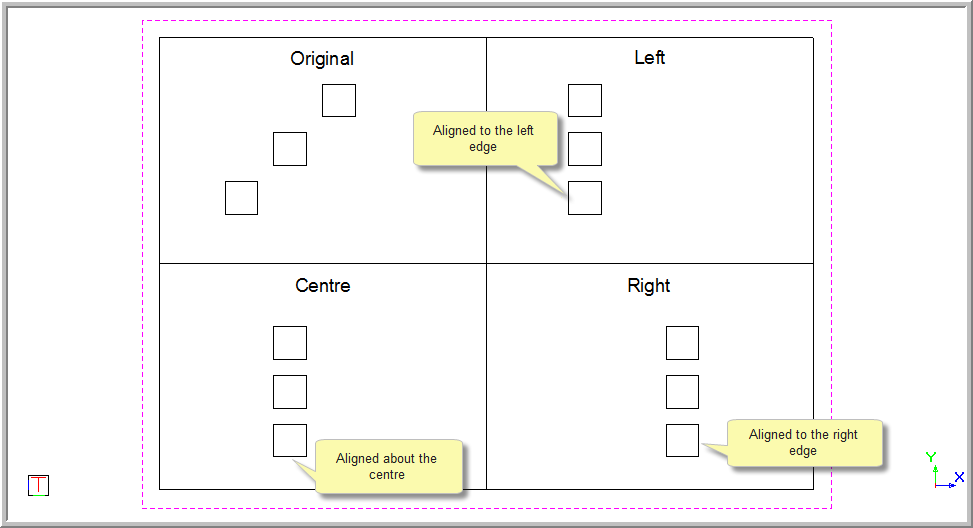
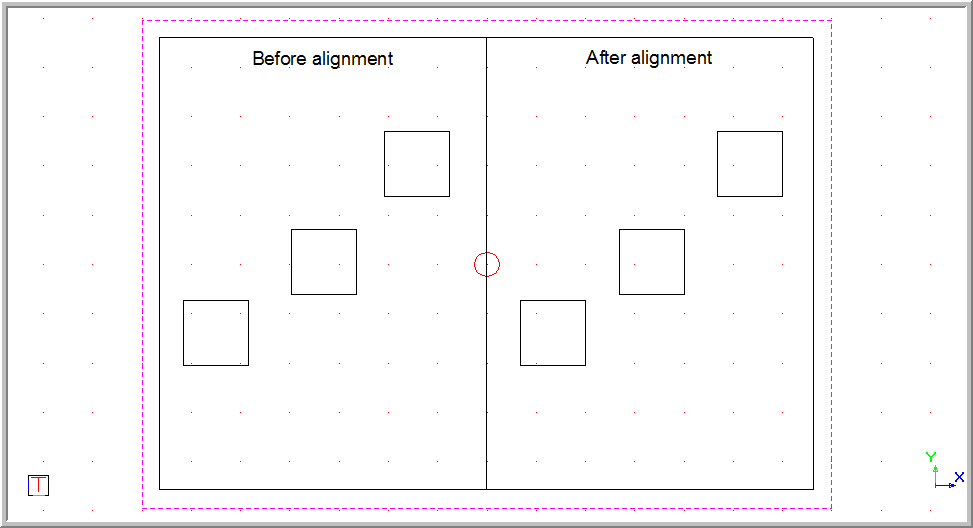
The example below has been aligned to the right.
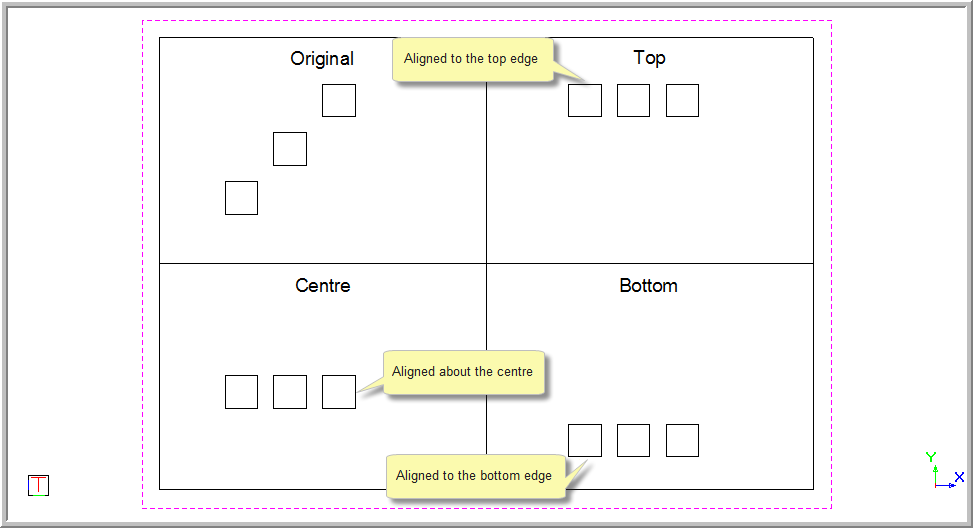
The example below shows three squares, which have been aligned vertically to the top, centre and bottom.
You can also use combinations of the vertical and horizontal options.
The three central boxes will be repositioned so that they are equally spread between the top and bottom boxes and aligned with the left most box.