Icon
Command
Shortcut Key
Toolbar

SOLIDQUAD
Drawing
Draw a filled 4-sided object.
|
Icon |
Command |
Shortcut Key |
Toolbar |
|
|
SOLIDQUAD |
|
Drawing |
This function allows you to draw a solid quad (filled 4-sided object) by indicating the four vertices of the quad.
Vertices should be drawn in an anti-clockwise order to assure that they look correct in the Render View.
 Unlike a 3D face, a quad can have a thickness.
Procedure
To draw filled 4-sided objects (solid quad):
Select Draw ► 3D Face ► Solid Quad or click the icon in the Drawing toolbar.
Indicate first point of the solid quad
Click in the drawing to indicate the first vertex of the quad.
Indicate next point of the solid quad (in anticlockwise order facing you)
You will not see anything until the second vertex is indicated by clicking or pressing [Enter] in the required position.
Move the cursor, in an anti-clockwise direction, to the position of the second point and click to indicate the point.
Indicate next point of the solid quad (in anticlockwise order facing you)
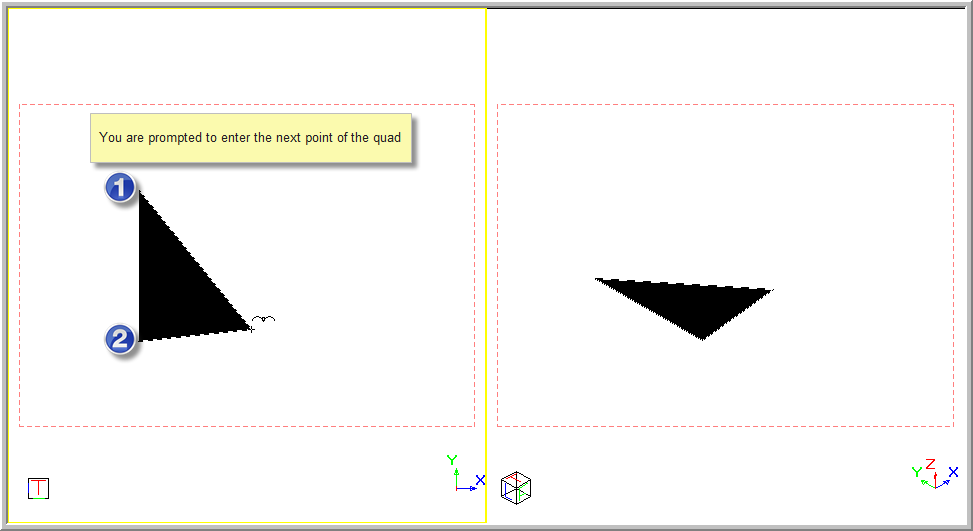
Move the cursor, in an anti-clockwise direction, to the position of the third point and click to indicate the point.
Indicate next point of the solid quad (in anticlockwise order facing you)
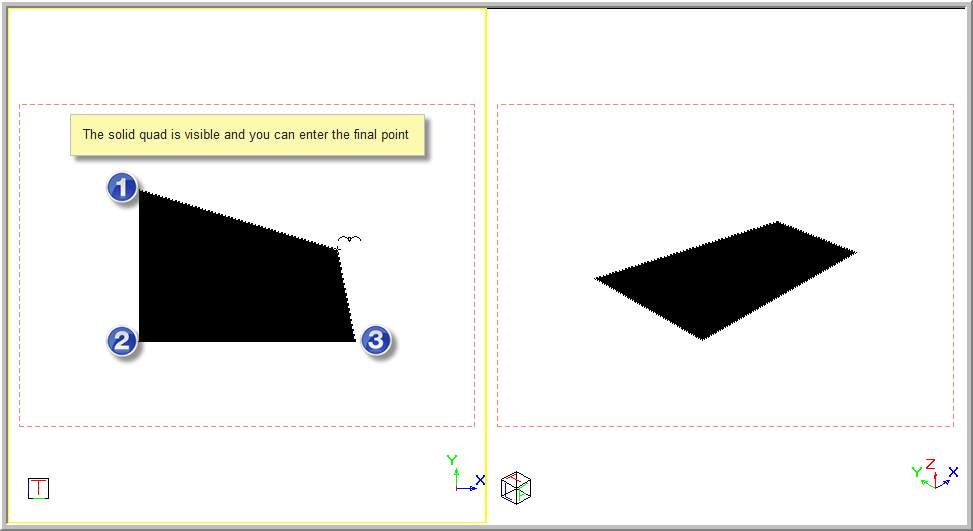
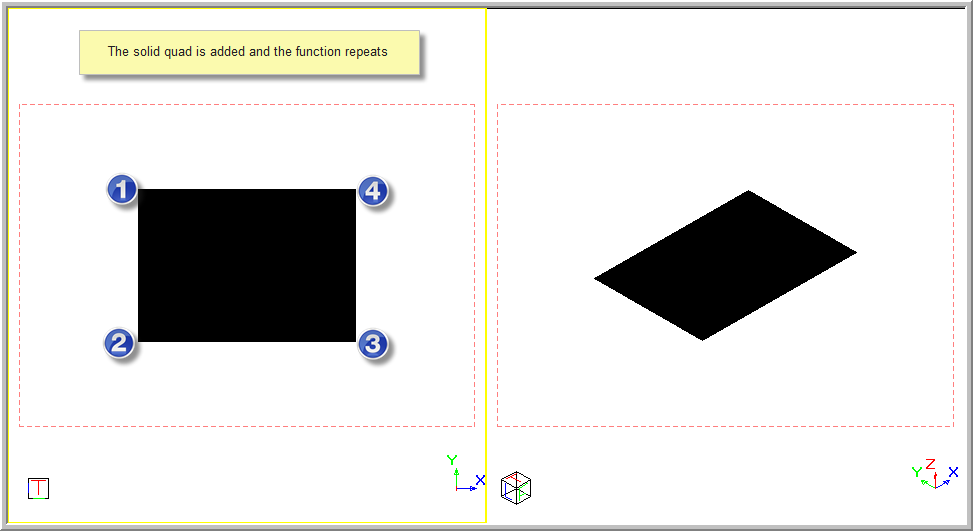
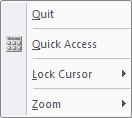
If you select Cancel, you will be able to start entering the points again.
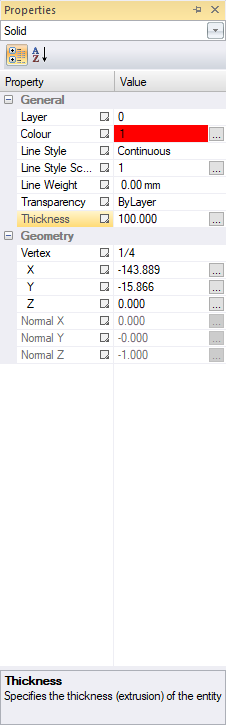
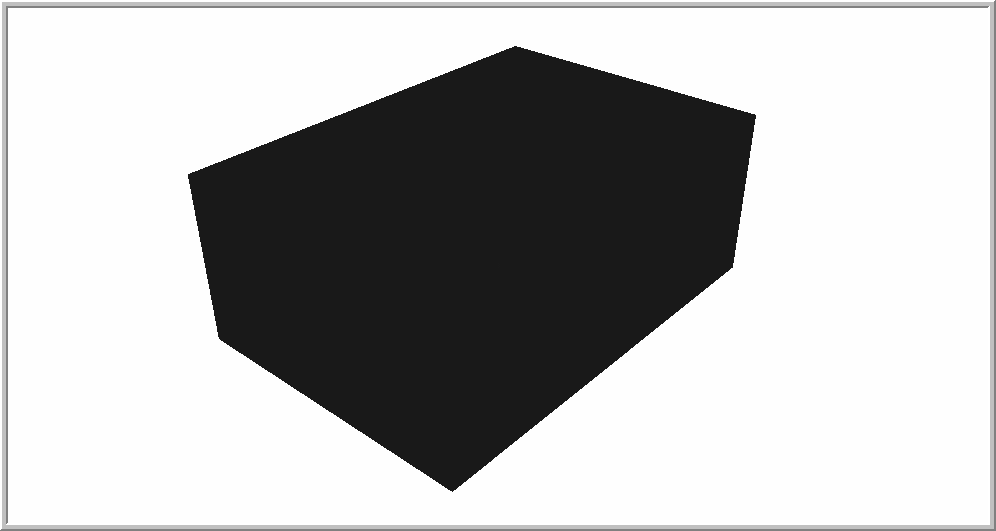
This is the solid quad with a thickness seen in a rendered view.