Icon
Command
Shortcut Key
Toolbar

DPFROMENTITIES
Drawing Plane
Set the drawing plane to the plane of an entity.
|
Icon |
Command |
Shortcut Key |
Toolbar |
|
|
DPFROMENTITIES |
|
Drawing Plane |
This function allows you to set the drawing plane to that of a drawing entity, by indicating an entity that lies on one plane.
The following can be indicated when using this function as they are always planar:
Lightweight Polyline
Circle
Rectangle
Ellipse (Elliptical Arc)
Arc, Multilines
Hatch
Text
Dimensions
The following can only be used only if they are planar:
Spline
Polyline
3D Face
 If you want to use some part of an entity that is planar, use View DP 3 Points to snap to three points on the entity.
Procedure
The diagram below shows a shaped block. The drawing plane is currently set in the face drawn in red.
The sloped surface highlighted in green is a planar entity drawn with a lightweight polyline.
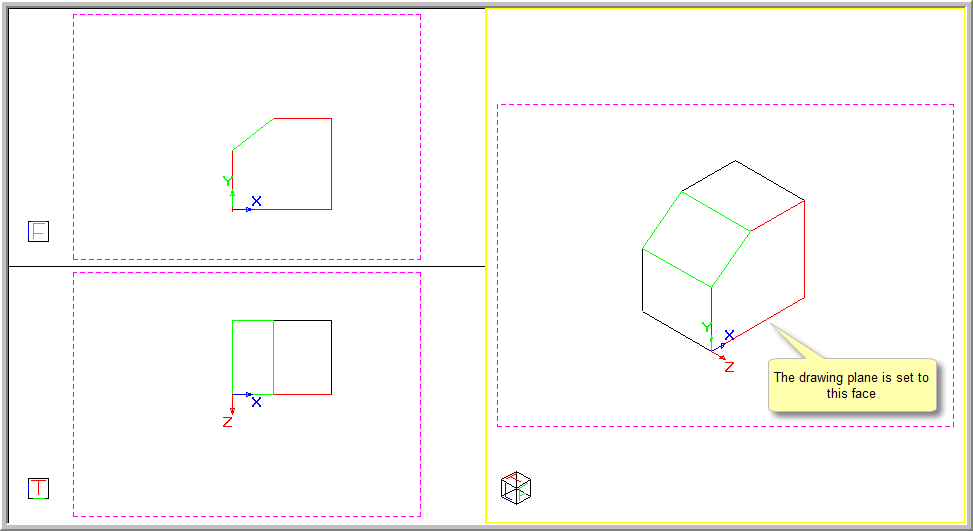
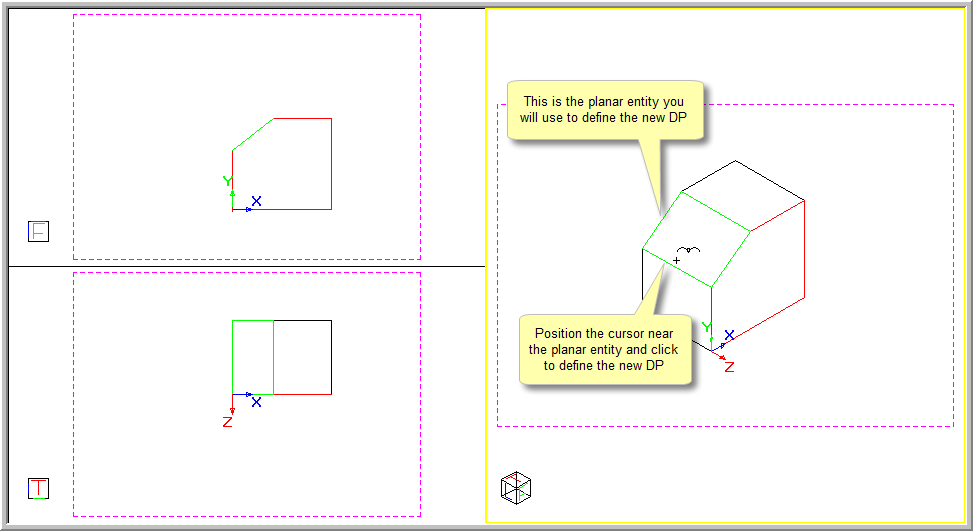
Indicate planar entity to define the new DP
Position the cursor near the planar entity, through which you would like the new drawing plane to pass, and click to indicate the entity.
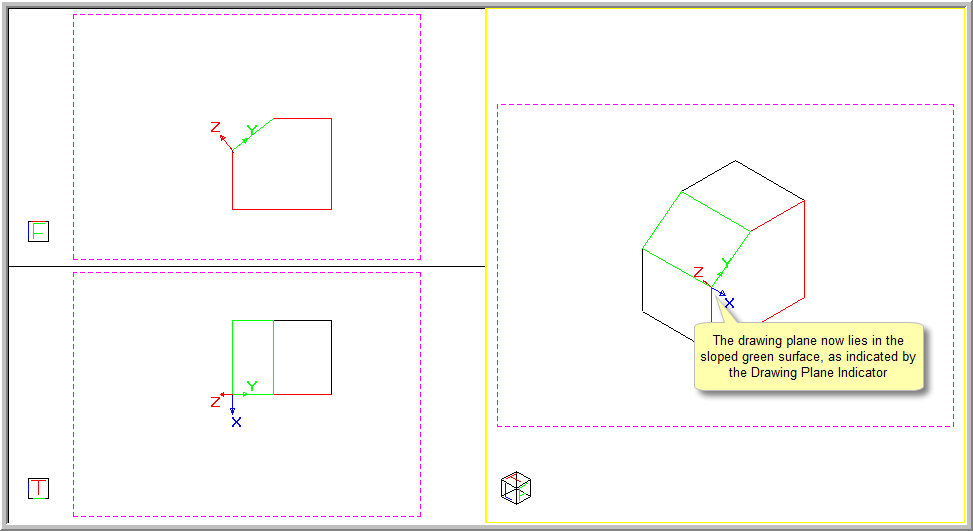
The drawing plane is now set to pass through the planar entity and the Drawing Plane Indicator changes to indicate the new drawing plane angle.
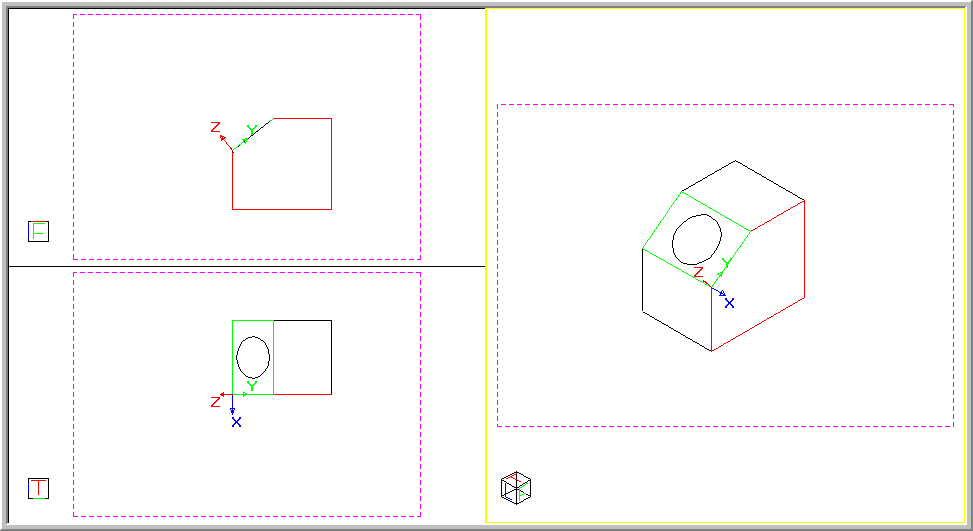
Now when you draw it is in this plane, as indicated by the circle drawn on the sloped surface below.