Icon
Command
Shortcut Key
Toolbar

DPFROMUSER
Drawing Plane
Set the drawing plane by indicating three points in the new plane.
|
Icon |
Command |
Shortcut Key |
Toolbar |
|
|
DPFROMUSER |
|
Drawing Plane |
This function allows you to create a user defined drawing plane by indicating three points on the required drawing plane.
Procedure
The diagram below shows a shaped block. The drawing plane is currently set in the face drawn in red.
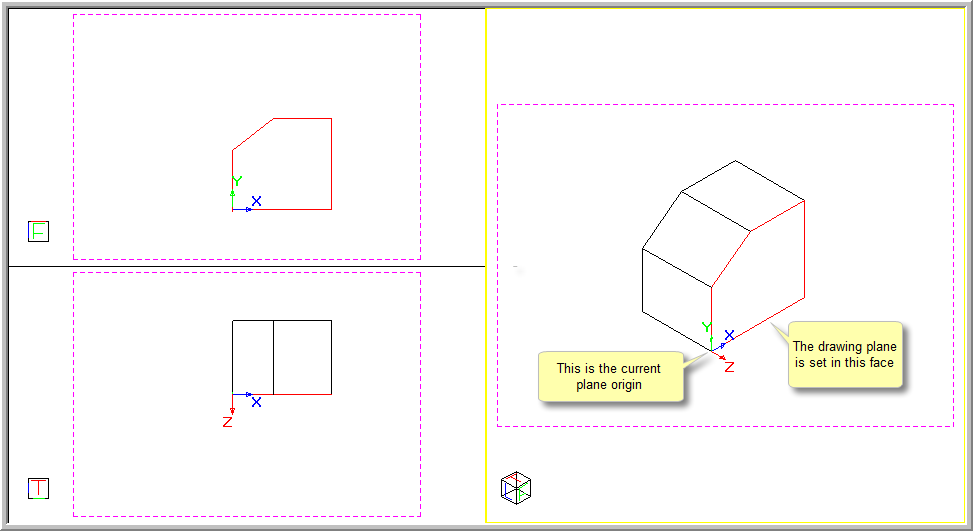
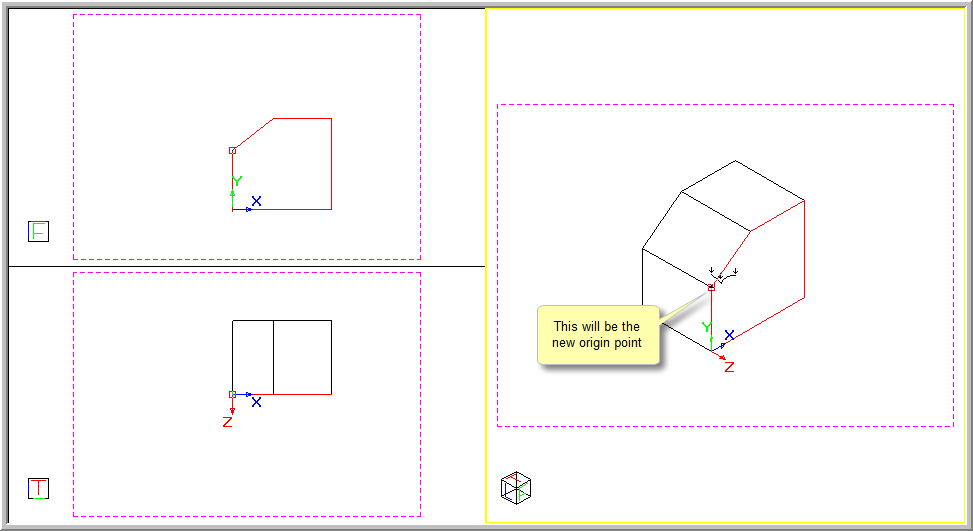
Snap on first point to indicate the new DP
Click on the first point of the new drawing plane. This will be the new drawing plane origin.
A line rubberbands from the indicated first point.
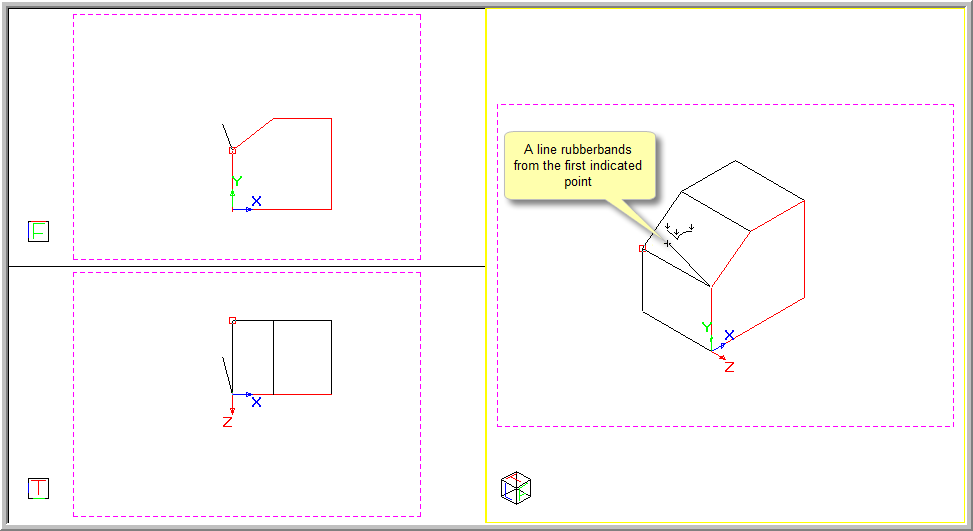
You are prompted to:
Snap on second point to indicate the new DP
Click on the second point of the new drawing plane. A rubberbanded triangle displays.
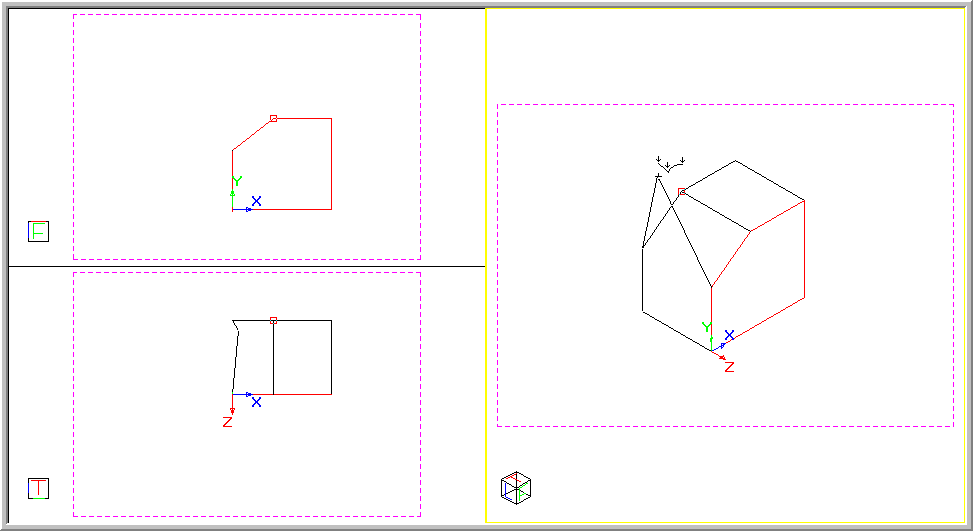
You are prompted to:
Snap on third point to indicate the new DP
Click on the third point. The Drawing Plane Indicator changes to indicate the new drawing plane angle, which is highlighted in red.
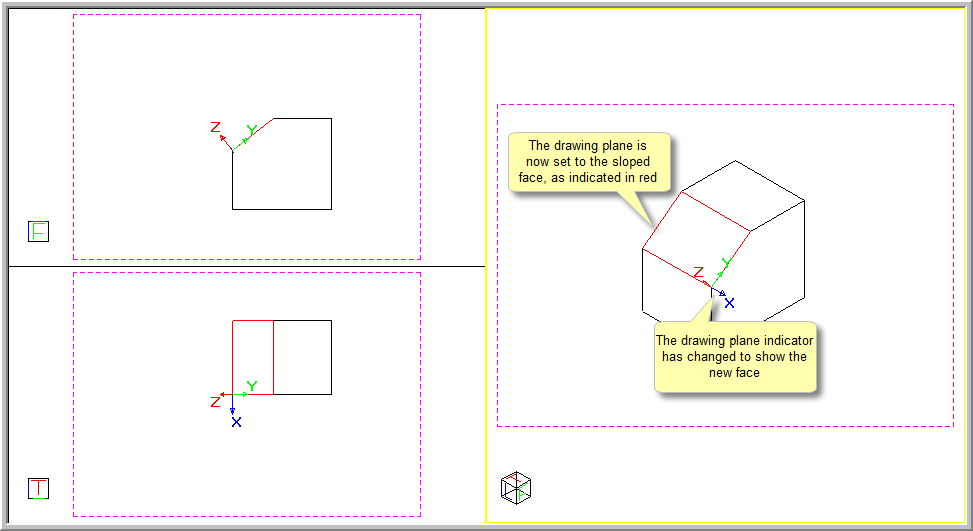
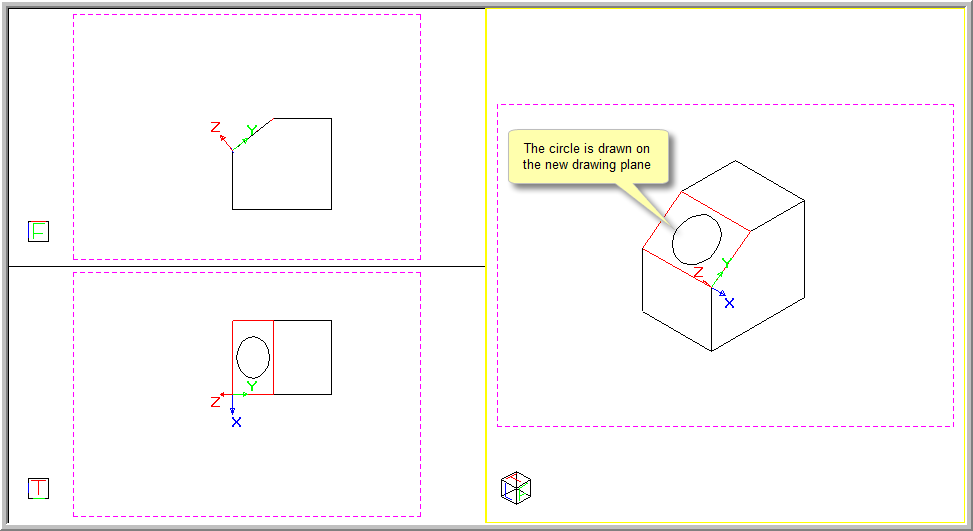
Now when you draw it is in this plane, as indicated by the circle drawn on the sloped surface below. The normal of the new drawing plane faces the same direction as the view i.e. the angle between the view vector and the drawing plane is less than 90°.