Icon
Command
Shortcut Key
Toolbar

IMAGES
Tools
Manage the images in the drawing.
|
Icon |
Command |
Shortcut Key |
Toolbar |
|
|
IMAGES |
|
Tools |
This function allows you to manage images in a drawing, including changing or fixing the image file path, making the image invisible, showing the image full size or removing the image from the drawing.
 Actions in the Image Manager take effect immediately and cannot be undone.
Procedure
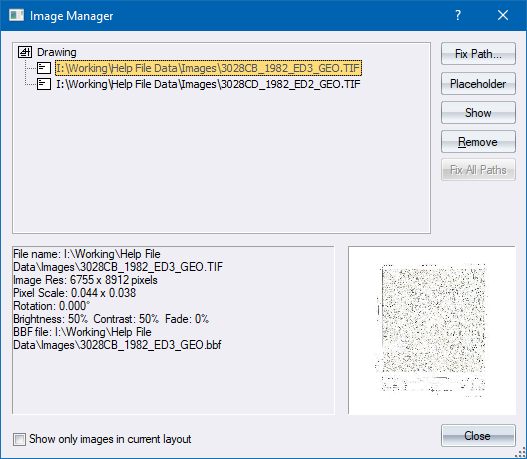
Select the relevant image from the image list by clicking on the file path. A preview of the image displays in the Image Manager, as well as the relevant information about the image.
Now you can perform various actions, including:
Changing or fixing the image path
Making images invisible/visible
Showing the image
Removing the image
Showing images in the current layout only
To change or fix an image path:
Select the relevant image from the list.
Click Fix Path... to display the file browser. Browse for an image to replace the selected image.
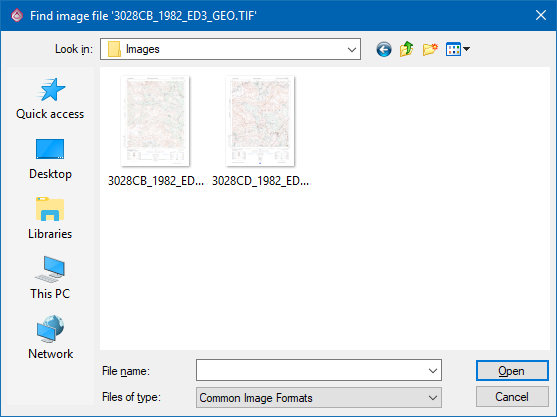
Click on the image to be used and then Open.
The path of the selected image is replaced with the new image, and the preview shows the new image you have chosen.
When you click Close, the image is updated in the drawing.
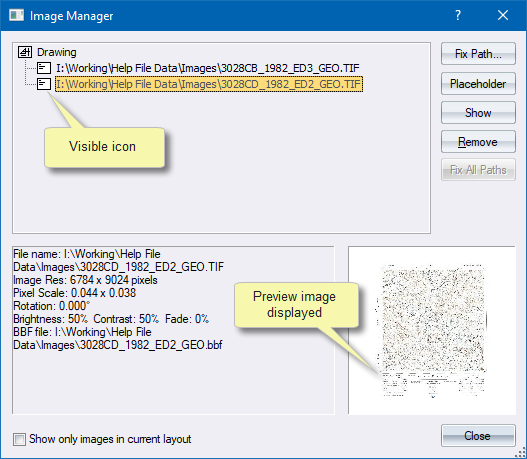
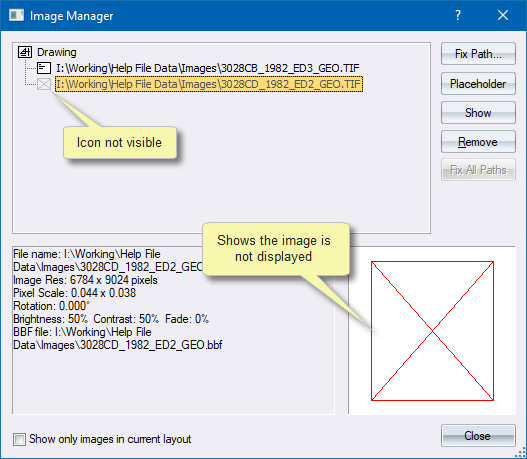
All the visible icons are marked with a visible icon in the image tree.
To make an image invisible:
Select the relevant image from the image list and click Placeholder.
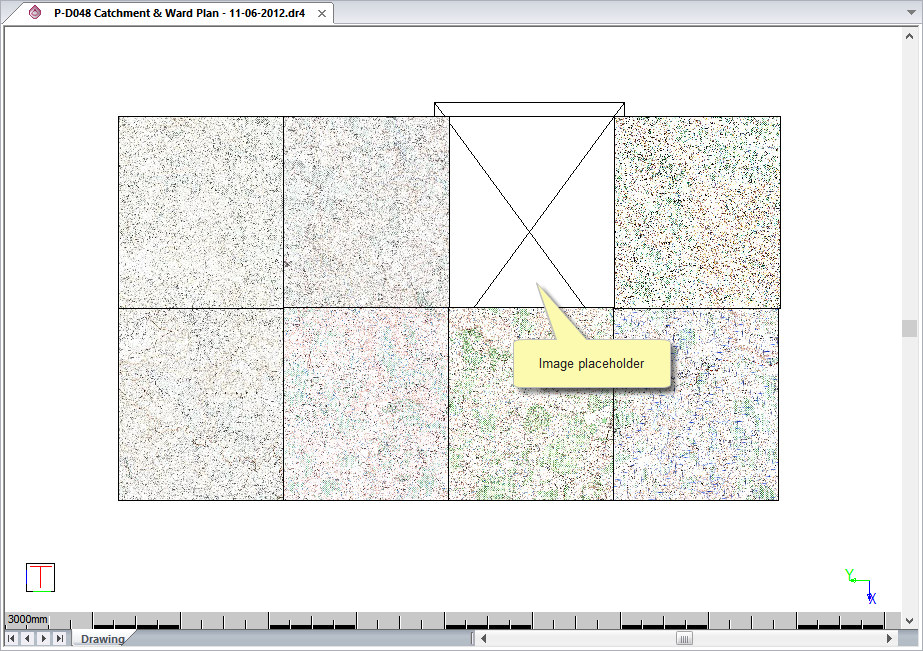
If the image was previously visible, it becomes invisible and a placeholder boundary box is drawn in its place.
The preview window and image tree show the new visibility state of the image.
When you click Close, a placeholder bounding box is shown in the position of the image.
To make a non-visible image visible, select it from the list and click Placeholder.
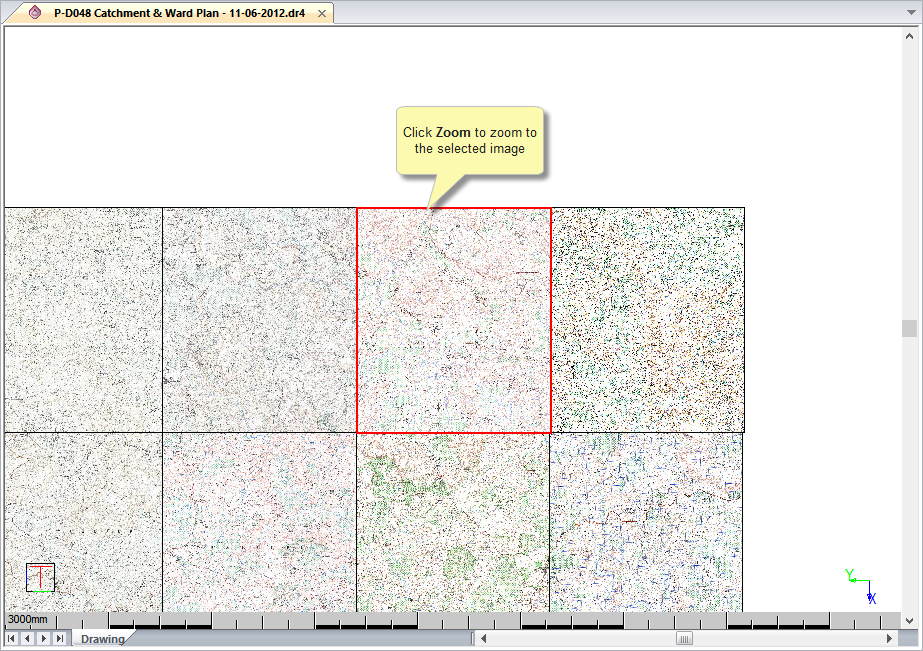
Select an image and click Show.
To remove an image from the drawing:
Select the relevant image from the image list and click Remove.
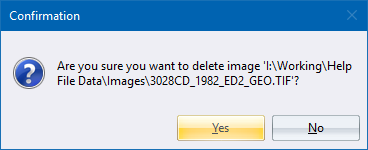
Click Yes to remove the image from the drawing. The image list is also updated.
This action cannot be undone.
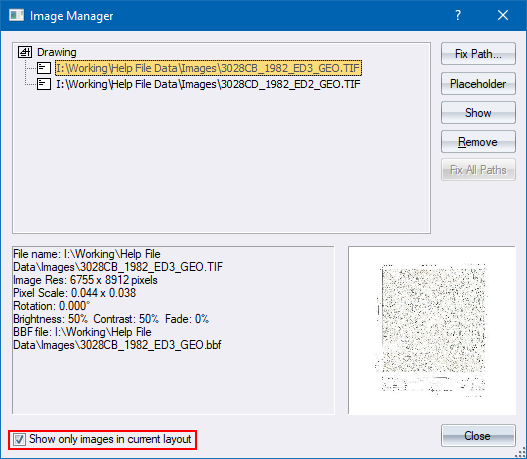
If you select this checkbox, only the images that are placed in the current view are displayed.