Icon
Command
Shortcut Key
Toolbar

YPERP
[Y]
Tools
Toggle the cursor lock angle by 90° from the current setting.
|
Icon |
Command |
Shortcut Key |
Toolbar |
|
|
YPERP |
[Y] |
Tools |
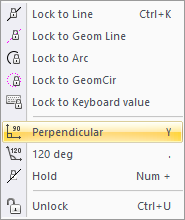
This function allows you to change the locked cursor angle to be perpendicular to the current setting. You can see the lock angle change by 90° in the Status Bar.
Procedure
To change the locked cursor angle to be perpendicular to the current setting:
Press [+] on the numeric keypad to activate the cursor lock. The lock angle is shown in red text if active.

If no lock is present then the cursor will be locked to 90°.
Select Tools ► Lock Cursor ► Perpendicular to change the lock angle to be perpendicular to the current setting. Now when you move the mouse, you see the cursor lock angle has changed by 90°.

To deactivate the cursor lock, press [+] on the numeric keypad. Alternatively, the locked cursor can be unlocked by pressing [Ctrl+U] or [K+U]; or selecting Tools ► Lock Cursor ► Unlock.