Icon
Command
Shortcut Key
Toolbar

TABLESTYLES
Settings
View and edit the table styles in the drawing and set the current table style.
|
Icon |
Command |
Shortcut Key |
Toolbar |
|
|
TABLESTYLES |
|
Settings |
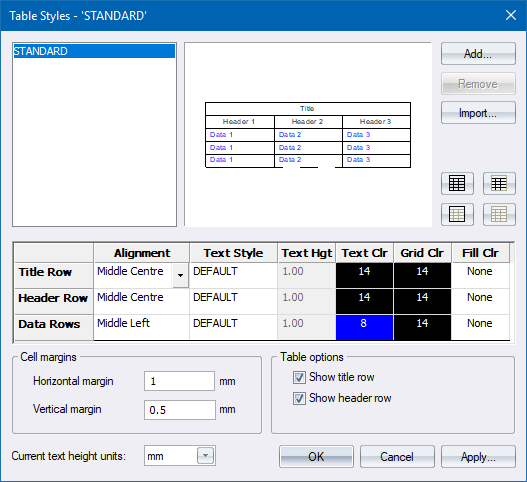
This function allows you to manage the table styles in the drawing. You can add new styles, remove styles or edit existing table styles. The Table Styles do not allow you to add extra rows, columns or edit the table text. To do this you need to select the table and view its properties (see Insert Table).
 Table styles referenced by tables in the drawing cannot be removed.
Procedure
The Table Styles window displays.
To add a new table style:
Click Add.
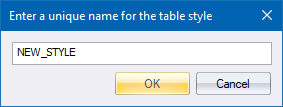
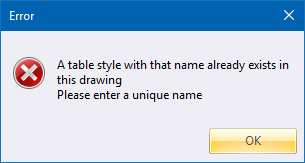
The new name is verified for uniqueness. If the name already exists, the following Error message display. Click OK and re-enter a new name.
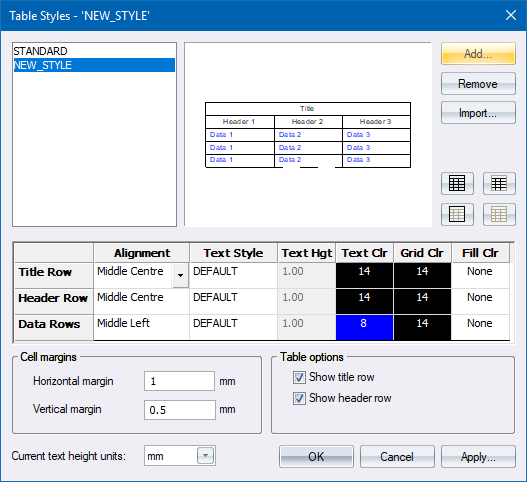
Select the table style name in the list of tables. The selected table style's properties display in the table style grid, and a sample displays in the preview window.
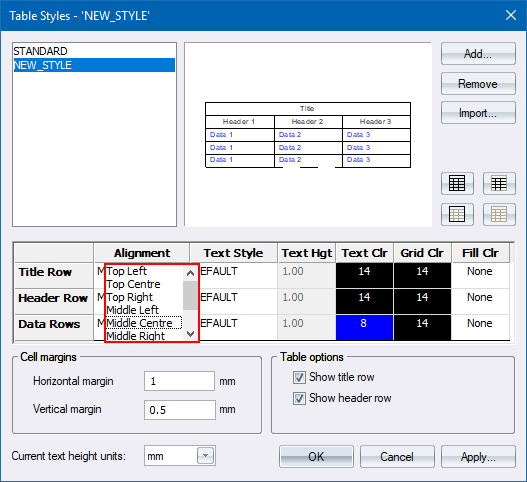
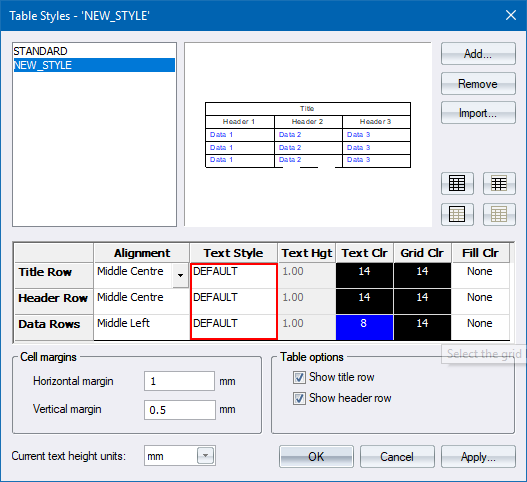
To change the Text Height, click in the text box and type in the value you require. The preview is updated when you click in another box.
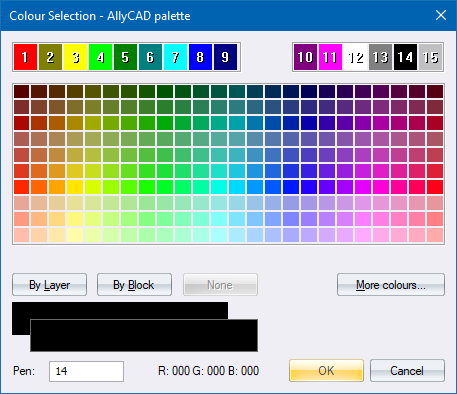
The Grid Colour can be selected in the same way as the Text Colour.
To select a colour as a background fill for the table, right-click on the Fill Clr box in the row whose colour you want to change. Select the new colour form the Colour Selection palette.
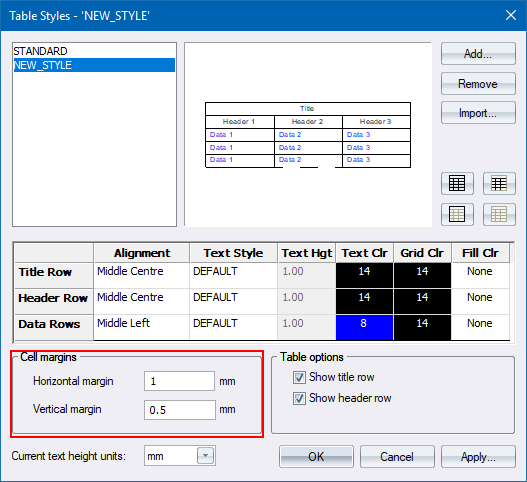
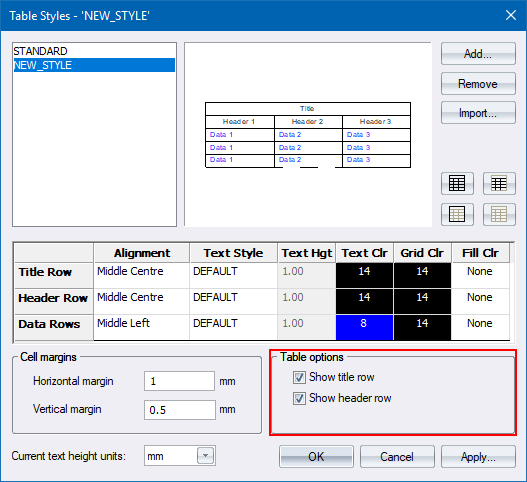
To apply the changes to a table in the drawing:
Select the table style you want to apply from the table list.
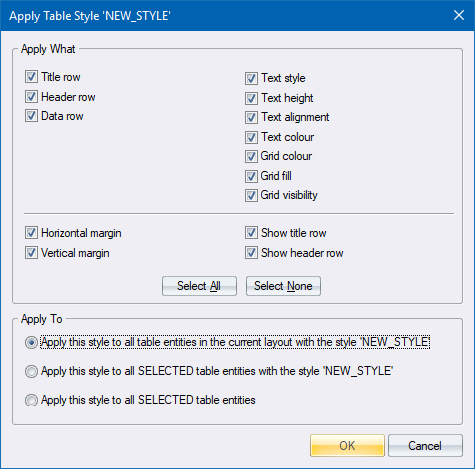
To remove a table style from the Table Styles list:
Select the style to be removed.
If the table style has not been used in the current drawing, the Remove button is enabled.
Click Remove.