Icon
Command
Shortcut Key
Toolbar

MOVELAYER
Modify
Move a selection set to a specified layer.
|
Icon |
Command |
Shortcut Key |
Toolbar |
|
|
MOVELAYER |
|
Modify |
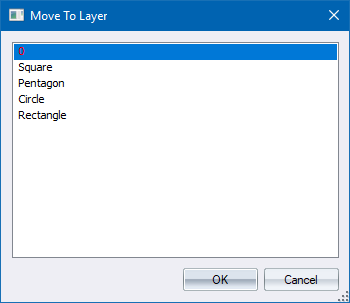
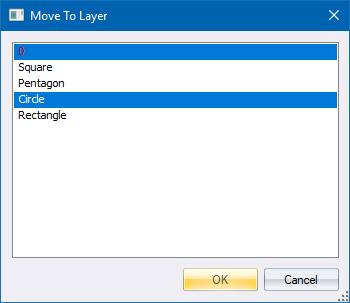
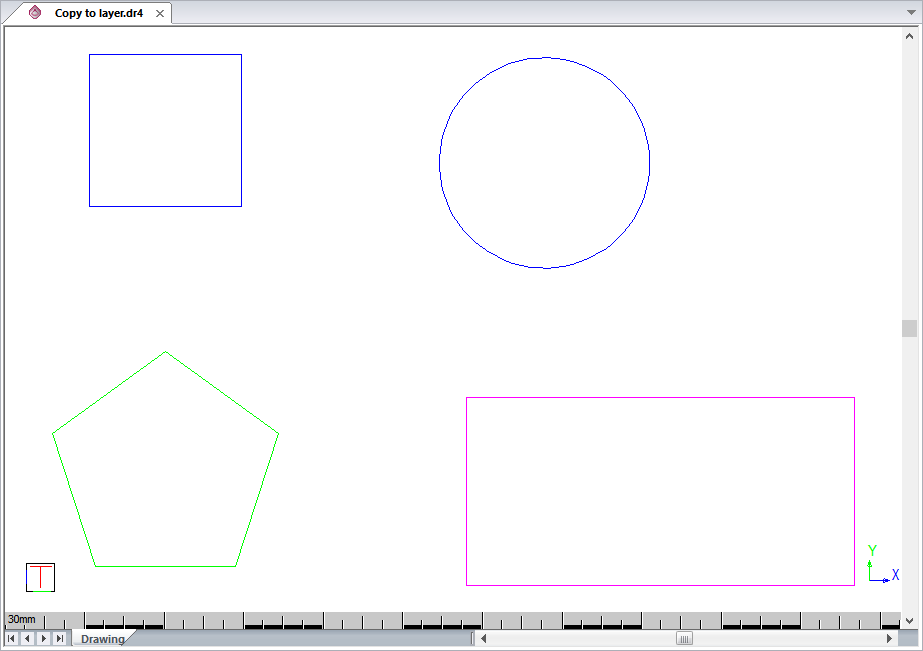
This function allows you to move entities in a drawing from one layer to another, by selecting the entities. You can select the layer to move the selected entities to from a list of available layers.
 Struck out layer names indicate that the layer is locked and cannot be selected. Use the Layer Settings to change the locked state of the layer. Layer names that are greyed out indicate that the layer is not visible and entities moved to this layer will not be drawn until the layer's visible state is changed. Use the Layer Settings or the Set Visible Layers options to change the visible state of a layer.
Procedure
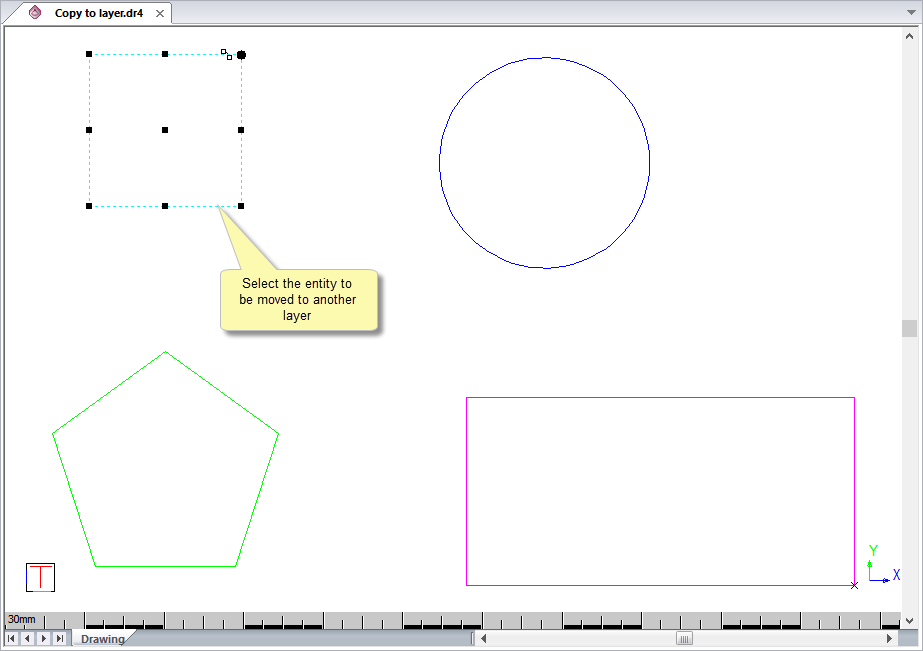
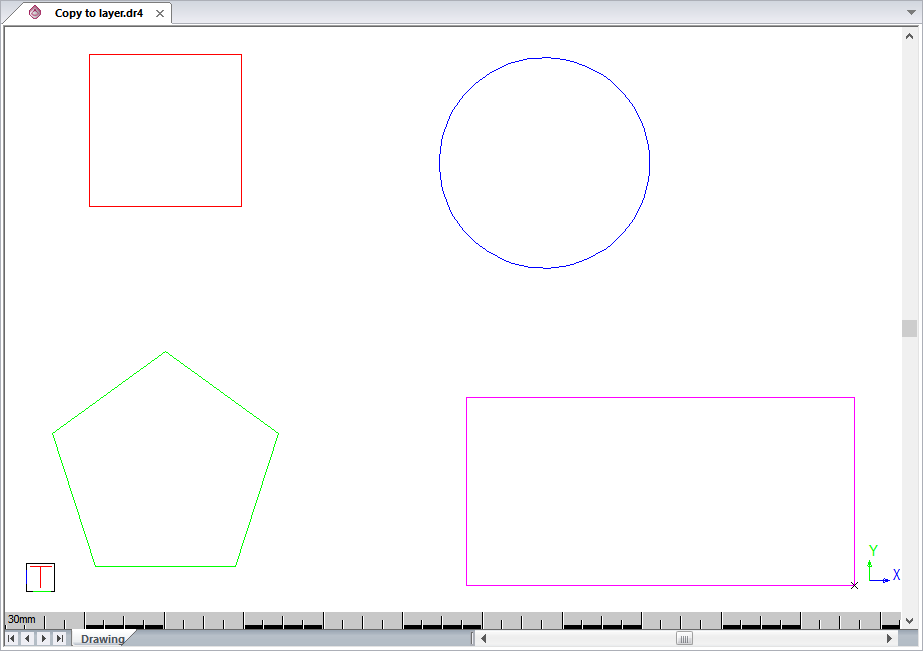
The entities are all drawn in a separate layer with different colours as shown in the Layer Settings below.
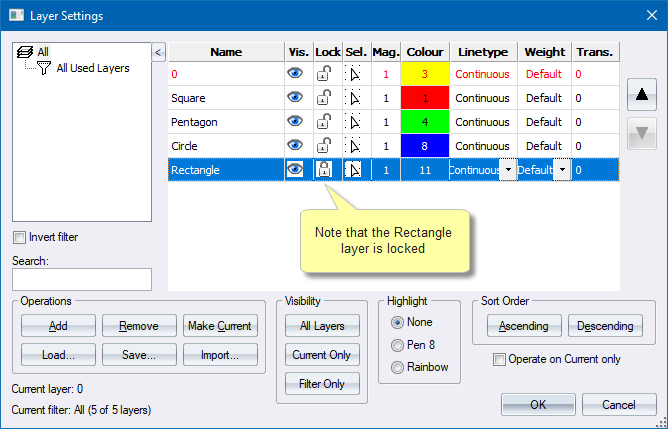
The square is in the Square layer, the pentagon in the Pentagon layer, the circle in the Circle layer and the rectangle in the Rectangle layer.
Because they are drawn in By Layer colours, the colour of the entity is determined by the layer colour.
To move an entity in a drawing from one layer to another: