Icon
Command
Shortcut Key
Toolbar

SAVE
[Ctrl+S]
Main
Save the current drawing with the original path and filename.
|
Icon |
Command |
Shortcut Key |
Toolbar |
|
|
SAVE |
[Ctrl+S] |
Main |
This function allows you to save the current drawing with all modifications. The original file is renamed with a .bak extension before the save takes place. This prevents data loss in the case of a problem occurring during the save.
If this drawing is a new drawing, created with the New or New from Template commands, the Save As function is run instead in order to give the drawing a path and filename.
 If you have multiple drawings open, make sure the drawing you want to save is the active (current) drawing. The Title Bar for the window containing the current drawing is displayed in a different colour to that of the other drawing windows.
Procedure
To save a drawing under its current name and file path:
Select File ► Save or click the icon in the Main toolbar.
If the drawing has been saved previously, the drawing is automatically saved. If you have created a new drawing, or used a template for the drawing, the Save As function is run instead in order to give the drawing a path and filename.
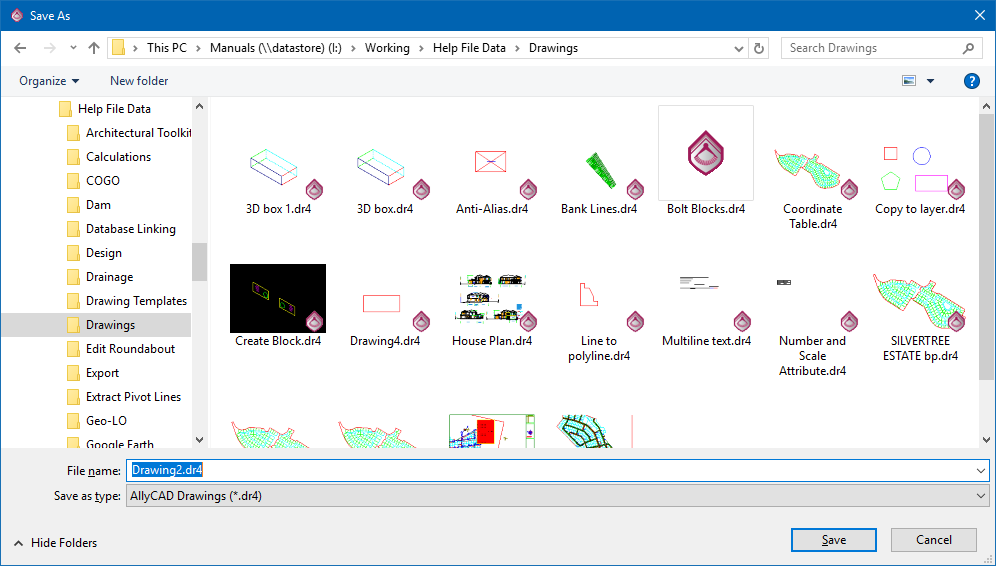
You can select the format in which you want to save the drawing from the File Filter dropdown list. The types of drawing that can be saved are AllyCAD 8.0 (.dr4) and AutoCAD (.dwg and .dxf). If you are saving as an AutoCAD drawing, you can also select to save in R13, R14, 2000-2002, 2004-2006, 2007 - 2009 or 2010-2012 formats, depending on the program that will be opening the saved drawing at a later stage. The extension of the given filename is automatically updated when you select a different save format from the list.
If the drawing is being worked on at the same time on a network by two or more people, the first person to save performs a normal save with the same original filename. Saves made after this are prompted:
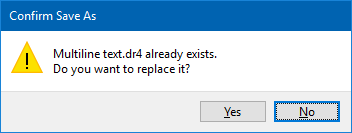
Click Yes to overwrite the existing drawing file, or click No to continue with the Save As function instead.
If you decide to save a drawing that has not been altered since the last save, you will be prompted:
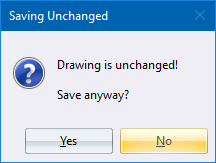
Click Yes to save the drawing again, or click No to cancel the save altogether.