Icon
Command
Shortcut Key
Toolbar

MESHCONE
3D Shapes
Draw a 3D conical shape.
|
Icon |
Command |
Shortcut Key |
Toolbar |
|
|
MESHCONE |
|
3D Shapes |
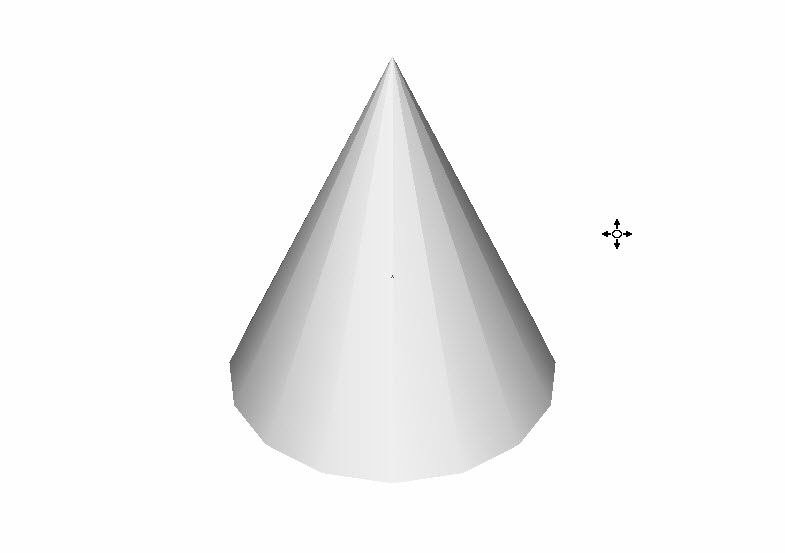
This function allows you to draw a 3D cone or truncated cone, with user-defined base radius, top radius and height, using an advanced form of the polygon mesh.
 Mesh entities are always drawn with CONTINUOUS line type.
Procedure

You can set the base radius, top radius and height of the cone, as well as the number of segments on the circles.
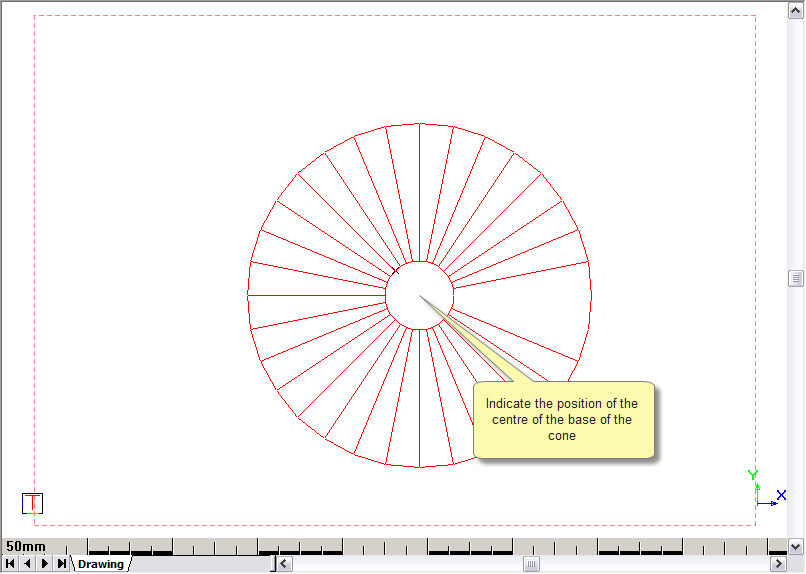
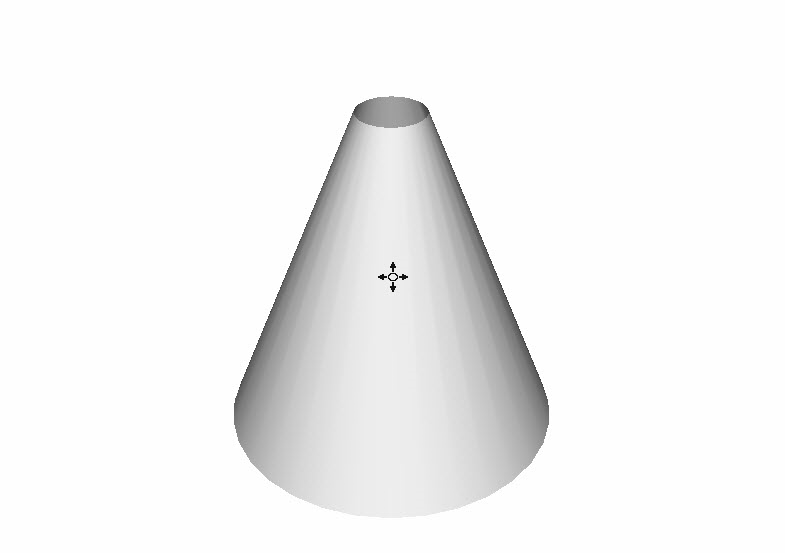
The example above illustrates a truncated cone.
To create a standard cone, specify the Top radius as zero.