Icon
Command
Shortcut Key
Toolbar

DIMMLEADER
Add a text item or block with multiple leaders and arrows.
|
Icon |
Command |
Shortcut Key |
Toolbar |
|
|
DIMMLEADER |
|
|
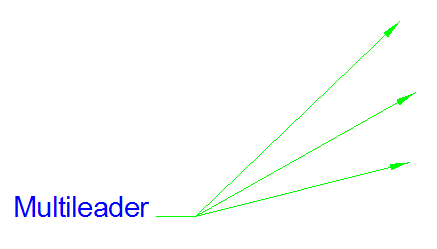
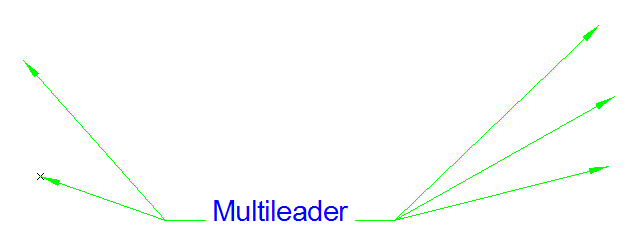
This functions allows you to add a text item or block to the drawing with multiple leaders and arrows.
This can consist of:
Multiple arrows from one text item:
Arrows from both sides of a text item:
Procedure
You are prompted to:

Open the Style dropdown list, which displays all the current styles in the drawing.

Select the desired style from the dropdown list.
 .
.
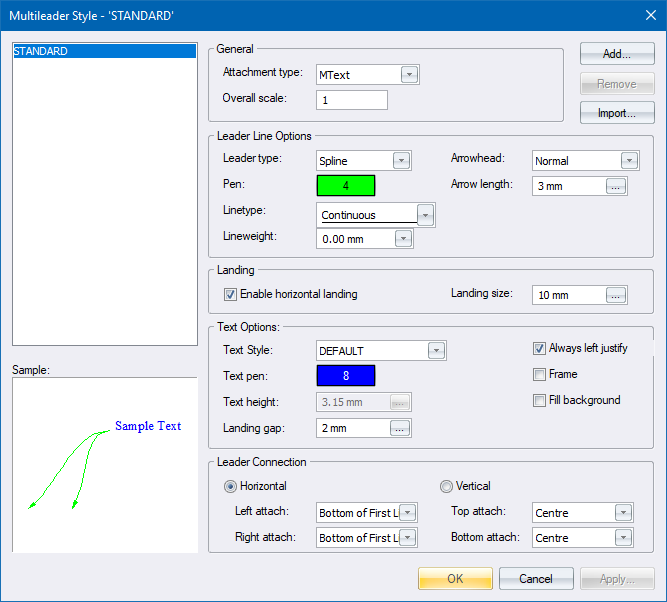
A multileader can have either a multiline text item or a block as an attachment; or it can be used on it's own without an attachment.
To specify which attachment this multileader has:


Select the mleader entity.
Right-click and select Add leader line from the context menu.
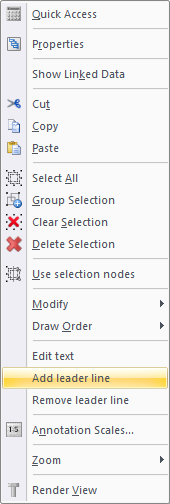
You are prompted to:
Indicate arrowhead point of leader
The new leader line should be drawn rubberbanded and connected to the left or right landing point of the mleader, depending on where you move the mouse relative to the landing points.
Click anywhere to add the first point of the leader line. In the image below we have snapped to the box edge using the “nearest entity” snap.
You be prompted to:
Indicate next point of leader (Right-click for more options)
If you right-click and select Finish, the mleader is drawn with its new leader line and the function ends.
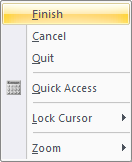
If, however, you right-click and select Cancel, you are prompted to indicate another mleader to add a leader line to.
Select an mleader entity with more than one leader line.
Right-click and select Remove leader line from the context menu.
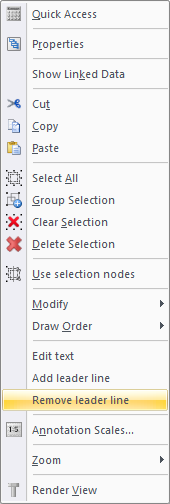
You are prompted to:
Indicate leader line to remove
Click on the leader line you want to remove and it disappears from the screen.
If the mleader still has more than one leader line remaining, you can continue to indicate further leader lines to remove.
Right-click and select Finish from the context menu.