Create and edit multileader styles.
|
Option
|
Description
|
|---|---|
|
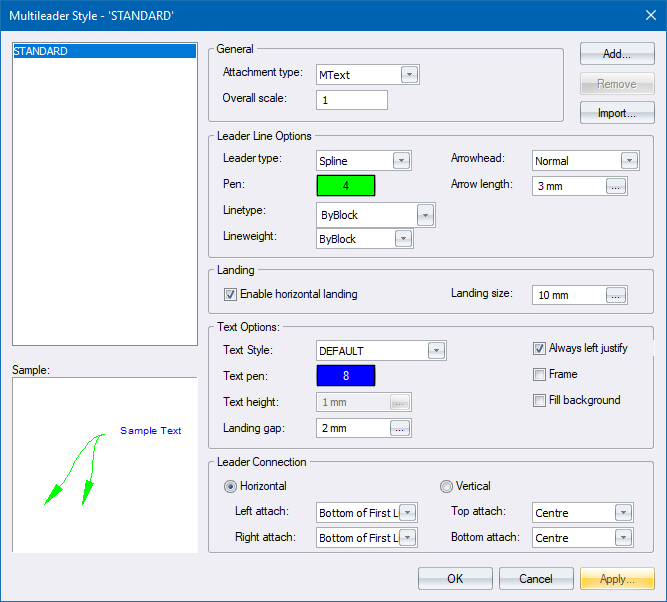
General |
|
|
Attachment Type |
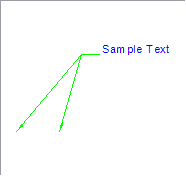
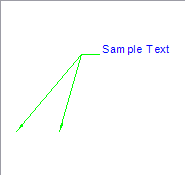
Specify which object must be attached to the multileader:
|
|
Overall scale |
Specify the scale to be applied to the attachment and the arrow heads. |
|
Leader Line Options |
|
|
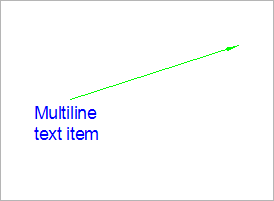
Leader Type |
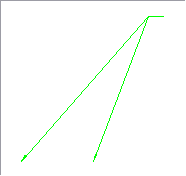
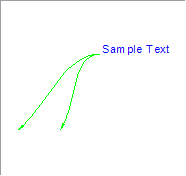
Set the leader line to one of the following:
|
|
Pen |
Set the pen for the leader lines and arrow heads. |
|
Linetype |
Set the line type for the leader lines.
|
|
Lineweight |
Set the line weight for the leader lines. |
|
Arrowhead |
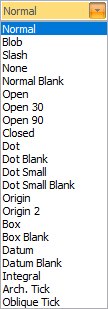
Set the arrowhead type.
|
|
Arrow length |
Set the size of the arrowhead. |
|
Landing |
|
|
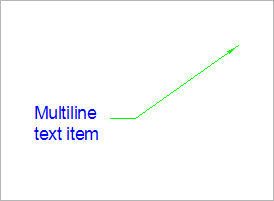
Enable horizontal landing |
|
|
Landing size |
The length of the common part of the leader lines. This only applies to the straight leader type |
|
Text Options |
|
|
Text Style |
Select the text style for the multiline text. |
|
Text angle |
Set the angle of the text:
|
|
Text pen |
Set the text pen. |
|
Text height |
Set the height of the text. |
|
Landing gap |
The gap between the leader text and the start of the leader lines. |
|
Always left justify |
Select this option to force the text to be left-justified. |
|
Frame |
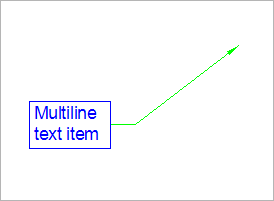
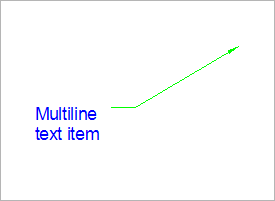
Select this checkbox to add a frame around the multiline text |
|
Fill Background |
Fill the frame around the mtext entity with a background colour. |
|
Leader Connection |
|
|
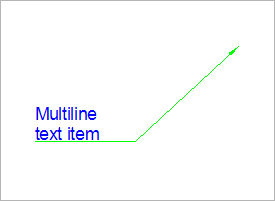
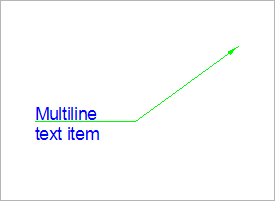
Horizontal / Vertical |
Specify if the leader line must connect to the left/right (horizontal) or top/bottom (vertical). |
|
Left attach |
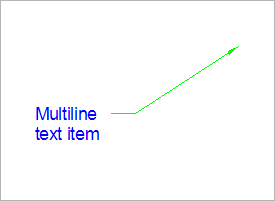
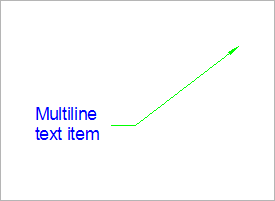
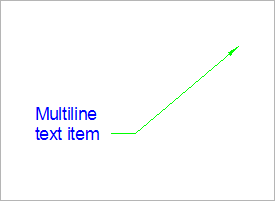
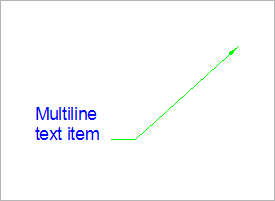
Specify where on the bounding box the leader line must connect to the multiline text if the horizontal attachment option is selected: |
|
|
|
|
Top attach |
Specify where on the bounding box the leader line must connect to the multiline text if the vertical attachment option is selected:
|
|
Apply Button |
Apply the selected multileader styles to existing multileader entities. |