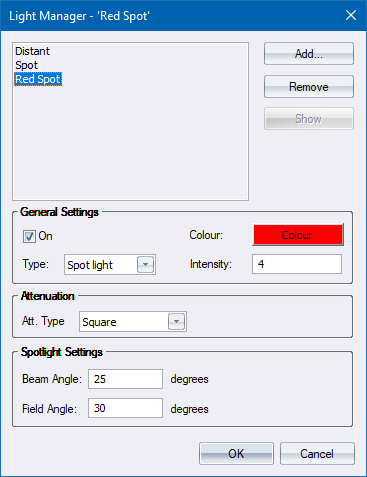
Manage the light entities in your drawing for the rendered view.
|
Option
|
Description |
|
List |
Displays a list of all lights defined in the drawing. |
|
Add button |
Click to add a new light to the drawing. |
|
Remove button |
Click to remove the selected light. |
|
Show button |
Click to zoom the drawing to the selected light. |
|
General Settings |
|
|
On |
Select this checkbox to have the selected light switched on i.e. it will affect the lighting in the render view. |
|
Type |
Select the type of the selected light from the dropdown list. The options are Distant, Point and Spotlight. |
|
Colour button |
Click to select a colour for the selected light. |
|
Intensity |
Enter an intensity value for the selected light (see the notes below). |
|
Attenuation |
|
|
Att. Type |
Select the attenuation type for the selected light. Options are None, Linear and Square. This setting only applies to Point and Spotlight types. Distant lights are always set to None. |
|
Spotlight Settings |
|
|
Beam Angle |
Enter the included angle, in degrees, for the Spotlight beam. |
|
Field Angle |
Enter the included angle plus falloff angle, in degrees, for the Spotlight beam. |
 Intensity is actually a "brightness multiplier" and can be interpreted as the dropoff distance for attenuated lights. For Distant lights, and lights whose attenuation type is set to None, this value is usually between 0.0 and 1.0.