|
Option
|
Description |
|
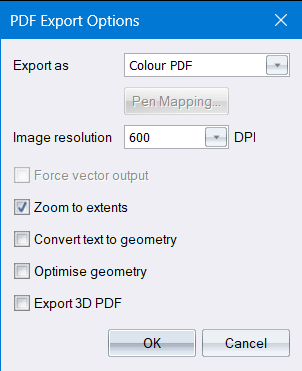
Export as |
Select whether to export as a Colour PDF, Monochrome PDF or Greyscale PDF or Use Print Pen Mapping. |
|
Pen Mapping |
If you select the “Use Print Pen Mapping” option above, then the “Pen Mapping” button will be enabled, allowing you to view and change the current pen mapping, which is used when printing with pen mapping or PDF Export with pen mapping. |
|
Image resolution |
Select a resolution (in Dots Per Inch) for the images in the PDF. Lower DPI results in smaller PDF files, while higher DPI results in higher image quality in the PDF but larger PDF file sizes. |
|
Force vector output |
Select to ensure that your PDF contains vector objects and text objects. If the Draw filled 3D faces using shading option is selected in View Settings, every page in the exported PDF can consist of just one Bitmap image. |
|
Zoom to extents |
Select this checkbox to include the extents of the drawing in the exported PDF. |
|
Convert text to geometry |
Select this checkbox to explode text into lines, polylines and polygons in the PDF output. |
|
Optimise geometry |
Select this checkbox to enable a simple geometry optimisation (contiguous line segments are combined into a polyline). |