Icon
Command
Shortcut Key
Toolbar

VIEWACTIVE
Misc
Select a view in the drawing as the active view.
|
Icon |
Command |
Shortcut Key |
Toolbar |
|
|
VIEWACTIVE |
|
Misc |
This function allows you to change the active view. Alternatively, you can click in another view to make it the active view. The active view is highlighted by a yellow frame.
 Views are only active in drawing space and not in layouts.
Procedure
The drawing area needs to be spit into multiple views to use this function.
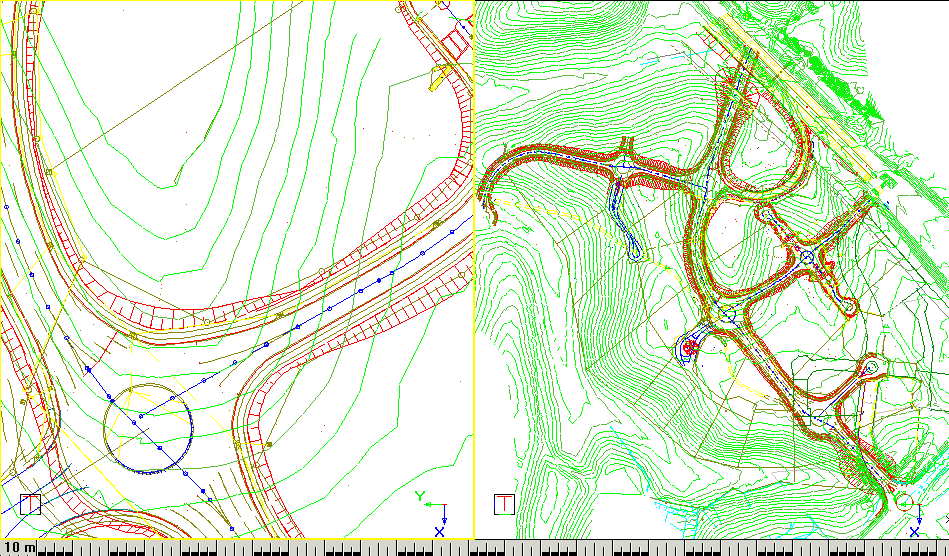
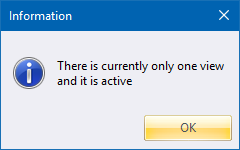
If the drawing area only has one viewport, the following message displays.
To change the active view:
Select View ► Activate View.
Indicate view to activate
Click in the view you want to activate. The view you click in becomes the active view and will be highlighted with a yellow border.
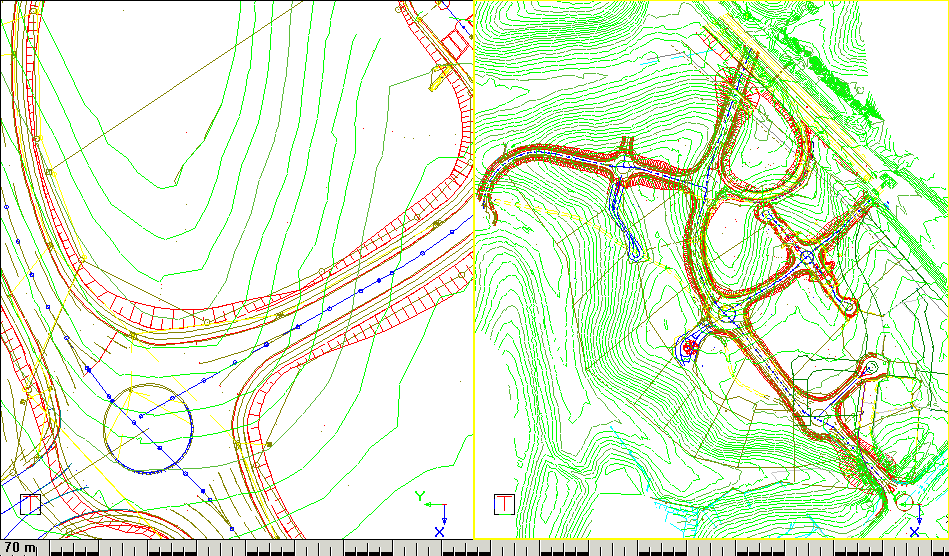
You can also simply click in the view you would like to make the active view.