Icon
Command
Shortcut Key
Toolbar

PUBLISH
Misc
Save one or more layouts as individual drawings.
Icon |
Command |
Shortcut Key |
Toolbar |
|
PUBLISH |
|
Misc |
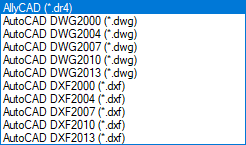
This function allows you to convert one or more layouts into individual drawings in .DR4, .DWG or .DXF file format.
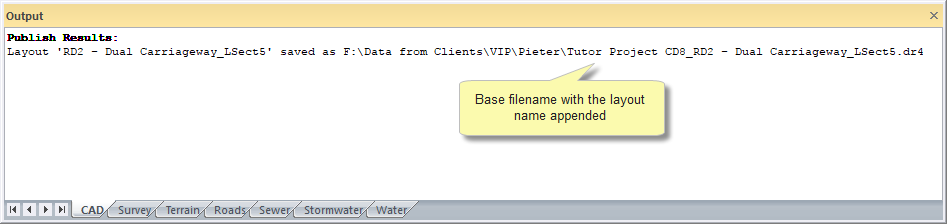
The Publish function embeds all sub-drawings and blocks in the drawing files, so they can be archived independently of any exterior data. The resulting file's name is appended with the name of the layout. For example, if the layout is called "Detail" and the drawing file is called "My Drawing", the published file is called "My Drawing_Detail".
Procedure
A list of existing layouts displays in the Select Layers to Publish window.
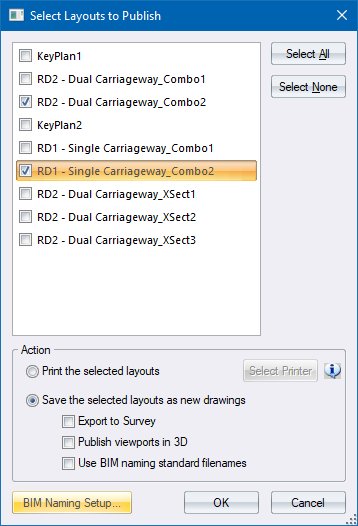
Option
|
Description |
List of Layouts |
A list of all the layouts in the drawing. If the checkbox is selected, the layout will be published. |
Select All |
Click to select all the layouts. |
Select None |
Click to deselect all the layouts. |
Action Section |
|
Print the selected layouts |
Select this option to print the layouts. |
Save the selected layouts as new drawings |
Select this option to save each of the selected layouts as a new drawing (Publish). The following two options are available: |
Export to Survey |
Select this checkbox to publish the layouts in survey coordinates. This option is only available for drawing with survey coordinates. |
Publish viewports as 3D |
Select this checkbox to publish all the data with a height value (z coordinate). In effect, this option creates a 3D drawing. |
Use BIM naming standard filenames |
Select this option to set the filename of the published drawings according to the BIM naming standard. |
BIM Naming Setup button |
Click to open the BIM Naming Standard dialog where you can set or change the values you want to appear in the plot-generated output for the BIM Zone, Level, Starting Document Number and Revision.
|
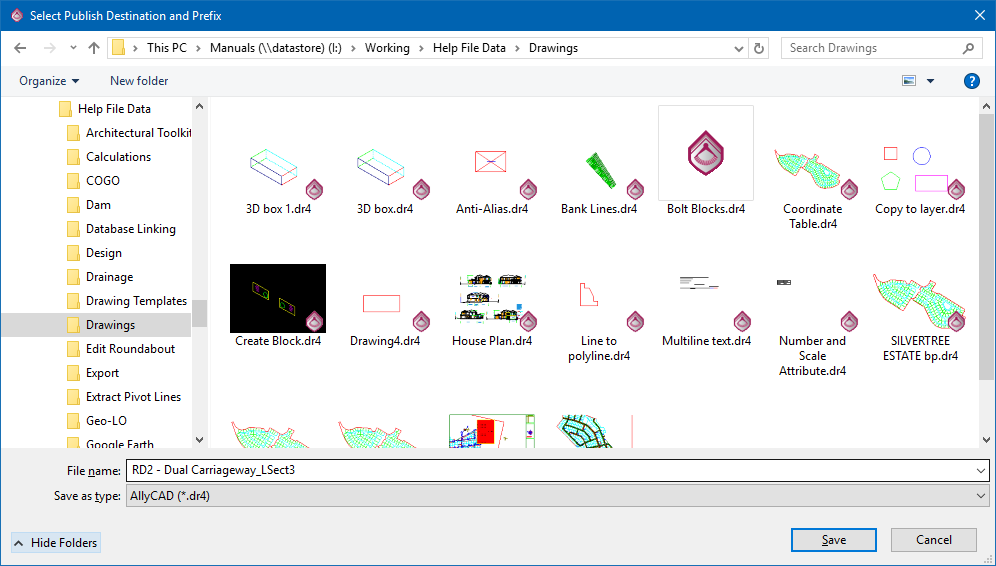
Select the layouts you want to publish and click OK. The standard File Save window displays.
 The current Civil Designer drawing/project must be named according
to the BS1192 naming standard for this system to work.
The current Civil Designer drawing/project must be named according
to the BS1192 naming standard for this system to work.