Icon
Command
Shortcut Key
Toolbar

ZOOMWIN
[Z]+[W]
Zooms
Zoom the active viewport to a zoom box you indicate in the drawing.
|
Icon |
Command |
Shortcut Key |
Toolbar |
|
|
ZOOMWIN |
[Z]+[W] |
Zooms |
This function allows you to zoom to a view a specified area in the drawing by defining the rectangular area in which to zoom.
Procedure
If you have split the drawing into multiple viewports, you need to click in the viewport you want to zoom to make it active.
To zoom to view a specified area in the drawing:
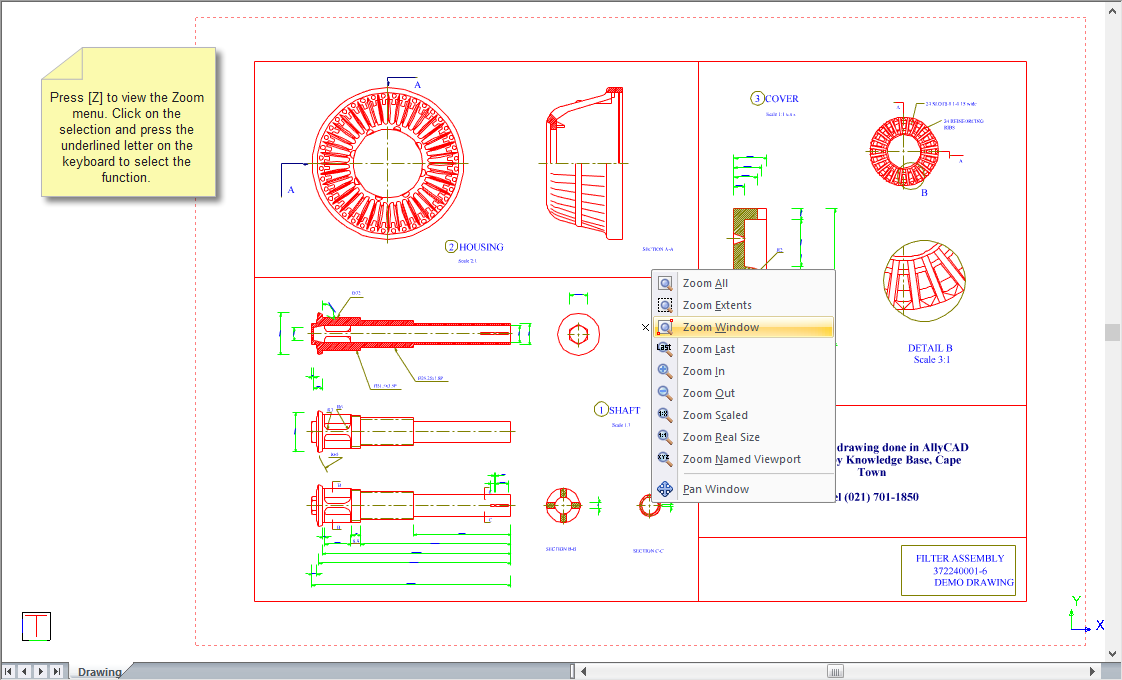
You are prompted to:
Indicate first corner of zoom window
Click in the active viewport to indicate the first corner of the zoom window.
You are prompted to:
Indicate second corner of zoom window
The rubberbanded zoom window is drawn as you move the mouse.
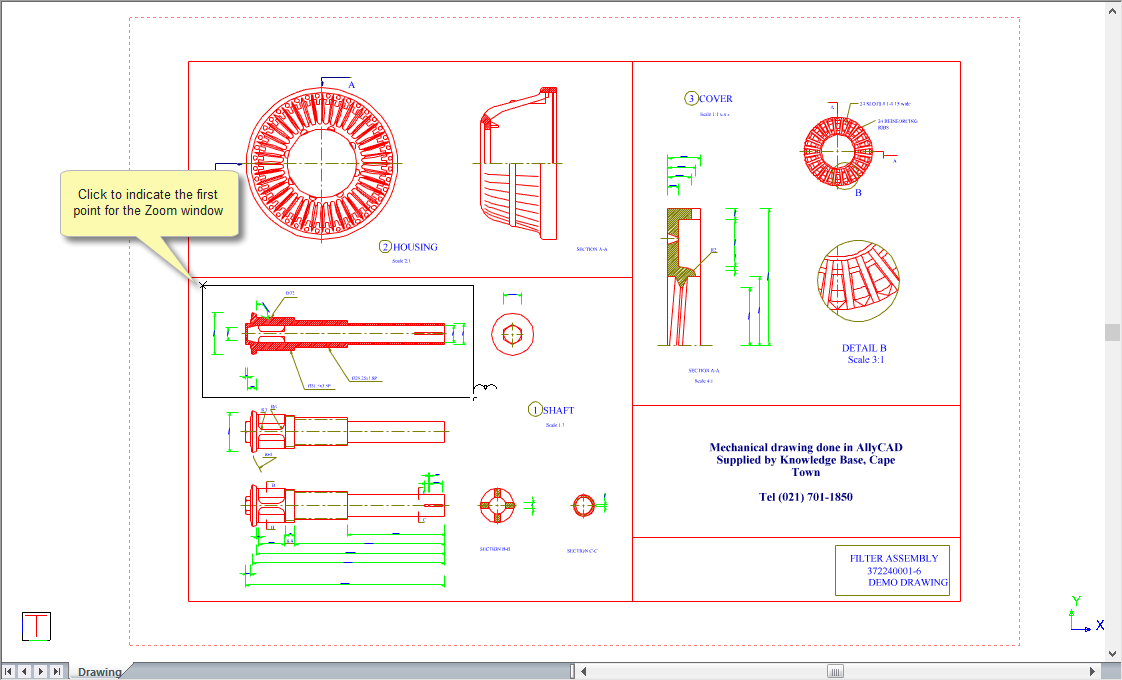
Position the zoom window to enclose everything to be zoomed, and then click to indicate the second window point.
The active viewport zooms to the view window you have indicated.
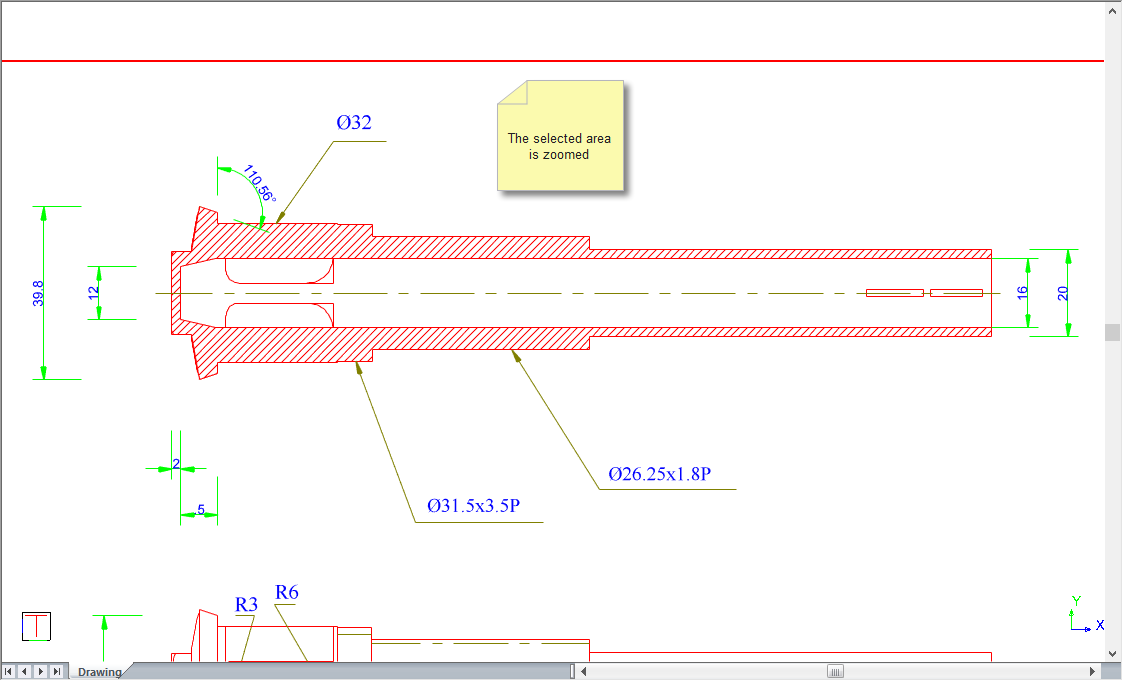
Press [R] to zoom back to the paper extents.