Icon
Command
Shortcut Key
Toolbar

ZOOMSCALE
[Z]+[C]
Zooms
Zoom the active viewport at a specific scale.
|
Icon |
Command |
Shortcut Key |
Toolbar |
|
|
ZOOMSCALE |
[Z]+[C] |
Zooms |
This function allows you to zoom the active viewport to a specified scale. A zoom box displays so you can indicate the position about which to zoom out using the cursor.
 Use the Zoom Last function to return to the previous zoom.
Procedure
If you have split the drawing into multiple viewports, you need to click in the viewport you want to zoom to make it the active viewport. The active viewport will be highlighted with a yellow rectangle on it's borders.
To zoom the active viewport at a specific scale:
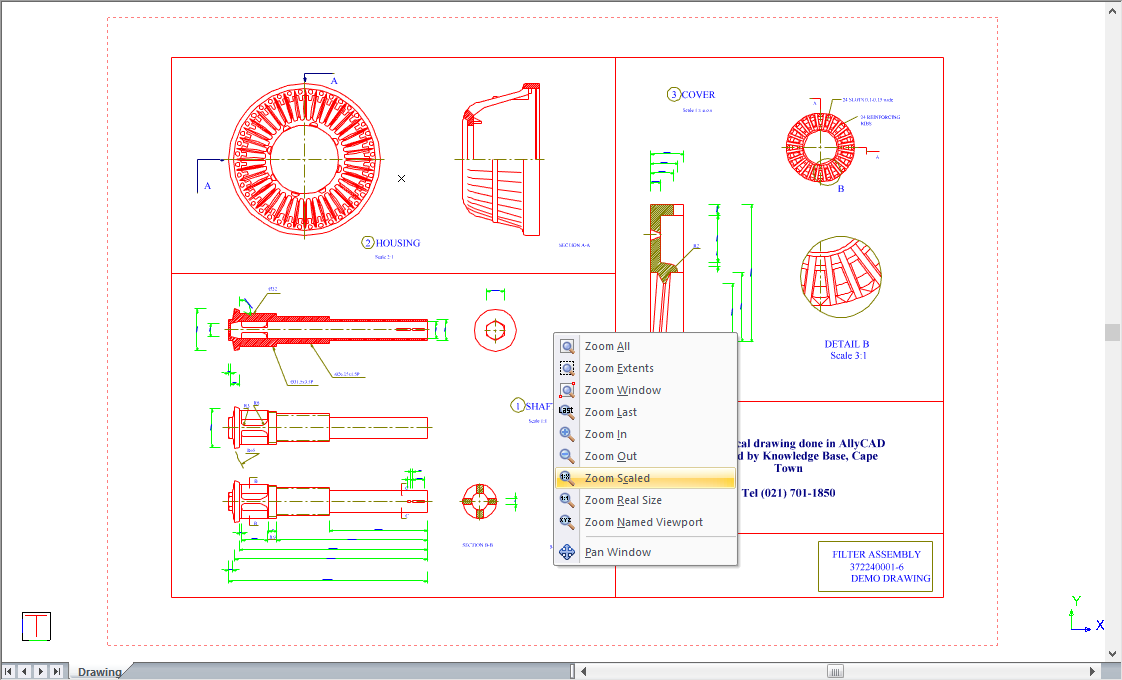
You are prompted to:

Enter the zoom scale and press [Enter]. A value greater than 0 means the drawing will be demagnified; and a value less than 1 (e.g. 0.5) means the drawing is magnified. Here we have used a scale of 0.5.

You are prompted to:
Indicate zoom box
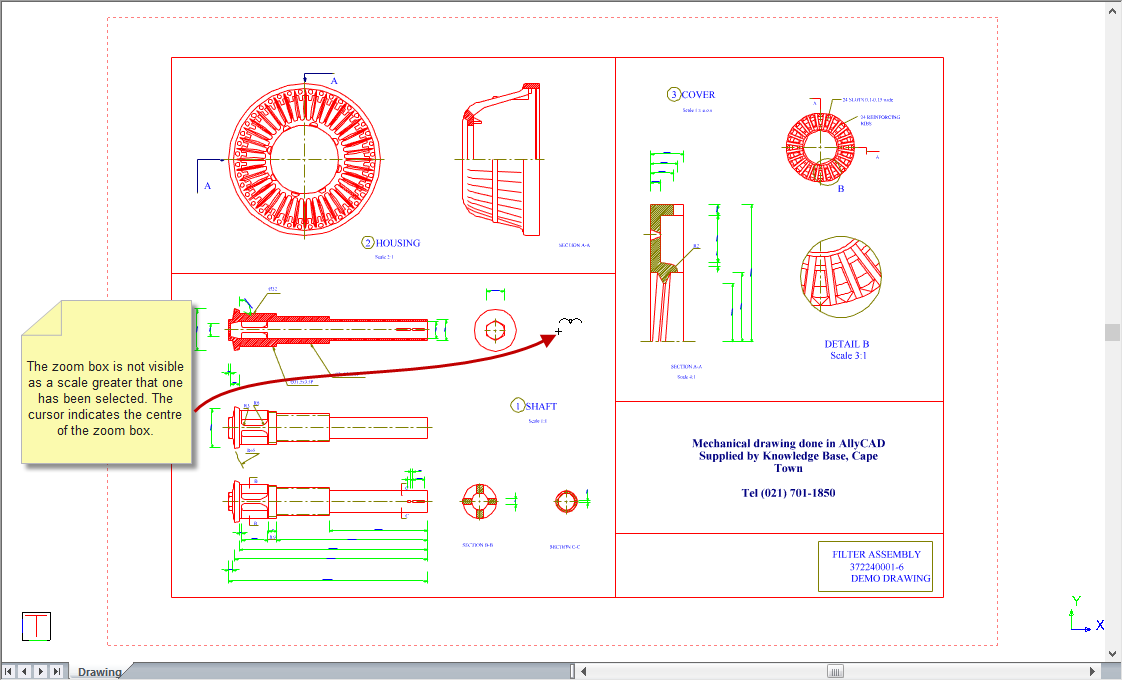
A rubberbanded zoom box appears. If the zoom you entered is greater than 1.0, the zoom box is not visible as it is larger than the active viewport.
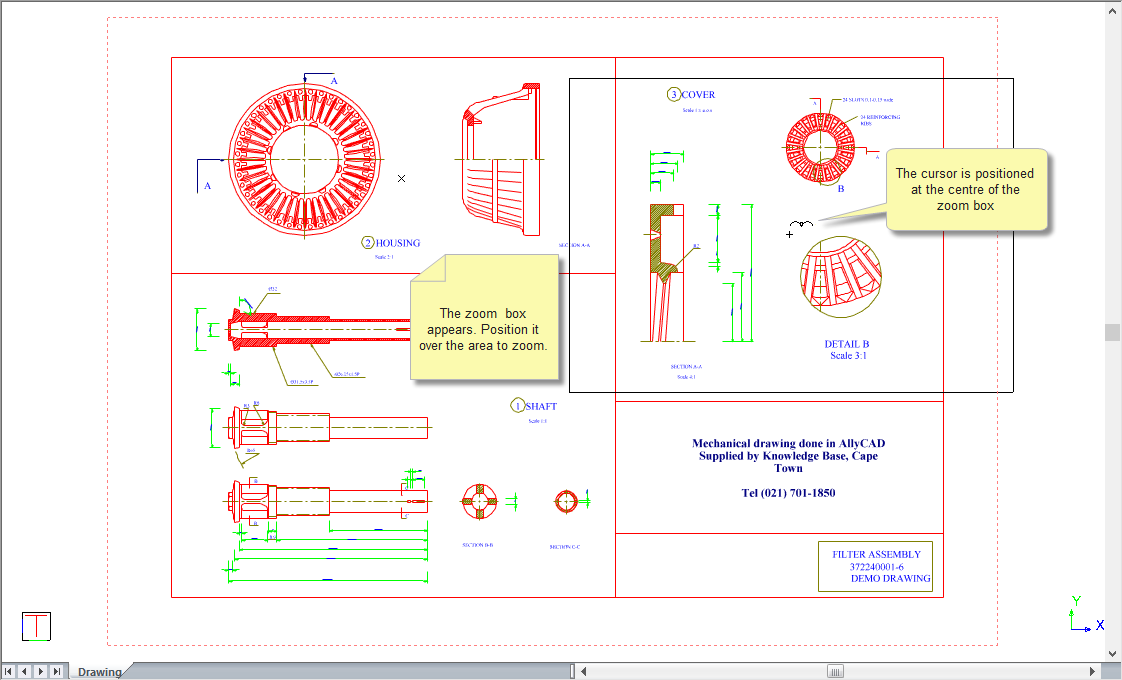
Press [Enter] or click when the zoom box is positioned.
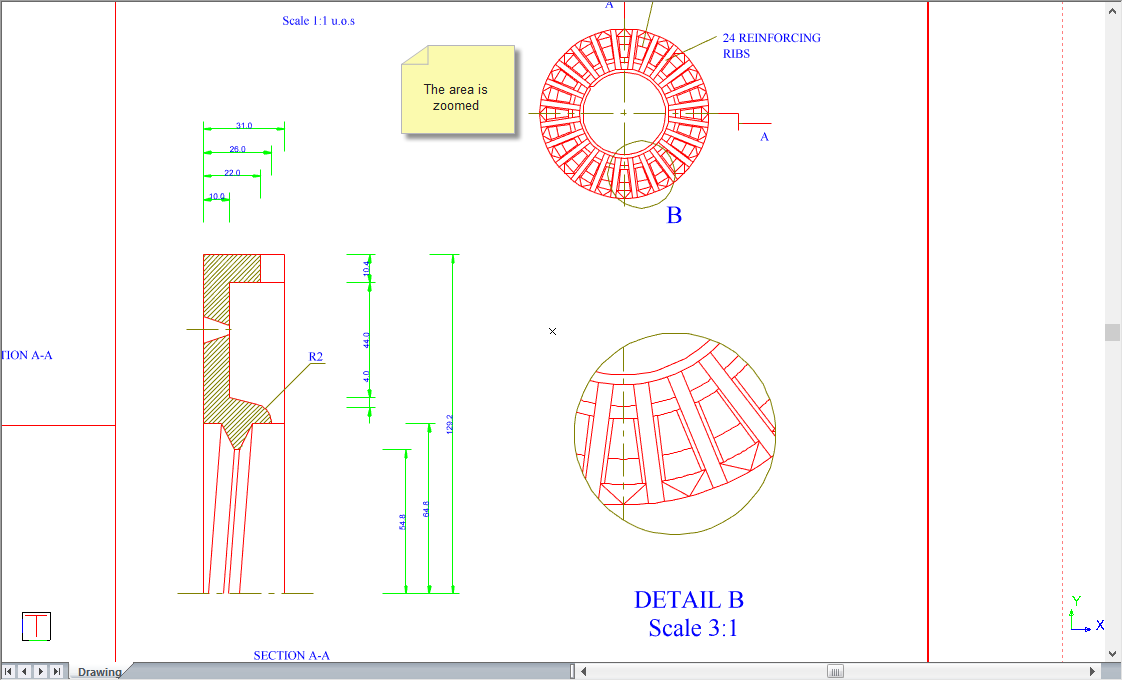
In this example, the scale is greater than one. The cursor indicates the centre of the zoom box.
The zoom box is now not visible.
Position the cursor and press [Enter] or click.