Icon
Command
Shortcut Key
Toolbar

EXPAND
Tools
Create an enlarged detail of a part of the drawing.
|
Icon |
Command |
Shortcut Key |
Toolbar |
|
|
EXPAND |
|
Tools |
This function allows you to take a portion of the drawing inside a user-defined circle or rectangle, and enlarge (magnify) it by a specified factor. The magnified detail is then placed in a special magnified layer. This means that all dimensions and measurements of the magnified layer are correct, provided the magnified layer is the current layer.
 The measurements and dimensions of the detail are only correct if the magnified layer is the current layer.
Procedure

You can define the area to be shown as a detail in either a rectangle or a circle. Click Yes for a rectangle and No for a circle. In this example you are using a circle.

You can choose to enclose the selected area in a circle. Click Yes or No.
If you click Yes, you are prompted to:
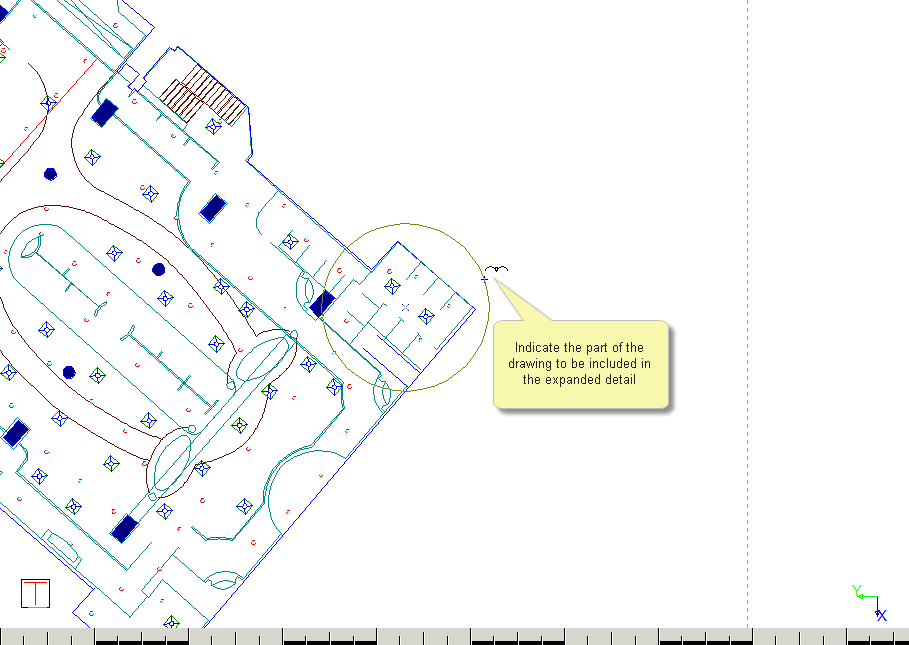
Indicate centre of circle
Indicate point on circle radius
Now specify the area to be included in the detail.

Specify the magnification factor of the detail by typing in the required magnification and clicking  .
.

If you want to join the magnified detail circle to the original circle, click Yes.

Specify if you want to put the detail on a new layer, or place it on an existing layer with the required magnification. You can't place the detail in an existing layer that doesn't have the correct magnification factor.
In this example, click Yes to create a new layer called "Detail x 2".
Type in the layer name and click .

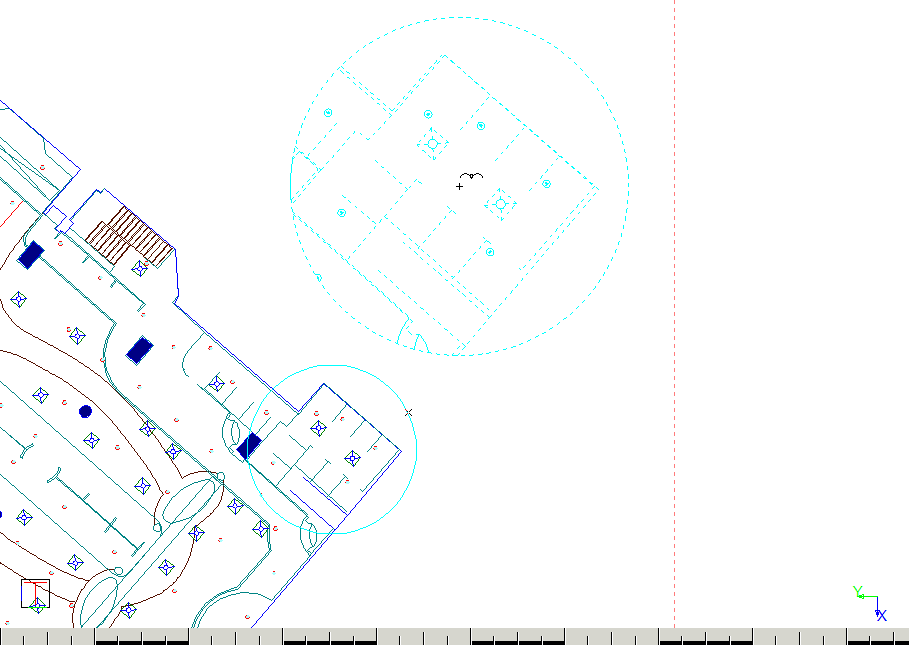
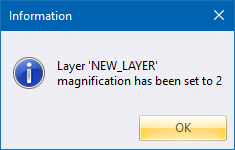
Click OK to close the message.
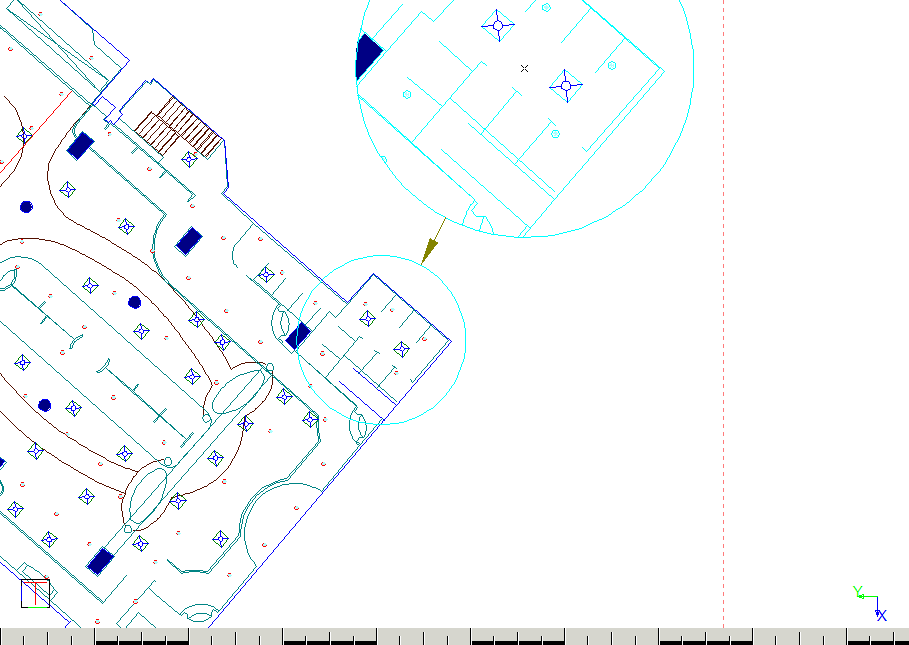
If the entities in the area of interest were drawn in a ByLayer pen, the detail uses the magnified layer's ByLayer pen in the Layer Settings. If you want the pen and line style to be copied to the detail faithfully, you must create the original entities in normal pen and line styles.