Icon
Command
Shortcut Key
Toolbar

FINDTEXT
Tools
Locate text in a drawing using a search string.
Icon |
Command |
Shortcut Key |
Toolbar |
|
FINDTEXT |
|
Tools |
Type in the search string in the Control Bar to locate text in a drawing. You can use the following wildcard codes.
Wildcard Code |
Description
|
* |
Match any number of characters. For example, searching for "*slab" will find "Top slab", "Bottom slab", "125mm slab", etc. |
? |
Match only one alphanumeric character. For example, searching for "slab?" will find "slab1", "slab2", "slabs", etc. |
Procedure

The "*" wild card matches any number of characters (including none).
The "?" wild card matches any single alphanumeric character.
Type in the word
with optional wild cards to assist you in finding a text string with
the word. Press Enter or click
Enter  .
.
If the search text you entered matches any of the text entities in the drawing, you are asked:
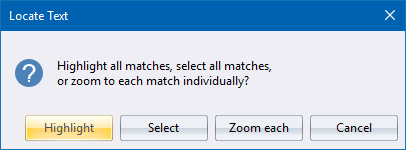
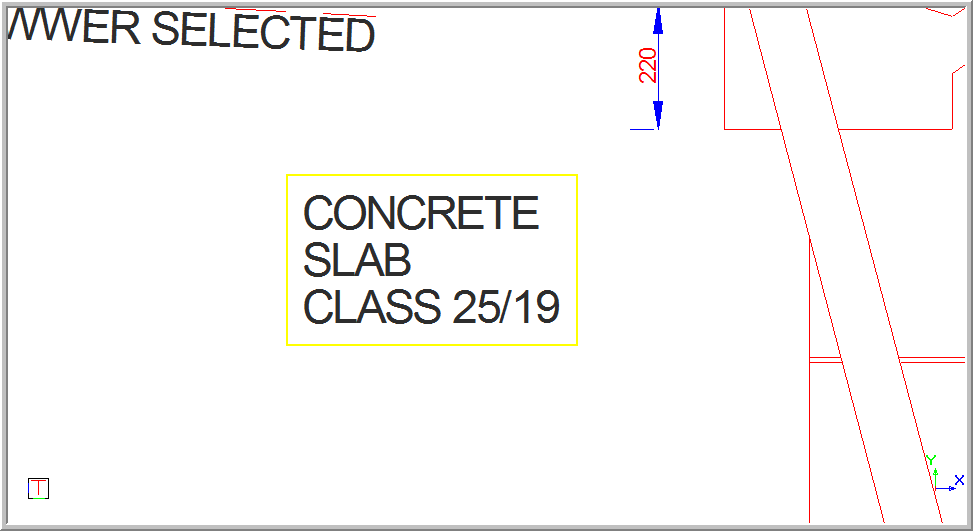
Click Highlight to highlight all the matching text entities. All the text entities that match your search string are highlighted, and the view will zoom to the selected entities. You can also click Select to select all the matching text entities. All the text entities that match your search string are selected, and the view will zoom to the selected entities. The Properties Bar will be updated with the properties of the selected text entities. Alternatively, click Zoom Each to zoom to the first matching text entity.
You are asked:

Click Yes to continue searching for other text strings containing the desired word; or No to end the search.