Icon
Command
Shortcut Key
Toolbar

LOCKANGL
[K]+[L]
Tools
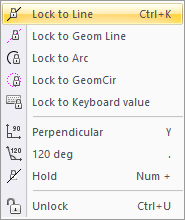
Lock the cursor to the same angle as a line.
|
Icon |
Command |
Shortcut Key |
Toolbar |
|
|
LOCKANGL |
[K]+[L] |
Tools |
This function allows you to lock the cursor angle to that of an indicated line entity.
Procedure
To lock the cursor angle to that of an indicated line entity:
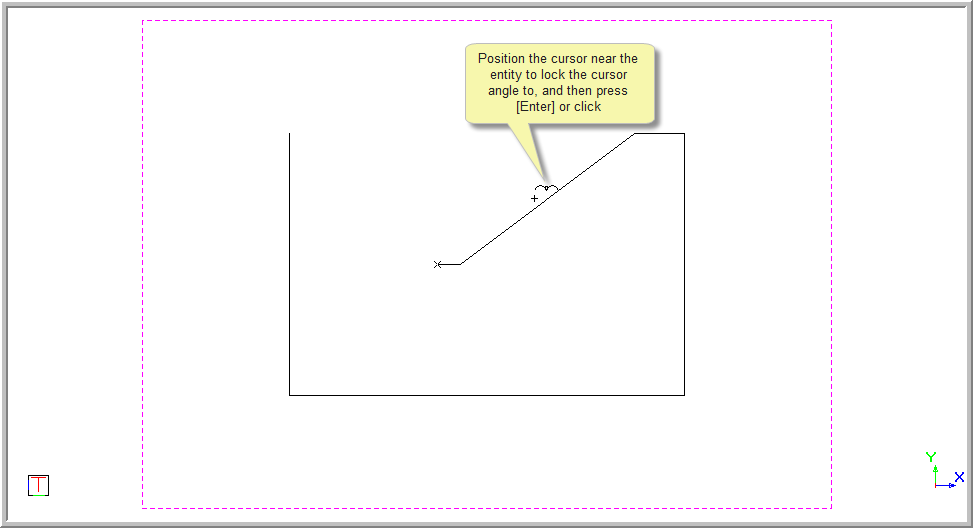
Select line to lock onto
Position the cursor near the line you would like to lock to, and then press [Enter] or click to indicate the line.
The lock angle appears in the Status Bar.

If the cursor lock is indicated in black text, it is not active.
Press [+] on the numeric keypad to activate the lock. The cursor lock is indicated in red text when the lock is active.

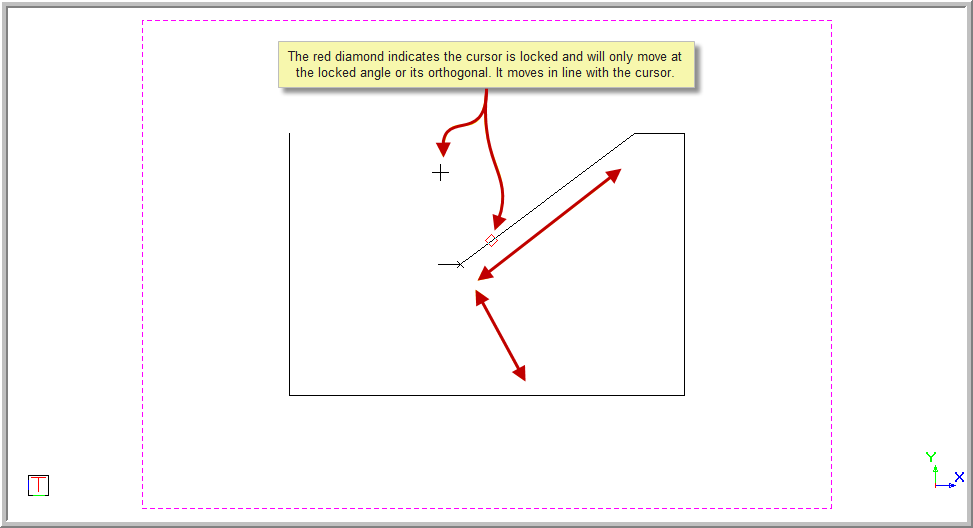
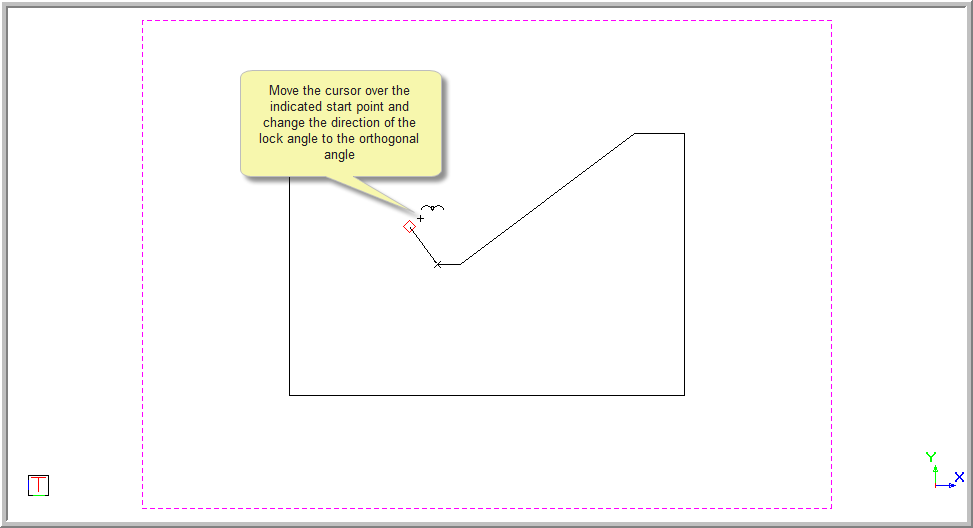
A red diamond is indicated on the screen when the cursor is locked. The diamond will only move at the locked angle or it's orthogonal whilst the cursor is free to move anywhere.
You can now select the line function and press [Enter] over the required start point.
Press [+] on the numeric keypad to activate the lock. The line will now be drawn at the locked angle as the mouse is moved.
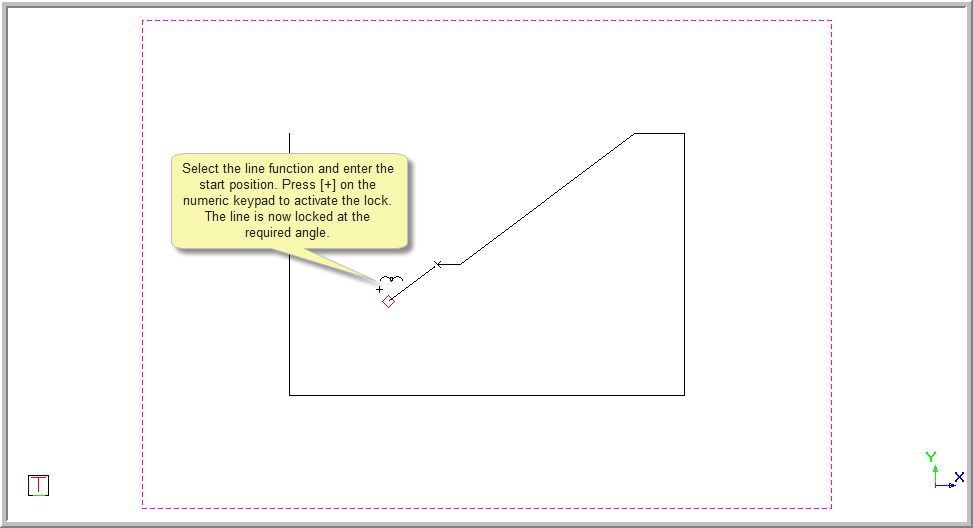
You can change to the orthogonal angle by moving the cursor over the indicated start point and changing the direction of the cursor.
To deactivate the cursor lock, press [+] on the numeric keypad. Alternatively, you can unlock the cursor by pressing [Ctrl+U] or [K]+[U]; or select Tools ► Lock Cursor ► Unlock.