Icon
Command
Shortcut Key
Toolbar

CURSORHOLD
[+] or [K]+[H]
Screen
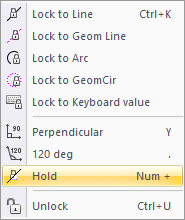
Toggle the cursor lock on and off.
|
Icon |
Command |
Shortcut Key |
Toolbar |
|
|
CURSORHOLD |
[+] or [K]+[H] |
Screen |
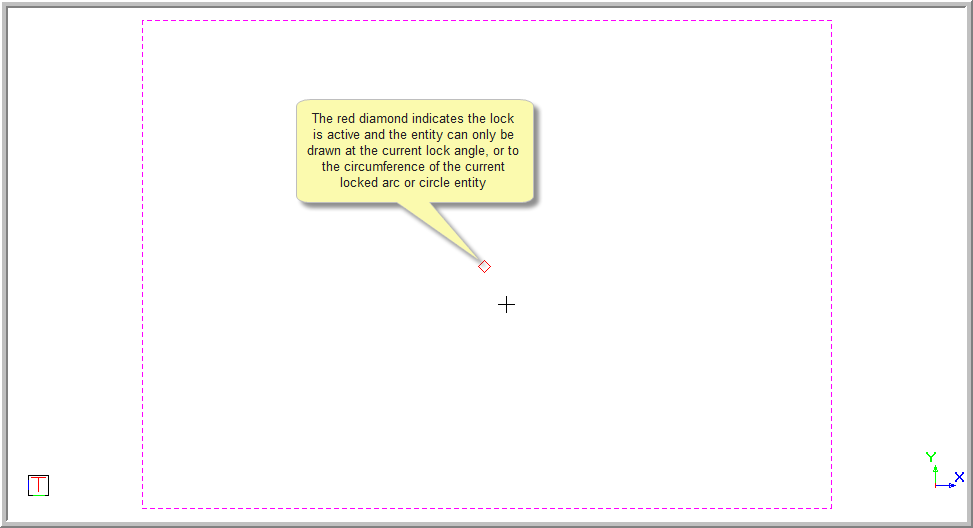
This function allows you to activate/de-activate the cursor lock When the cursor lock is activated, the lock is shown in red text in the Status Bar. A red diamond appears on the drawing to indicate the lock.
Procedure
The locked cursor is indicated in the Status Bar. The black text indicates that the lock has been selected but is inactive.

To activate the cursor lock:

A red diamond is also shown in the drawing area indicating the current cursor position and the lock.