Icon
Command
Shortcut Key
Toolbar

MULTILINESTYLES
Settings
Add, remove or edit multiline styles.
|
Icon |
Command |
Shortcut Key |
Toolbar |
|
|
MULTILINESTYLES |
|
Settings |
This function allows you to manage the Multiline Styles in the drawing by adding, removing or editing existing multiline styles.
You can add up to ten lines to a multiline entity.
 The last multiline style, as well as multiline styles that are referenced by multilines in the drawing, cannot be removed.
Procedure
The Multiline Styles window displays.
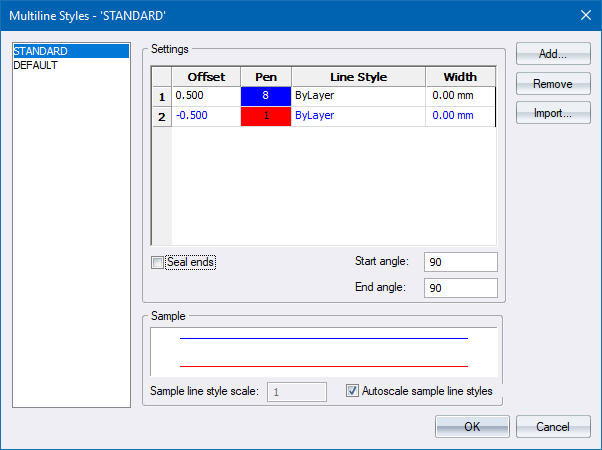
Click Add.
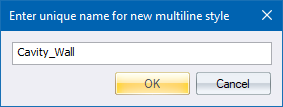
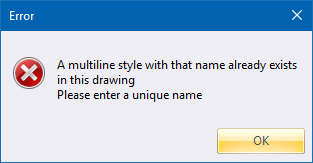
The new name is verified for uniqueness. If the name is already in use, the following Error message displays. Click OK and re-enter a new name.
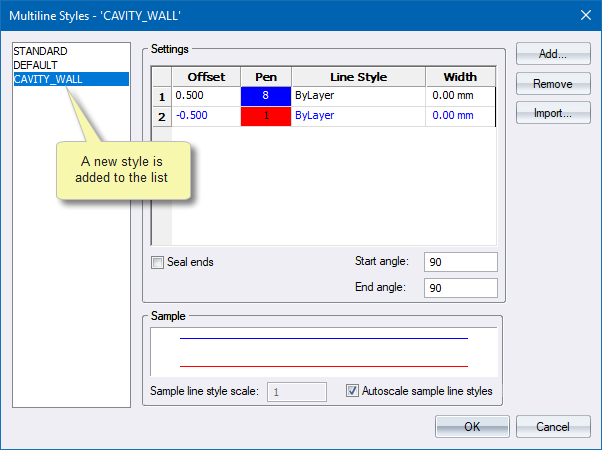
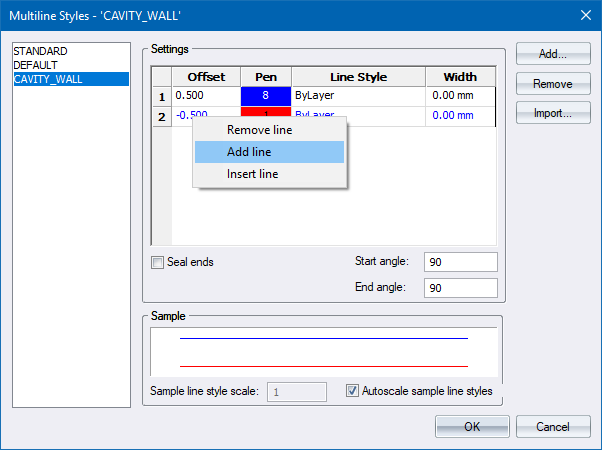
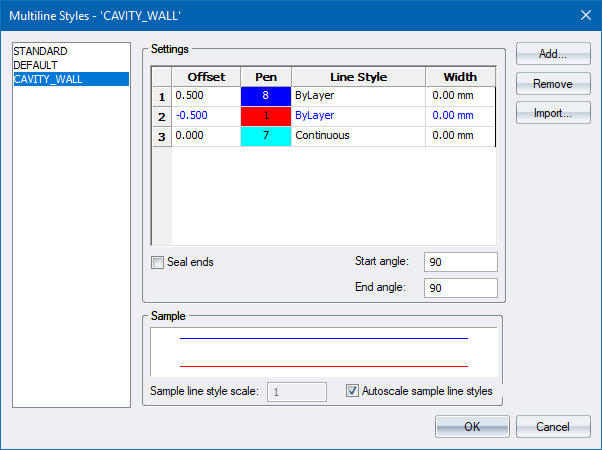
Right-click the line whose colour you want to change in the Pen column.
The Colour Selection window displays.
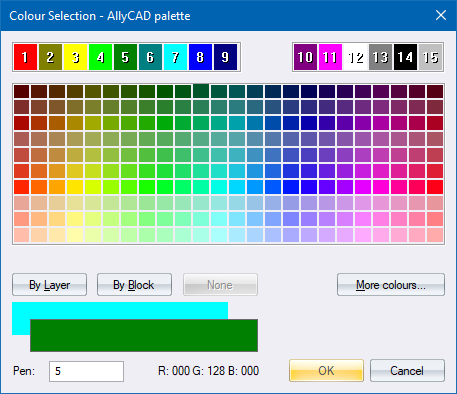
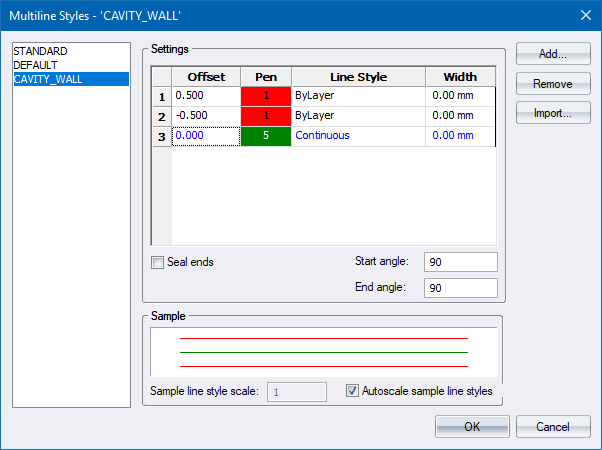
Select the line name. A dropdown list displays.
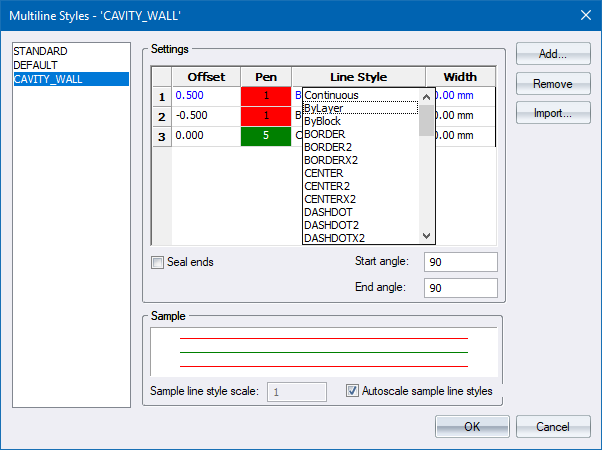
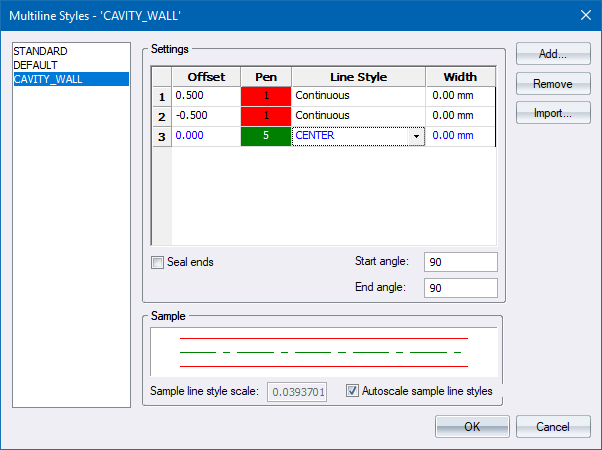
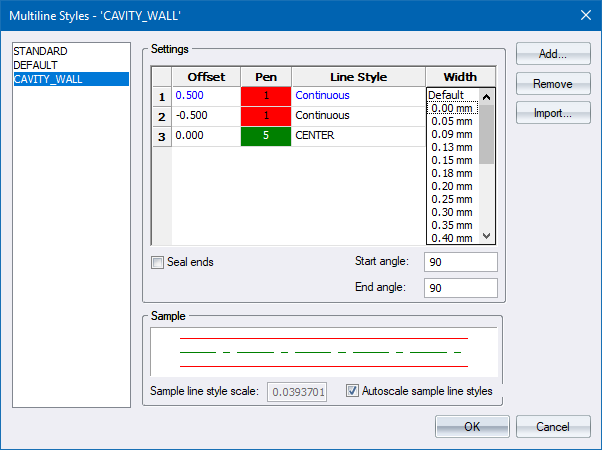
The line width can be selected in the same way as the Line Style (see step above).
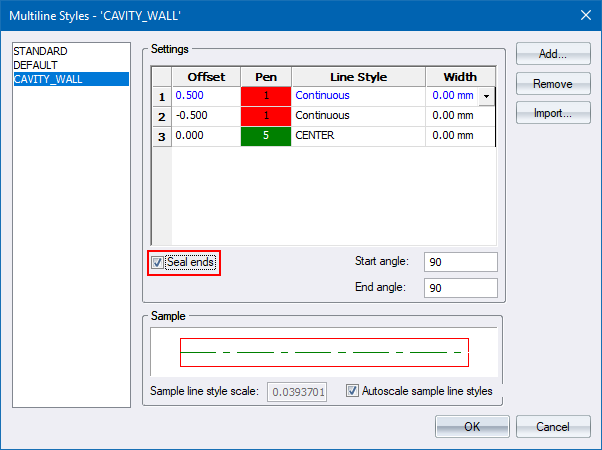
To close off the ends of the CAVITY_WALL multiline, select the Seal ends checkbox.
Select the style from the list.
The settings for the selected multiline display in the Settings section.
Select the style from the list.
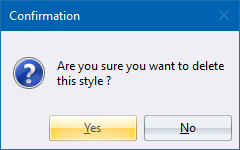
Click Remove.
The changes only take effect once you click OK and close the Multiline Style Editor. If you click Cancel, all the changes are discarded.