File Settings
View or edit the drawing file properties and summary information.
|
Icon
|
Command
|
Shortcut Key
|
Toolbar
|
|

|
FILESETTINGS
|
|
Settings
|
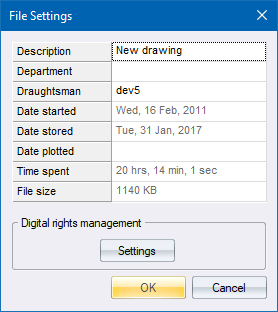
This function allows you to edit or view the drawing file's summary information including the drawing file's description, department, start date, date stored, date plotted, time spent on the drawing and file size. You can also set the Digital rights management settings, which are used to configure user access to the drawing file.
Procedure
- The File Settings display. You can edit the drawing file's Description, Department and Draughtsman information. The Date started, Date stored, Date plotted, Time spent and File size are all captured automatically for you.
-
Click Settings.
-
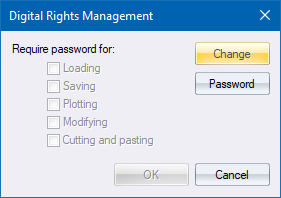
The Digital Rights Management window displays. This is used to configure the user access rights to a drawing file.
- To add a password, click Change or Password.
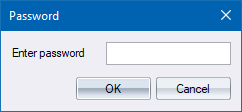
- The Password Editor displays. Type in the password and confirm it. Click OK to accept the password; or Cancel to discard the password and return to the Digital rights management options.
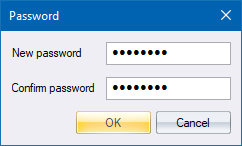
 Do not forget or lose the password assigned to the drawing. We cannot recover it for you!
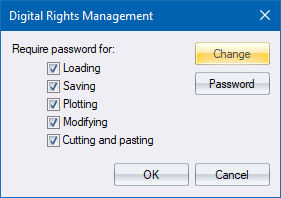
- Once a password is typed and accepted, the Loading, Saving, Plotting, Modifying and Cutting and pasting options become available. Select the options you want to control.
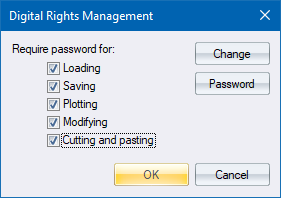
- Click OK to save the changes and close the Digital Rights Management; or Cancel to discard any changes.
- The options are locked once saved and you will not be able to select them.
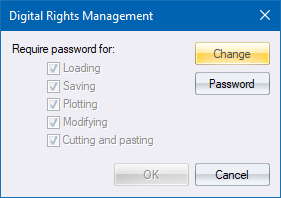
- You can edit them by clicking Change. The Password window displays and you can enter the password and click OK.
- The Digital Rights Management options become active once again and you can make any required changes to the selection.
Remember that you are required to enter the password with each selection made when wanting to perform that function.
- When you have finished making changes to the File Settings, click OK to save your changes or Cancel to discard the changes.