Icon
Command
Shortcut Key
Toolbar

TRIM
Modify
Trim a valid entity to another entity.
|
Icon |
Command |
Shortcut Key |
Toolbar |
|
|
TRIM |
|
Modify |
This function allows you to trim away all parts of an entity, or entities, beyond or within its intersection points with another entity.
You can select to trim the first entity or to trim both entities to the intersection point.
You can trim arc, elliptical arc, line, leader/arrow, lightweight polyline (not closed), polyline (not closed) and ray entities.
The indicated entities must be coplanar and have at least one intersection or projected intersection point. If a project point is used, the entities are extended to the projected intersection point.
 If more than one intersection point exists, click nearest to the required intersection point when indicating the entity to trim. Select the entity on the side you want to keep.
Procedure
To trim away all parts of an entity or entities beyond or within its intersection points with another entity:
Select Modify ► Trim or click the icon in the Modify toolbar.

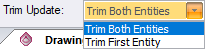


Position the cursor near the second entity to trim to, and then press [Enter] or click. The entities are trimmed.
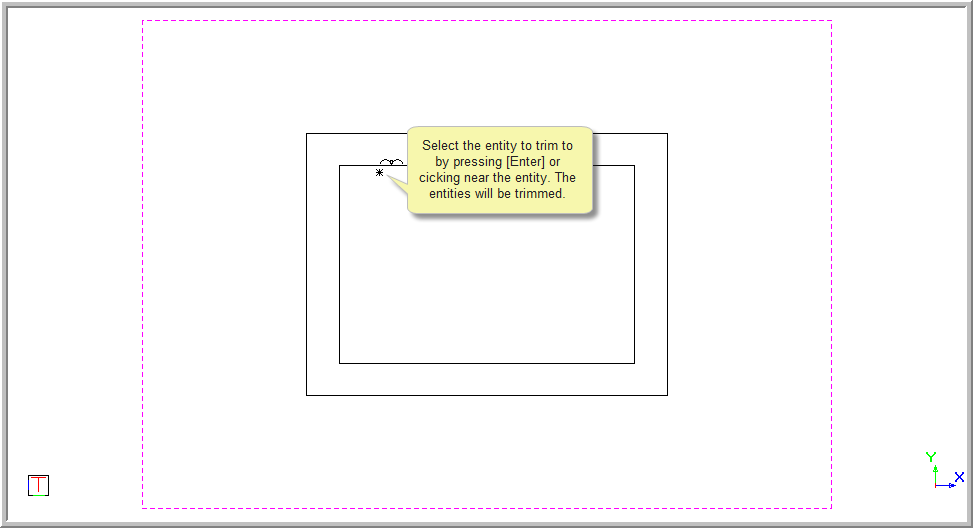
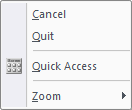
The function repeats. Right-click and select Quit to end the function. Alternatively, press [Esc].
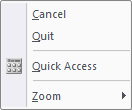
You are prompted to:

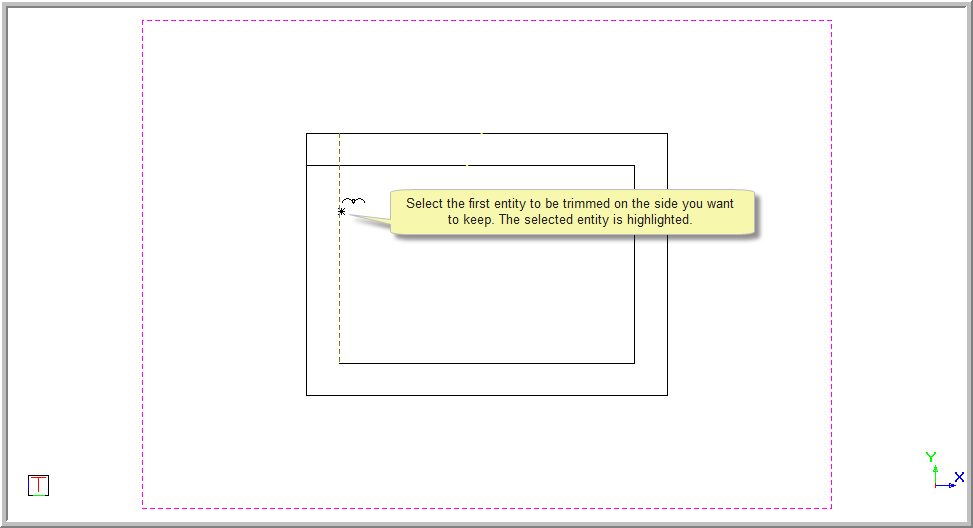
Position the cursor near the entity to trim on the side to keep, and then press [Enter] or click to indicate the entity to trim. The selected entity is highlighted.
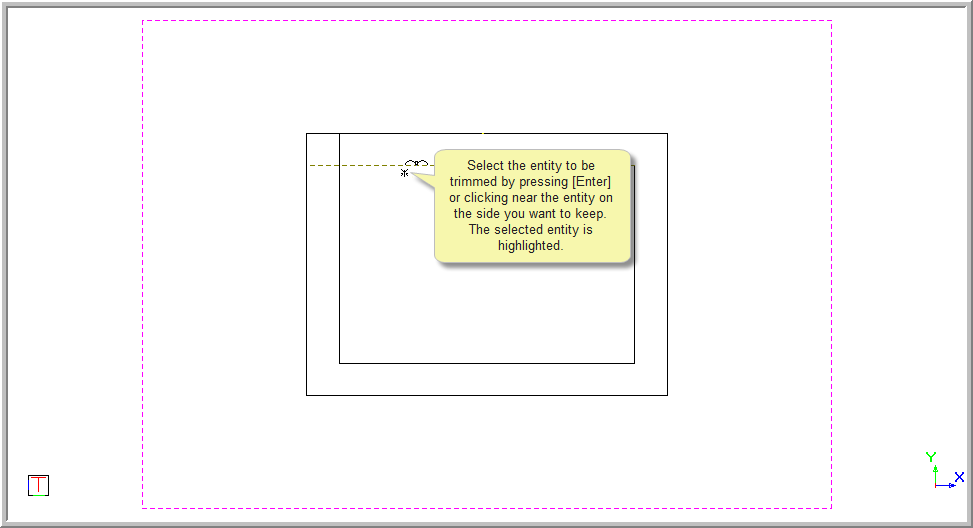
You are prompted to:

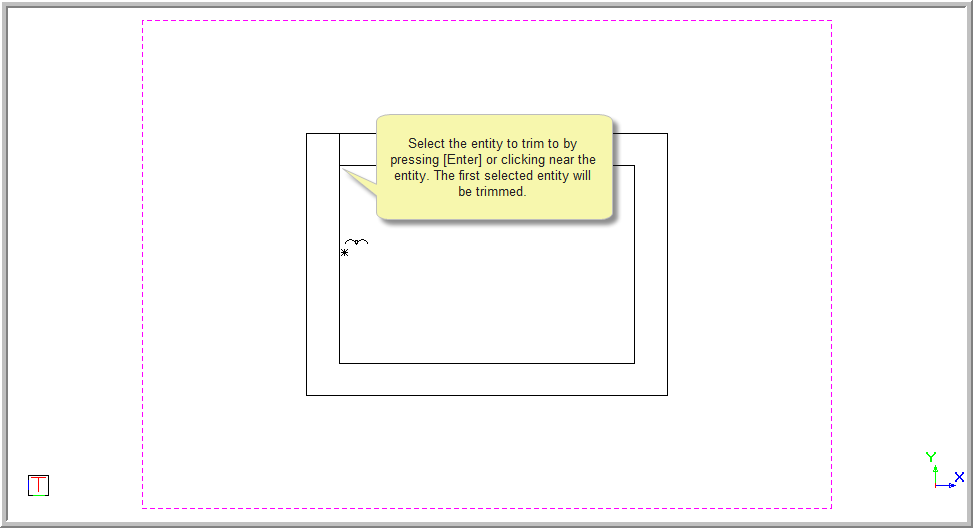
Position the cursor near the second entity to trim to, and then press [Enter] or click. The first selected entity is trimmed.