Icon
Command
Shortcut Key
Toolbar

ROTATE3D
Modify
Rotate a selection set about a specified axis at an indicated point by a specified angle.
|
Icon |
Command |
Shortcut Key |
Toolbar |
|
|
ROTATE3D |
|
Modify |
This function allows you to rotate a selected entity, or group of selected entities, about a specified axis from an indicated point and at a specified angle.
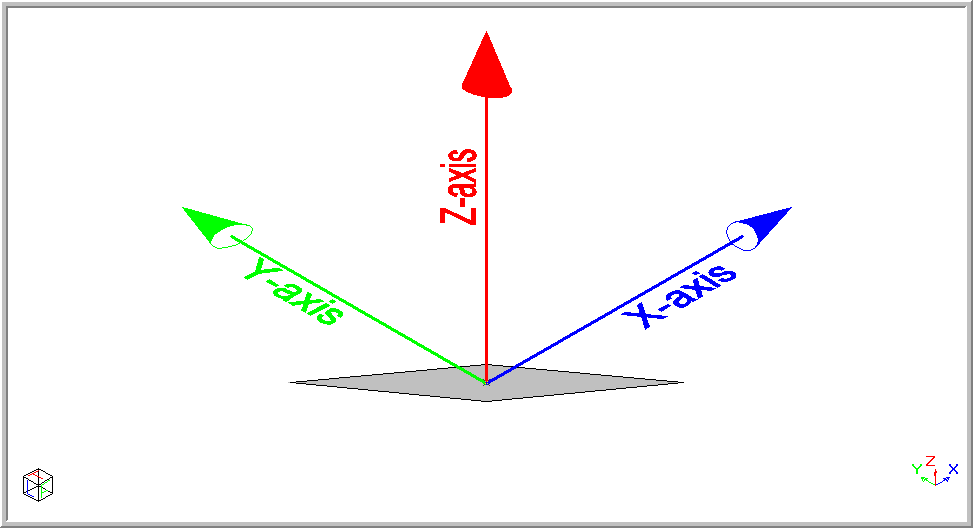
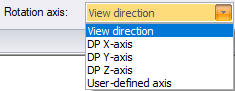
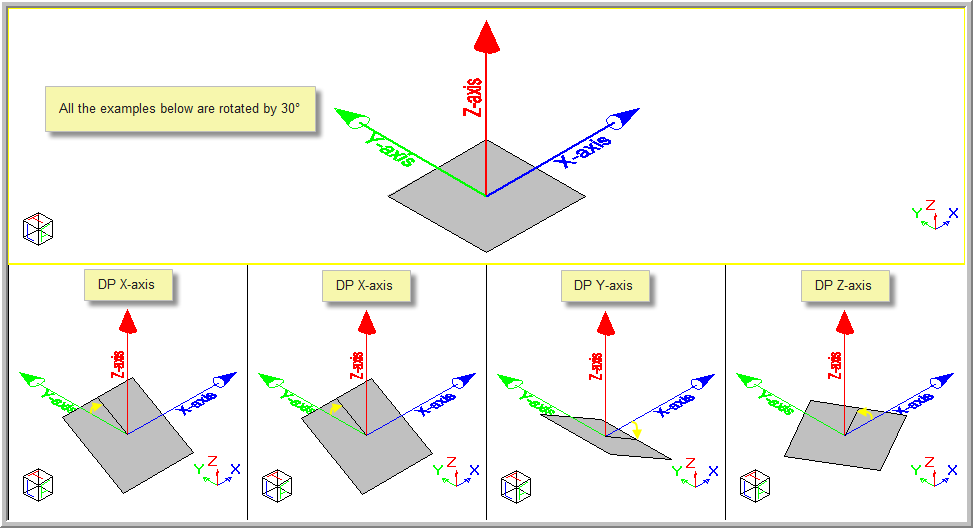
You can input the angle and select the axis (View direction, DP X-axis, DP Y-axis, DP Z-axis or User-defined axis) about which to rotate the entities. If the selection set is empty you are required to specify the selection set before you continue.
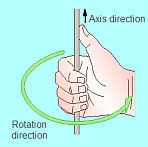
 The right hand rule has been used - if the thumb of the right hand shows the axis direction, the fingers show the rotation direction.
Procedure
You are prompted to:

In the Angle text box, type in the required angle about which to rotate the entities.
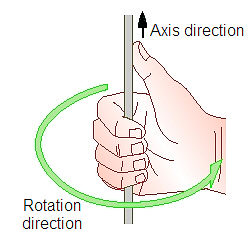
The rotation is based on the "Right Hand Rule" where the thumb of the right hand shows the axis direction, fingers show the rotation direction.
The diagram has been edited to show all the examples in one drawing.
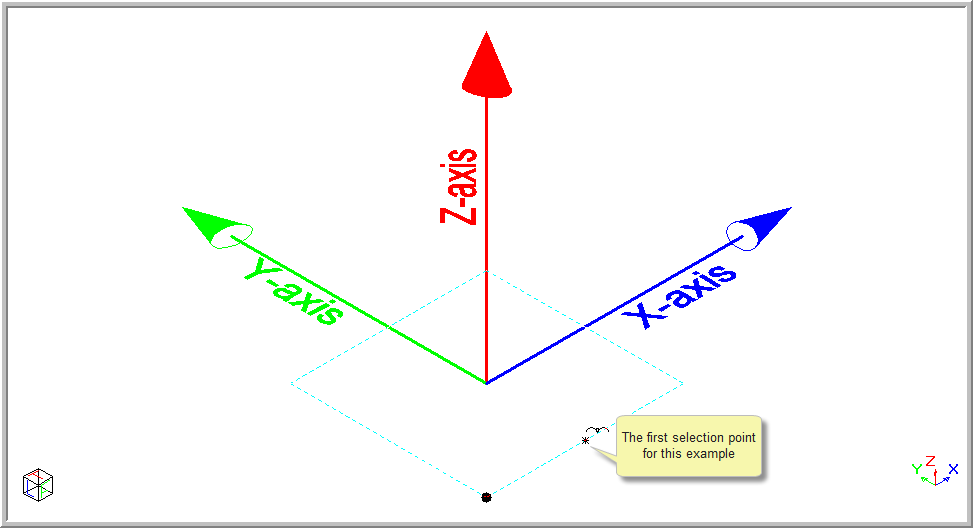
Alternatively, you can specify the points for the rotation by selecting the User-defined axis option. You are prompted to:

Click on the first point.
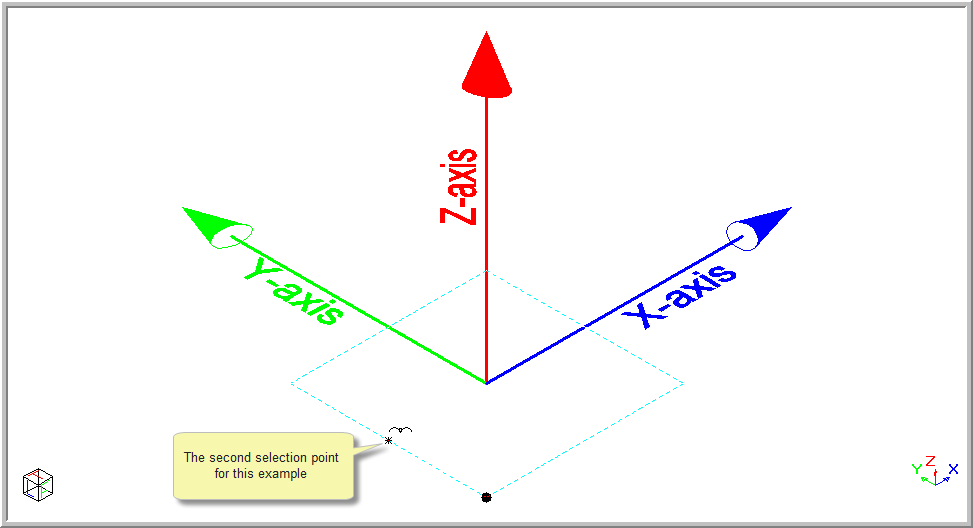
You are prompted to:

Click on the second point.
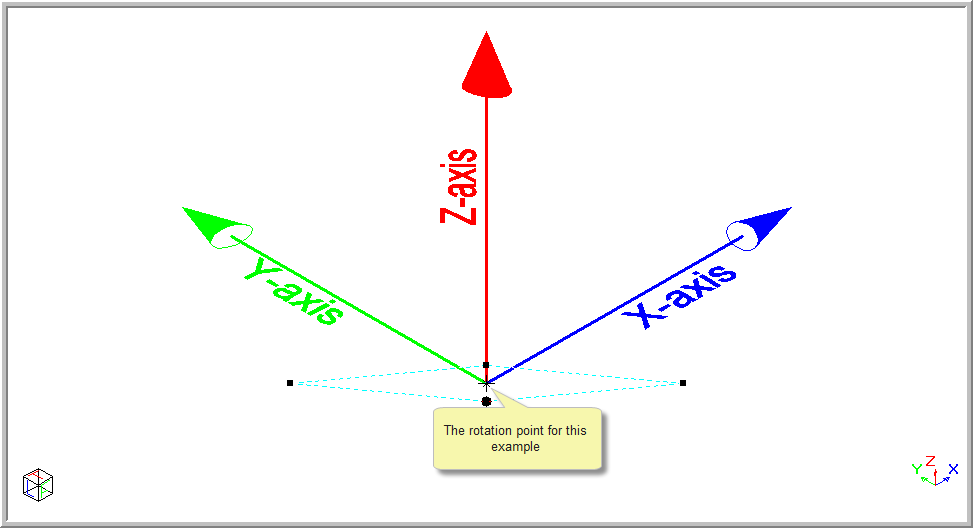
You are prompted to:

Click on the point about which to rotate, and the selection set is rotated.
You can click the Reset button to re-define the User-defined axis, as the previously defined axis is remembered.

Press [Esc] to clear the selection.