Rotate 2D
Rotate a selection set about the Z-Axis of the Drawing Plane at an indicated point.
|
Icon
|
Command
|
Shortcut Key
|
Toolbar
|
|

|
ROTATE
|
|
Modify
|
This function allows you to rotate a selected entity or group of selected entities about the Z-Axis of the Drawing Plane.
You can indicate a point about which to rotate, the point to rotate and then the destination point, or you can input an angle to rotate on the keyboard.
If the selection set is empty, are required to specify it before you continue.
 Remember rAllyCAD's default angles start with 0° at 3 o'clock and increase in an anti-clockwise direction. When using the keyboard option, specify a positive angle to rotate the selection set in an anti-clockwise direction, and a negative angle to rotate in a clockwise direction.
Procedure
-
You are prompted to:

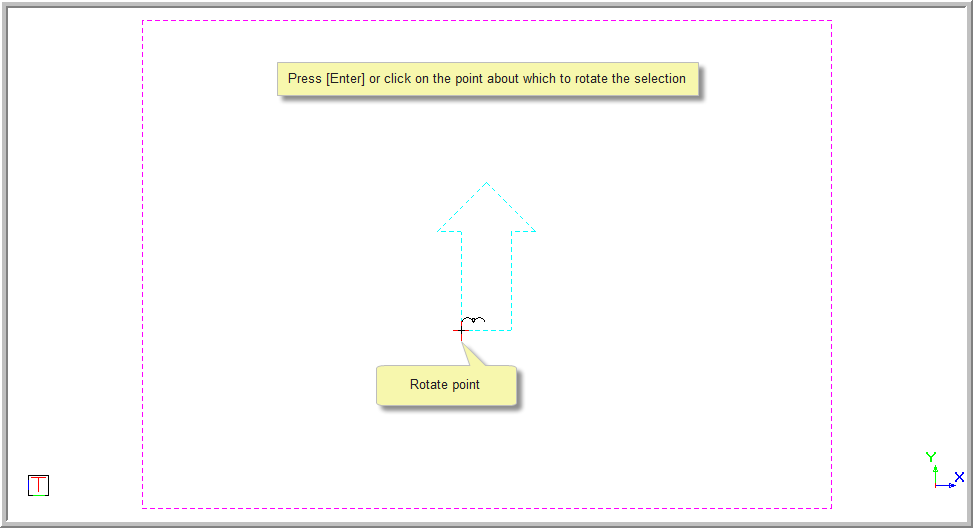
- Define the point about which the selection set must rotate. Position the cursor by moving it to the point, jumping to the desired point or using the snaps to move to the desired rotation point. Now press [Enter] or click.
-
There are two options available to rotate a selection set. You can define the amount of rotation:
-
Using the cursor.
-
By typing in an angle.
Rotate by Cursor
-
Select the Cursor radio button in the Control Bar.
- You are prompted to:

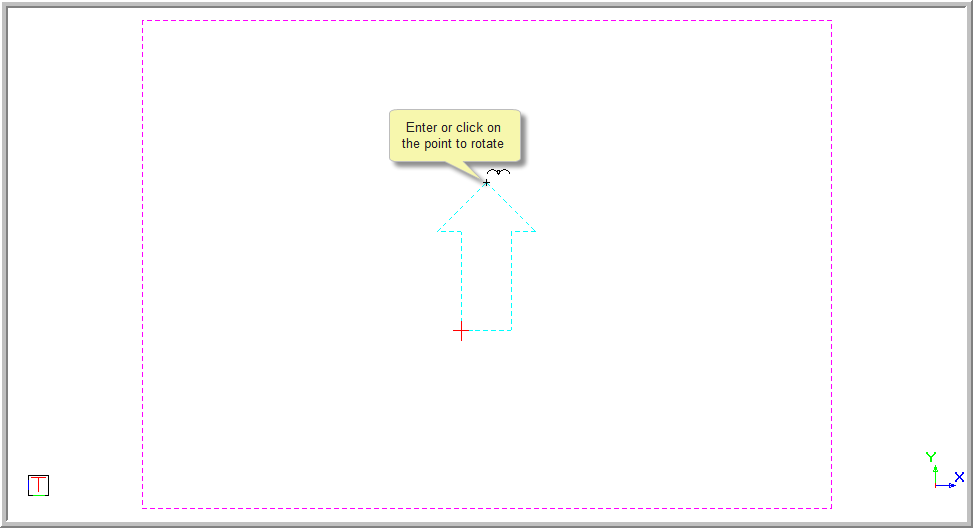
- Click on the point to rotate. You can use snaps or jumps to select the required point accurately. Now press [Enter].
- You are prompted to:

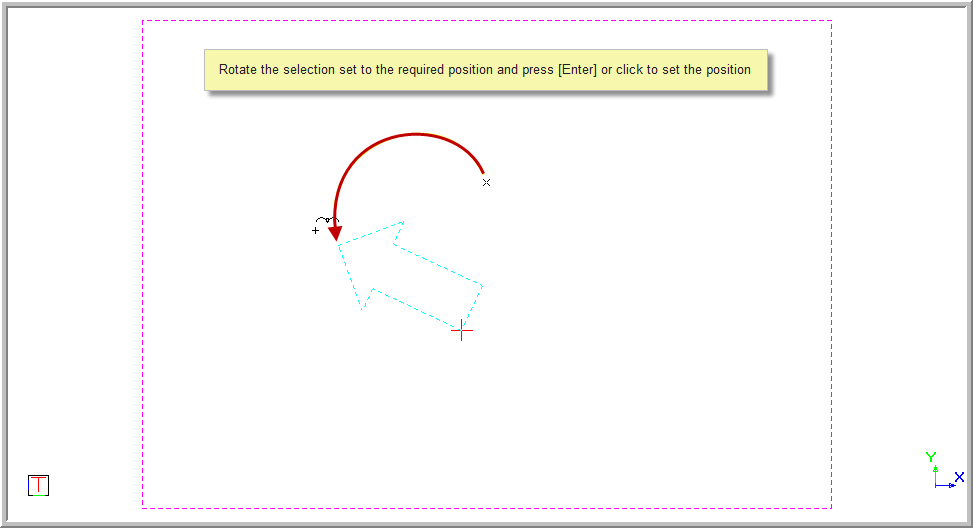
- The selection set can now be rotated to the required position by moving the mouse. You will see the selection set rotate about the rotation point. The cursor is locked at an angle between the rotation point and the point to rotate.
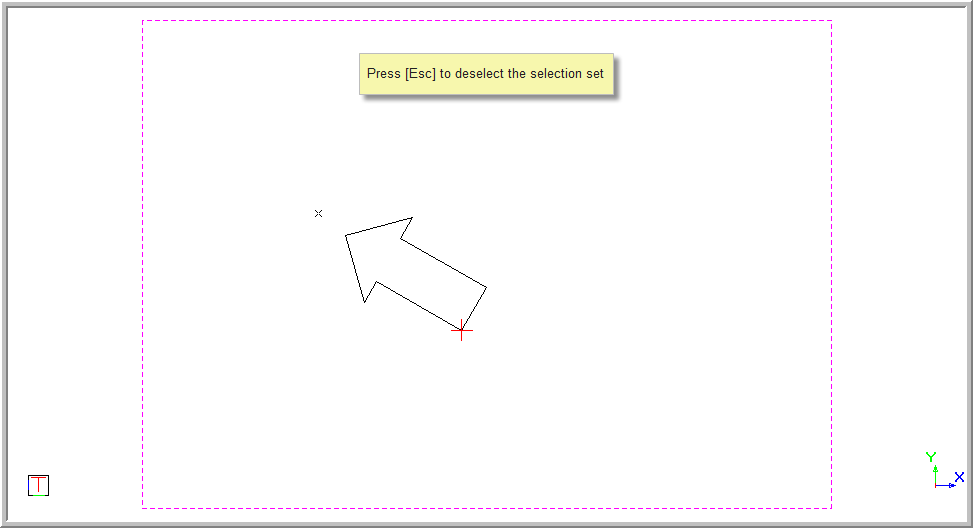
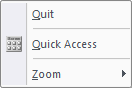
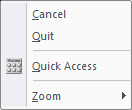
- Right-click and select Quit to end the function. Alternatively, press [Esc].
Rotate by Keyboard
-
Select the Keyboard radio button in the Control Bar.
- You are prompted to:

- You can now specify the angle at which to rotate the selection set. A positive angle rotates in an anti-clockwise direction and a negative angle in a clockwise direction. You can select the angle format you require from the dropdown list.
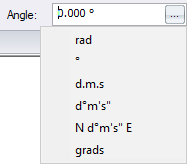
- Press [Tab] to move into the text box, or click in the text box, and then type in the required angle to rotate the selection set.

- Press [Enter] or click Enter to select the angle.
- Position the cursor at a point in the drawing about which to rotate by moving the cursor to the point, jumping to the desired point or using the snaps to move to the desired rotation point.
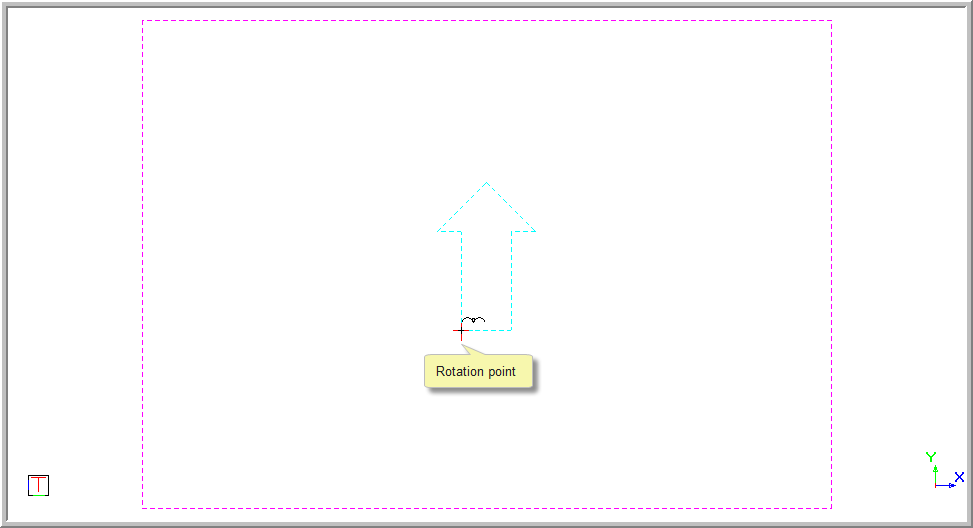
- Press [Enter] or click to rotate the selection. Press [Esc] to deselect the selection set.
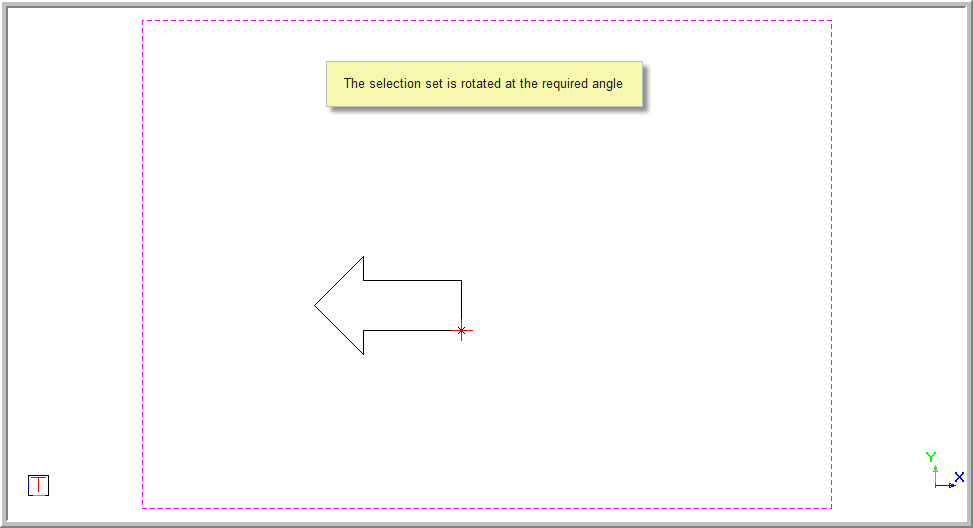
- Right-click and select Quit to end the function. Alternatively, press [Esc].