Icon
Command
Shortcut Key
Toolbar

REPEAT
Modify
Draw repeated copies of a selection set using a linear or polar pattern.
Icon |
Command |
Shortcut Key |
Toolbar |
|
REPEAT |
|
Modify |
This function allows you to make multiple copies of a selected entity or group of entities in a linear or polar pattern.
You can specify the number of times to repeat the selection, and then indicate a point on the original selection set and the position to repeat the set.
If the selection set is empty, you need to specify it before you continue.
 For the Polar
repeat option, specify a positive angle to rotate the selection set in
an anti-clockwise direction, and a negative angle to rotate in a clockwise
direction.
For the Polar
repeat option, specify a positive angle to rotate the selection set in
an anti-clockwise direction, and a negative angle to rotate in a clockwise
direction.
Procedure
You are prompted to:

The selection set can be repeated in a Linear or Polar style.

Position the cursor at a point in the drawing about which to repeat the selection set, by moving the cursor to the point, jumping to the desired point or using the snaps. Now press [Enter] or click.
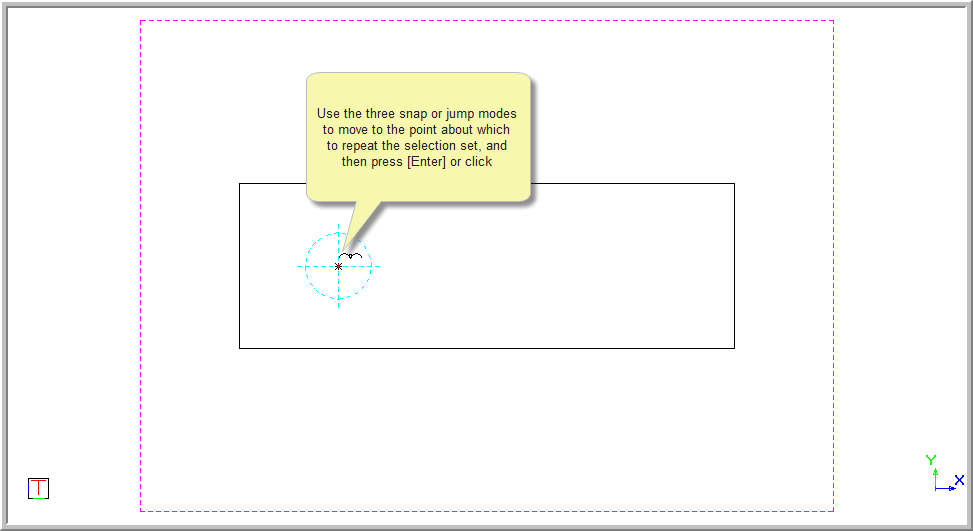
You are prompted to:

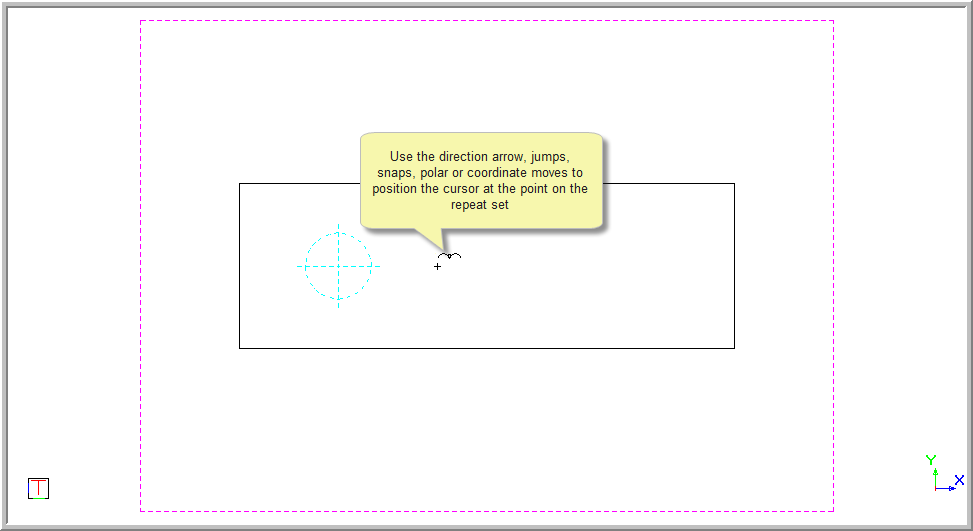
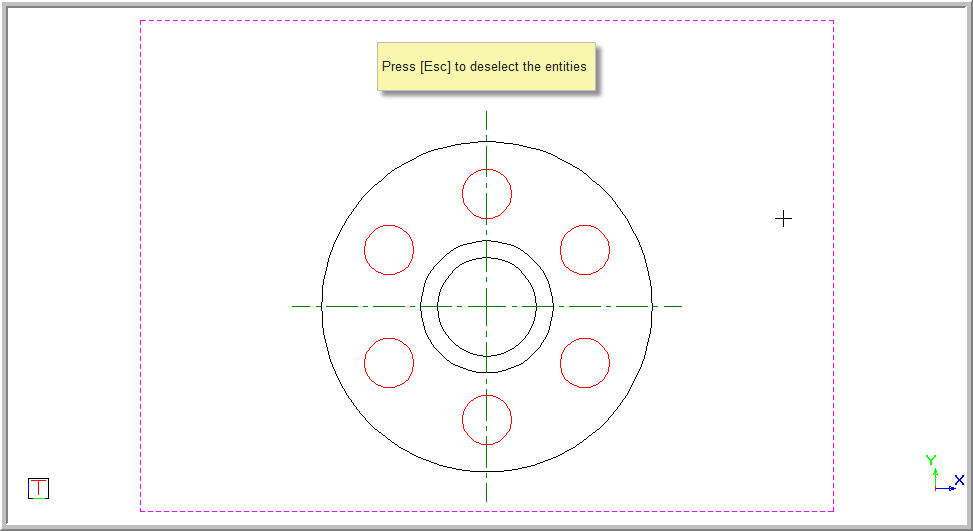
Press [Enter] or click to repeat the selection set.
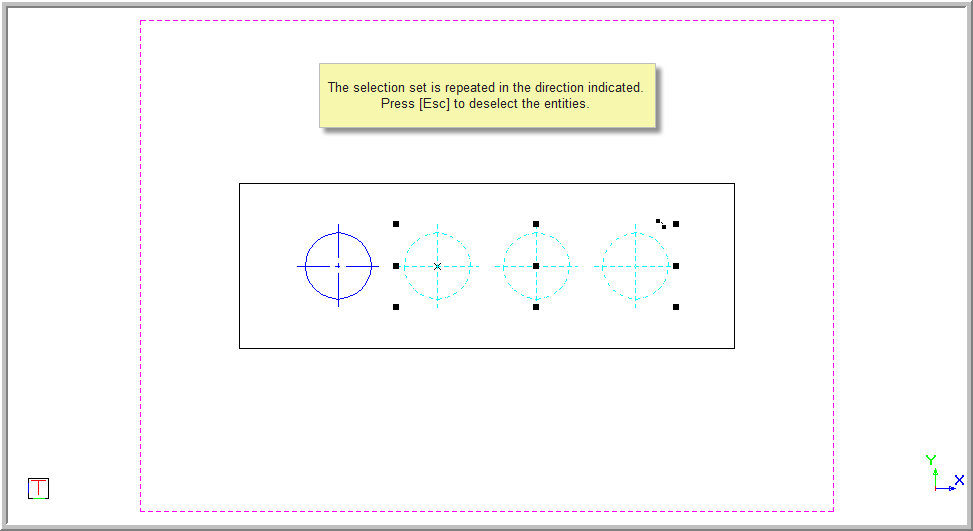
Press [Esc] to deselect the entities.
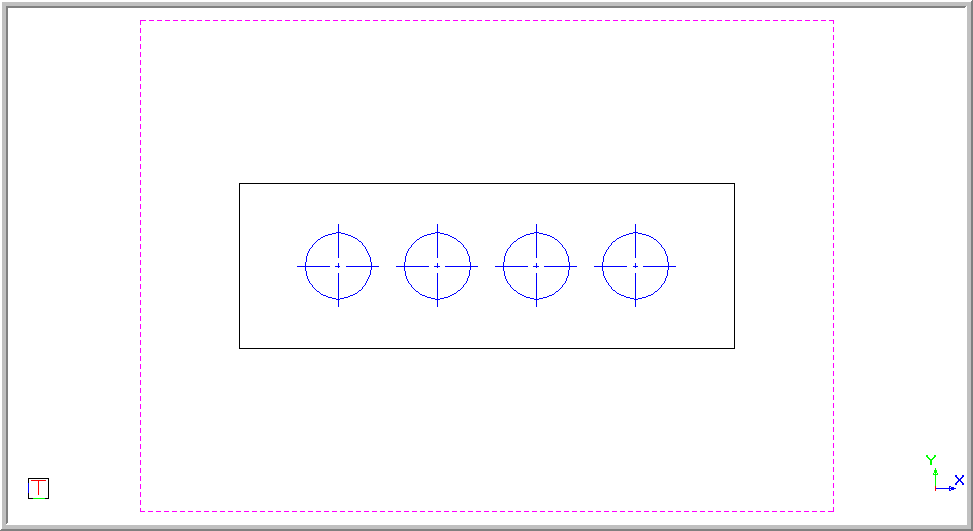
Select the Polar radio button in the Control Bar.
You are prompted to:

Specify the number of times to repeat the selection set.

Indicate if the specified angle is measured between the repeats or is the total angle of the repeats i.e. the repeats are distributed equally within the specified angle.


Specify the angle to be used.

Specify the axis around which the repeat must be made.

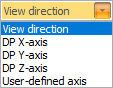
Select the Axis view direction from the dropdown list.
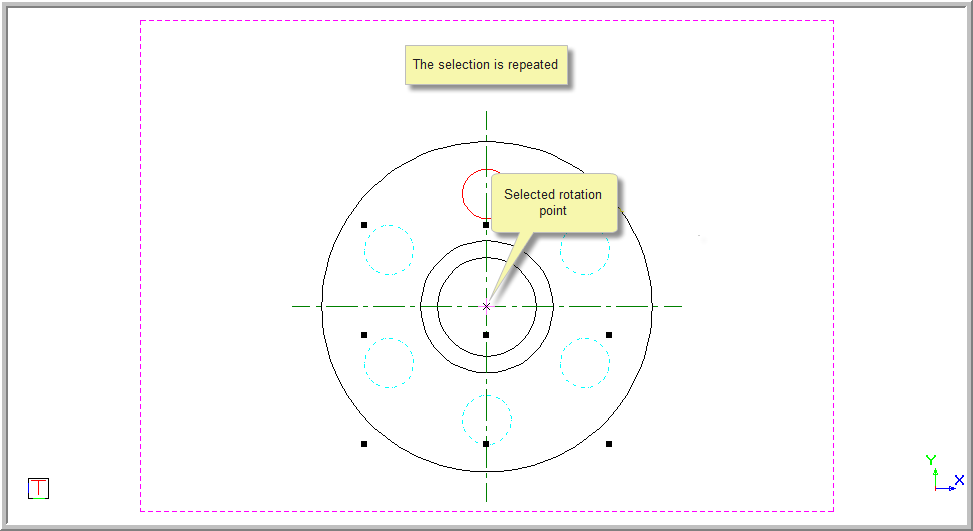
Press [Esc] to deselect the entities.
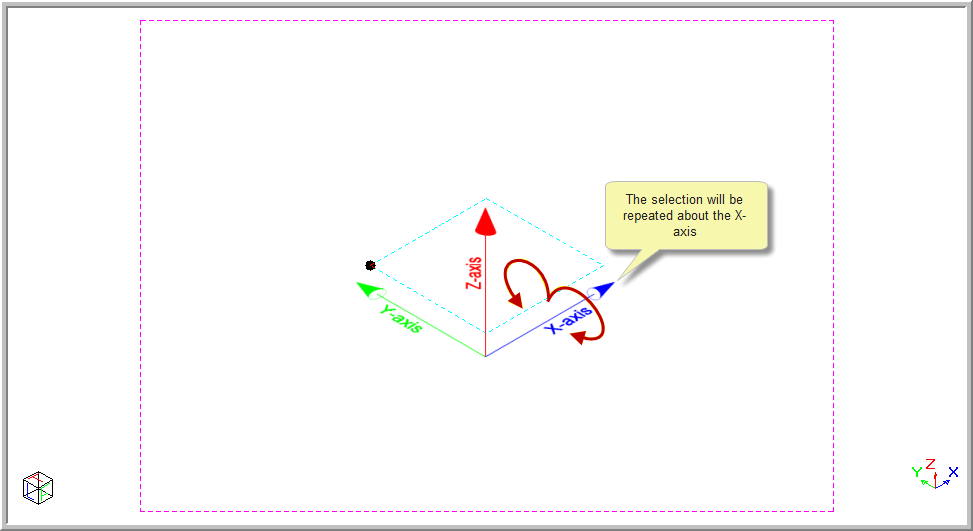
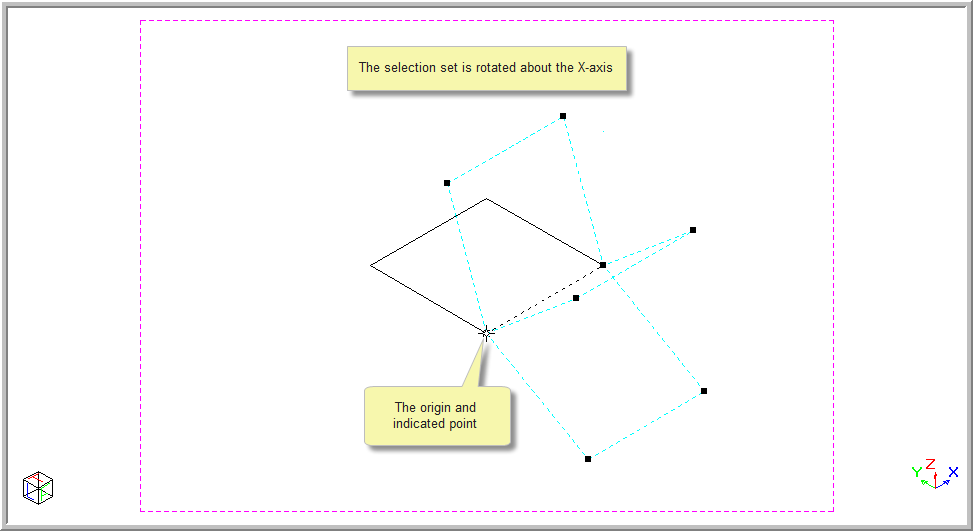
If you selected to repeat the selection set about the DP X-axis:

The selection set will be repeated about the X-axis.
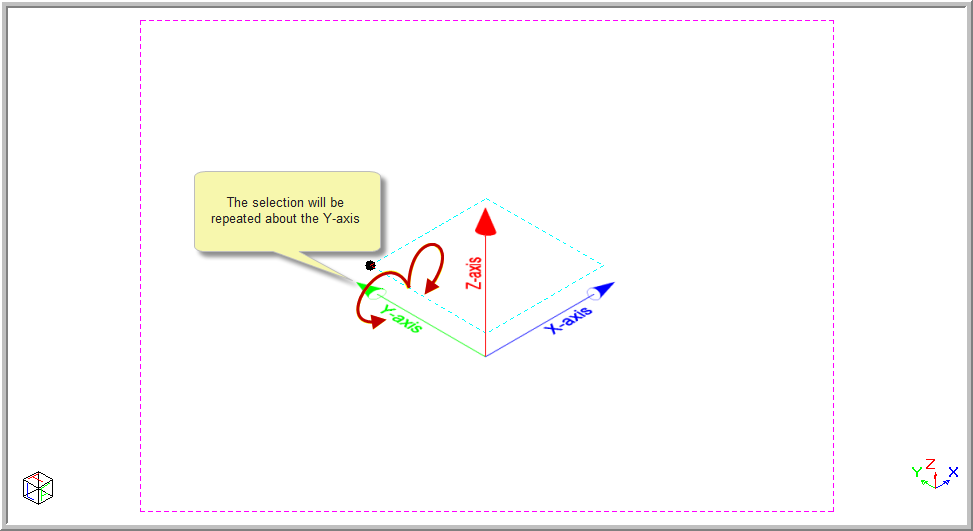
If you selected to repeat the selection set about the DP Y-axis:
You are prompted to:

The selection set will be repeated about the Y-axis.
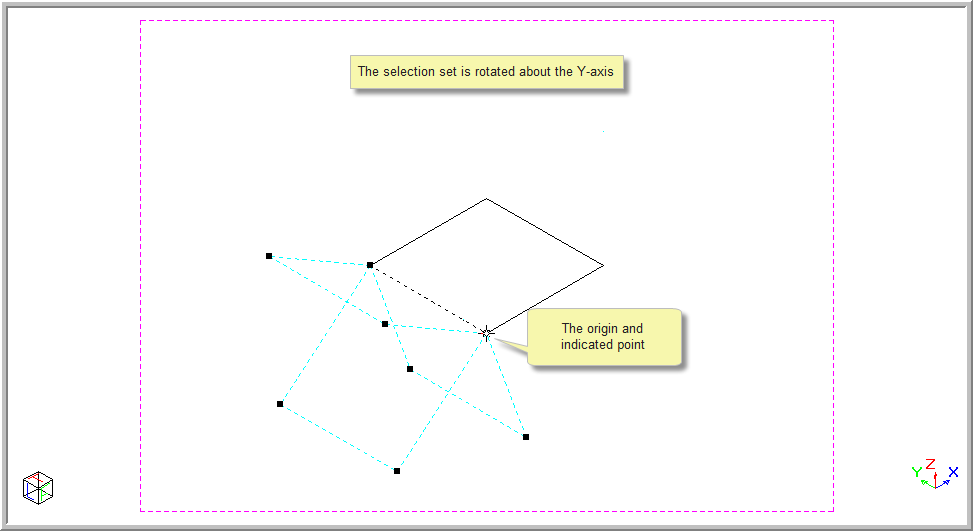
Position the cursor at the point about which to repeat the selection and press [Enter] or click. The selection set is repeated.
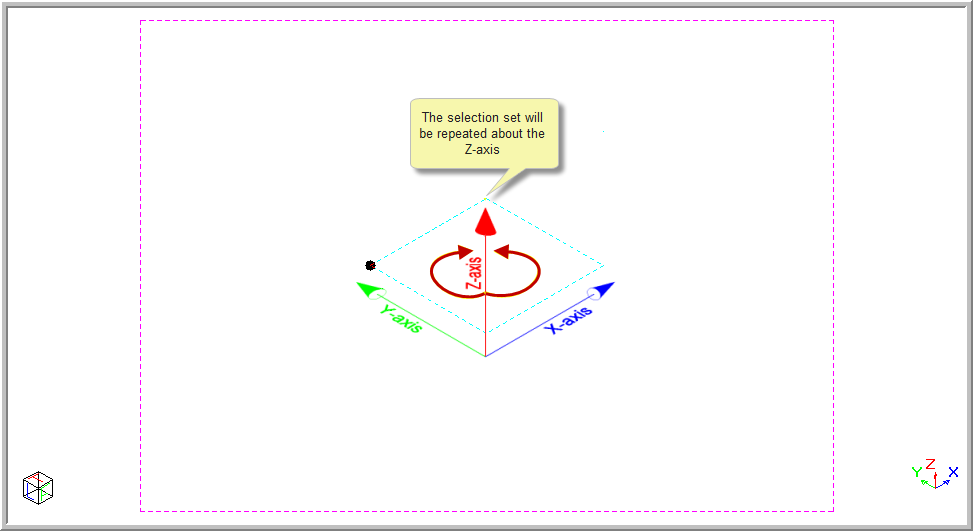
If you selected to repeat the selection set about the DP Z-axis:
You are prompted to:

The selection set will be repeated about the Z-axis.
Position the cursor at the point about which to repeat the selection and press [Enter] or click. The selection set is repeated.
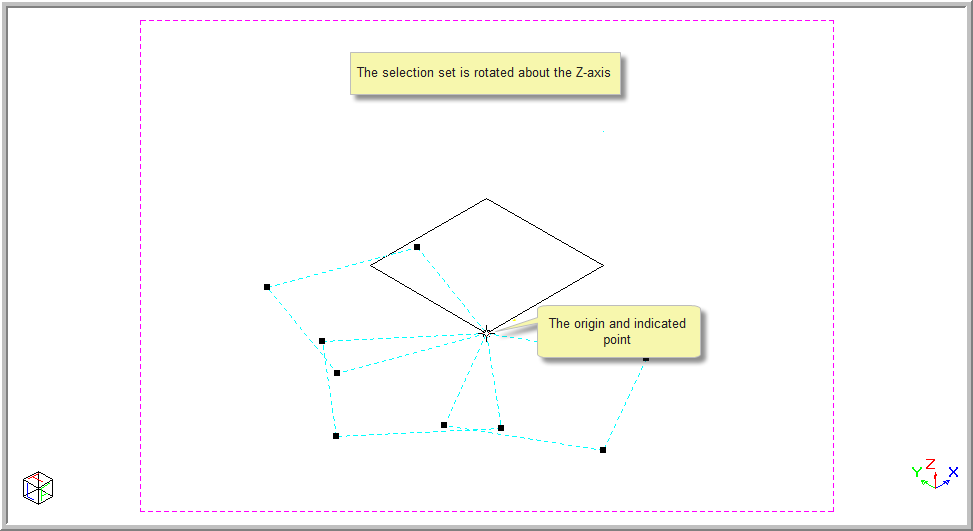
Finally, you can define the axis about which to repeat the selection set. If you selected to repeat the selection set using the User-defined axis:
You are prompted to:

You now see a Reset button, which allows you to re-define your axis as the defined axis is remembered.

Indicate the first point of the rotation axis by pressing [Enter] or clicking in the required position.
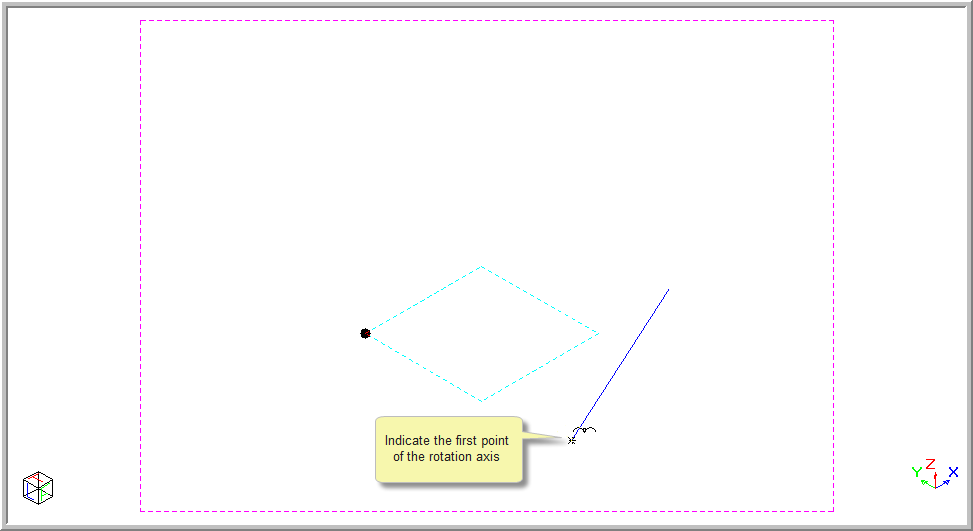
You are prompted to:

Indicate the second point of the rotation axis by pressing [Enter] or clicking in the required position.
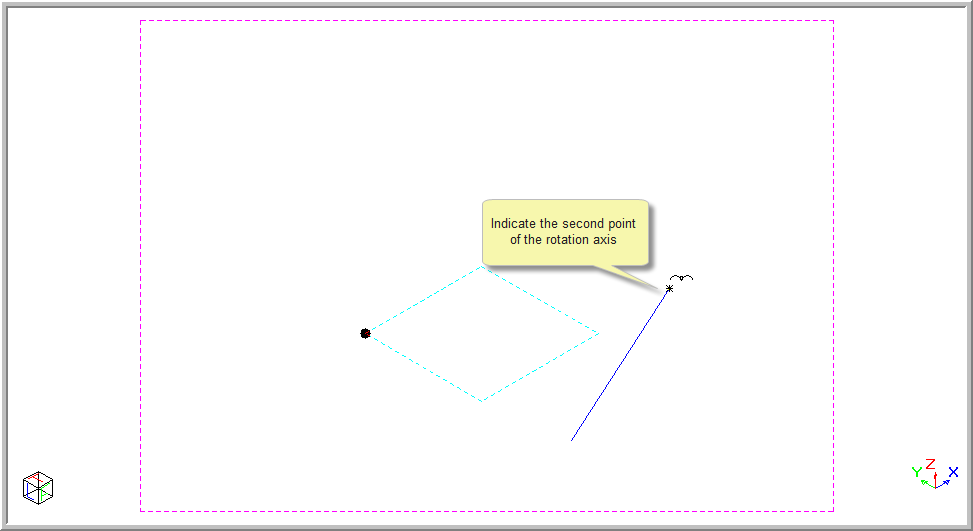
You are prompted to:

Position the cursor at the point about which to repeat the selection and press [Enter] or click. The selection set is repeated about your defined axis.
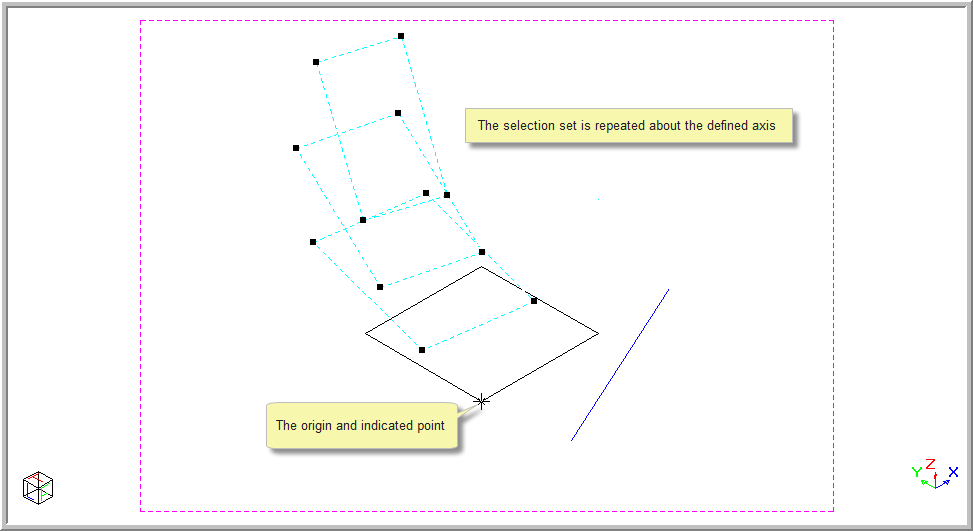
Press [Esc] to deselect the entities.
The
User-defined axis is remembered. You need to reset it to define a new
axis.
Select the Polar radio button in the Control Bar.
You are prompted to:

Specify the number of times to repeat the selection set.

Change the angle type to Indicate angle between. This means the angle you will indicate using the mouse is the angle between repeats. If you choose Indicate total angle, it would mean that the angle you indicate is the total angle (cumulative angle) of all the repeats.

The angle input in the Repeat Bar is ignored if you are indicating the angle.
Specify the axis around which the repeat must be made. Select the axis from the dropdown list.

Use the Snaps, Jumps, direction arrows or coordinates to move to the required rotation point and press [Enter] or click in the required position.
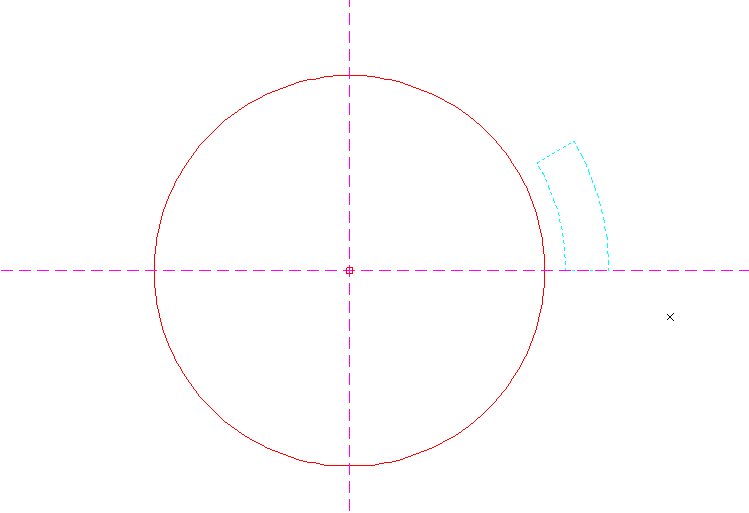
In the example above, we have snapped to the circle centre.
You are prompted to indicate the first point for the polar repeat.

Click to specify the first point of the polar repeat interval/angle.
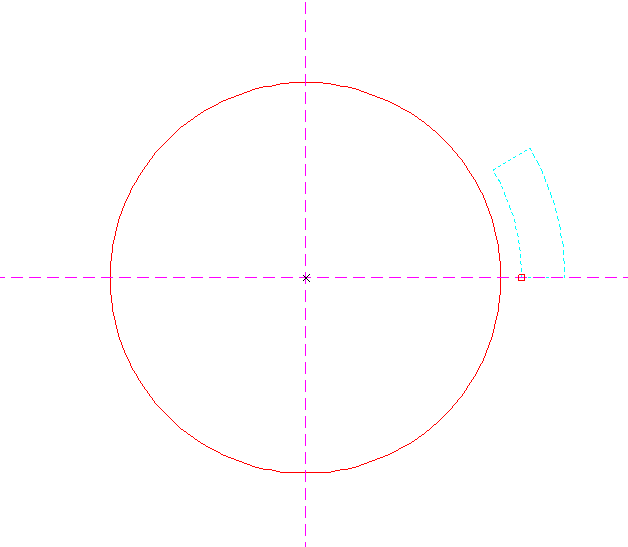
In the example above, you have snapped to the bottom-left corner of the selected entities.
You are prompted to indicate the second point for the polar repeat.

Click to specify the second point.
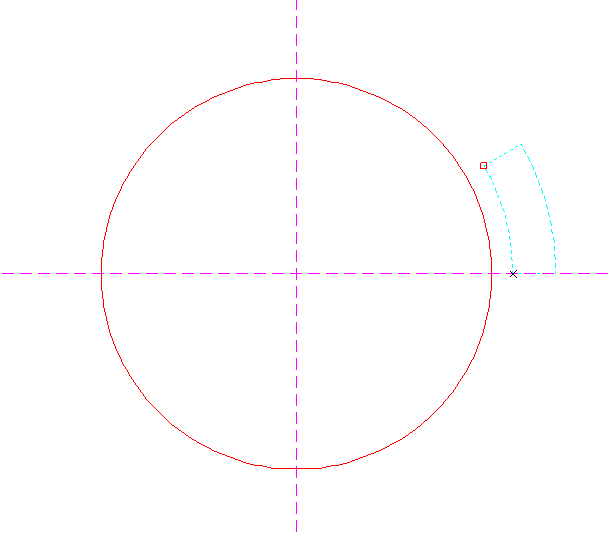
In the example above, you have snapped to the top-left corner of the selected entities.
The repeat angle will be calculated as the angle between the two points you specified, relative to the centre point you specified.
The selection will be repeated around the indicated centre point, using the calculated angle, in the direction from the first indicated point to the second indicated point.
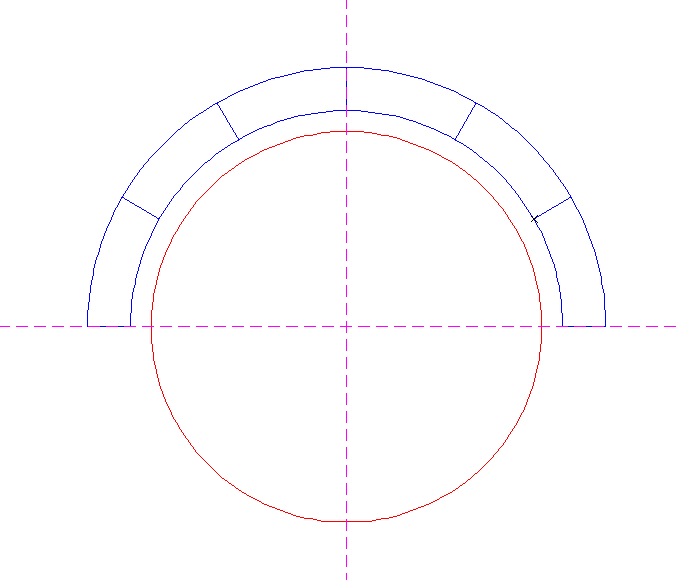
The function will exit.