Icon
Command
Shortcut Key
Toolbar

MIRROR
Modify
Mirror a selection set about a specified plane.
|
Icon |
Command |
Shortcut Key |
Toolbar |
|
|
MIRROR |
|
Modify |
This function allows you to mirror a selection set about a specified plane by selecting the entities to be mirrored and the plane about which to mirror the selection set.
 If the selection set is empty, you need to specify it before you continue.
Procedure
You are prompted to:

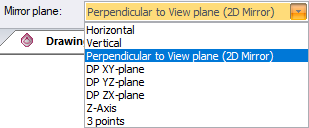
In the Mirror plane dropdown list, select the plane about which to mirror the selection set.
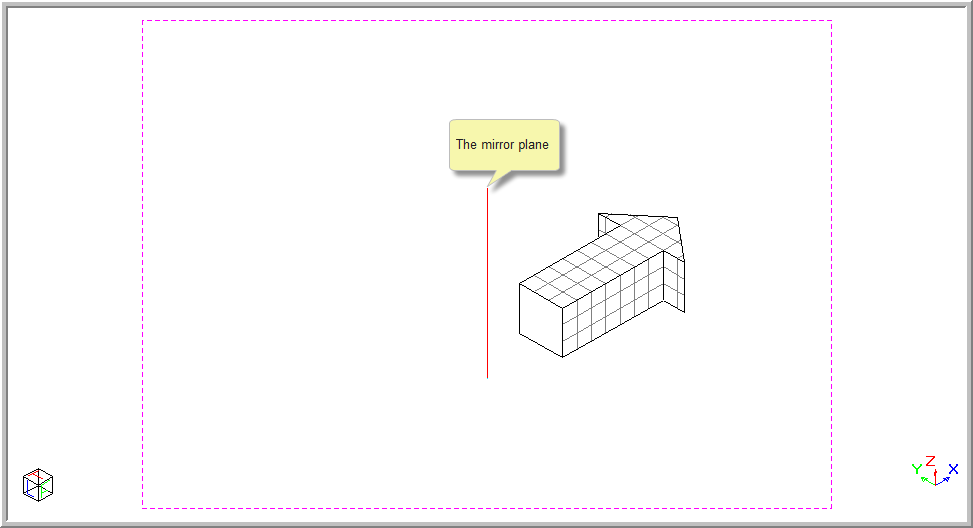
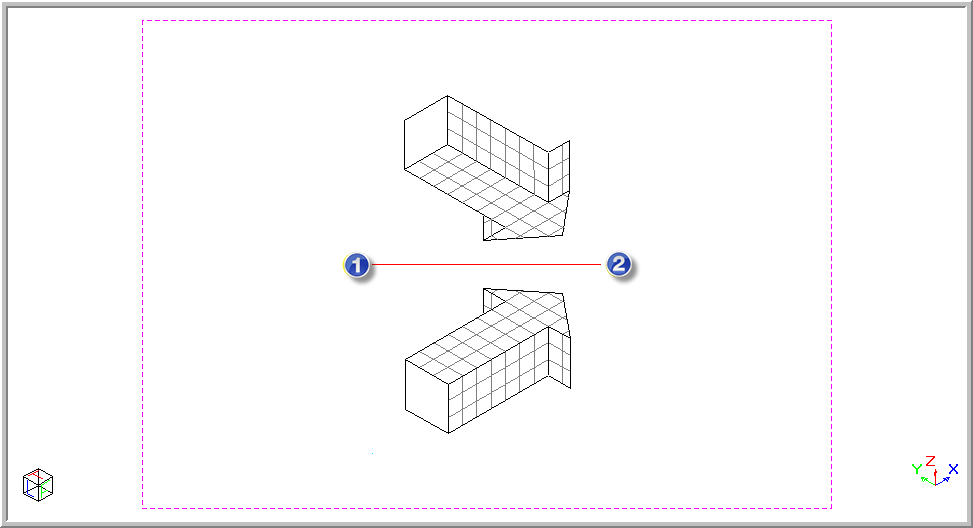
For this example the plane is indicated by the red line.
You are prompted to:

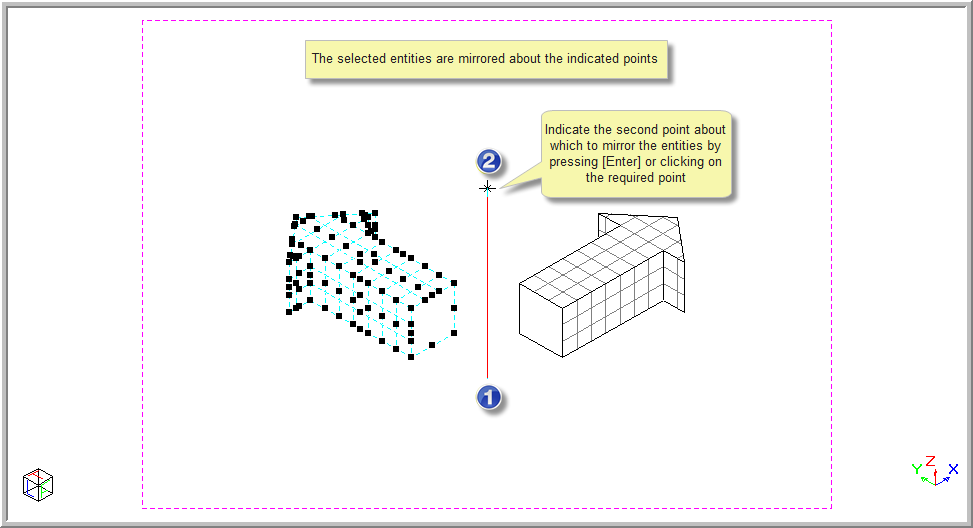
Position the cursor at Point 1 and then press [Enter] or click to indicate the first point of the mirror axis.
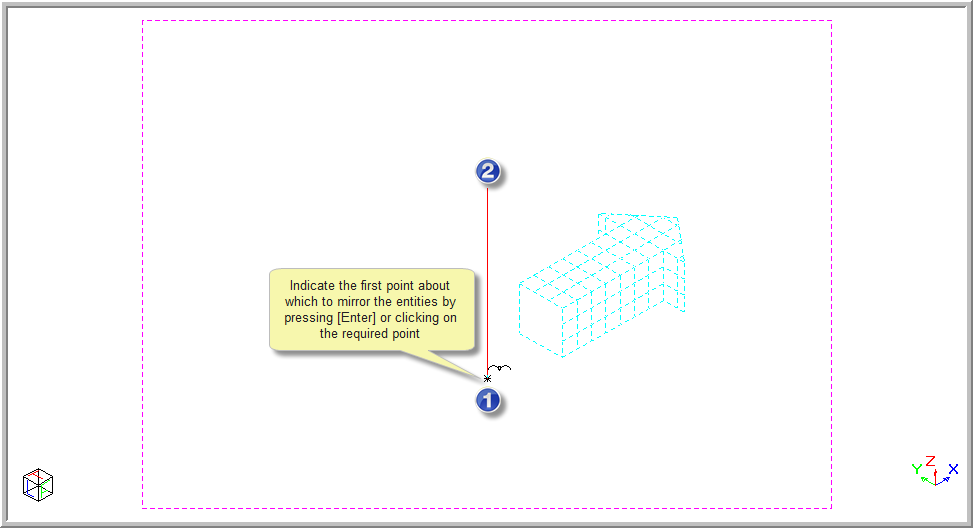
You are prompted to:

Position the cursor at Point 2 and then press [Enter] or click to indicate the second point of the mirror axis. The selected entities are mirrored about the indicated points.
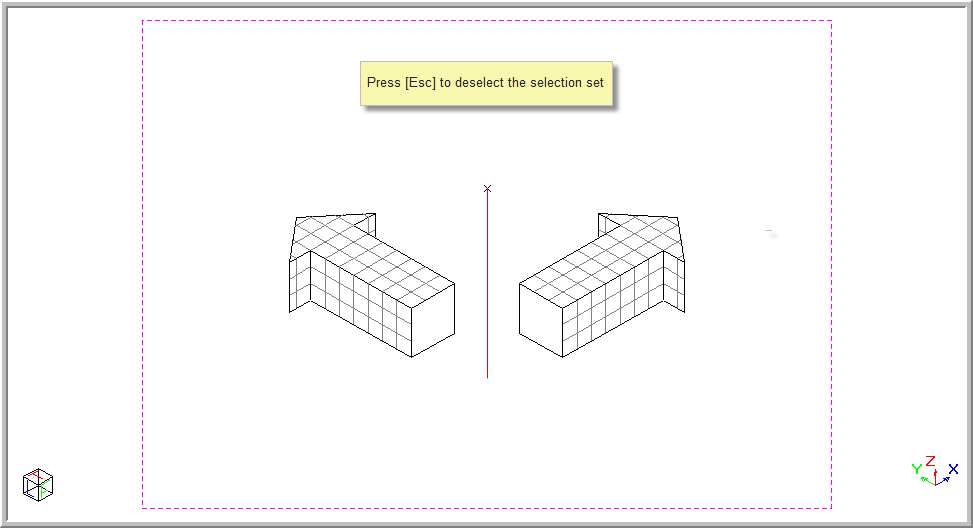
Press [Esc] to deselect the selected entities.
The example below shows how the entities will be mirrored about the red line.
You are prompted to:

Position the cursor at the point about which to mirror the selection.
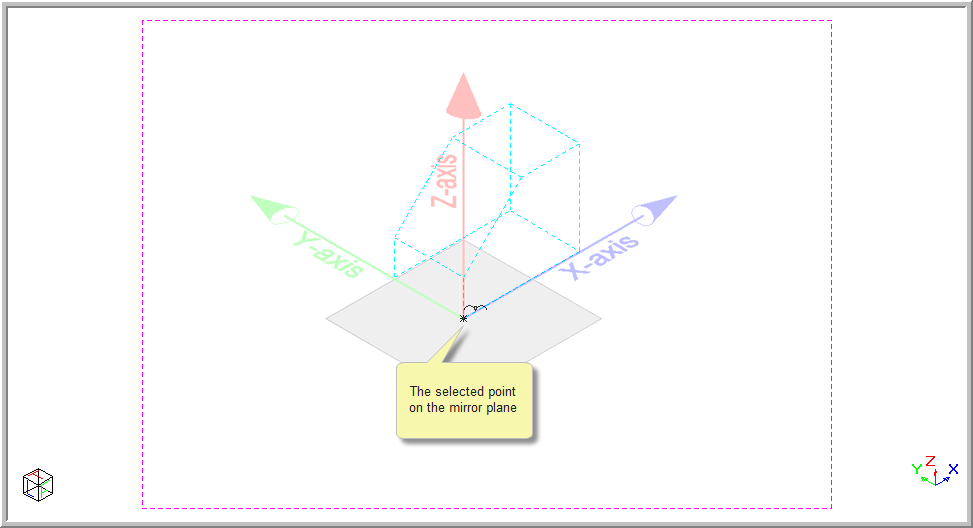
Press [Enter] or click to indicate the point on the mirror plane.
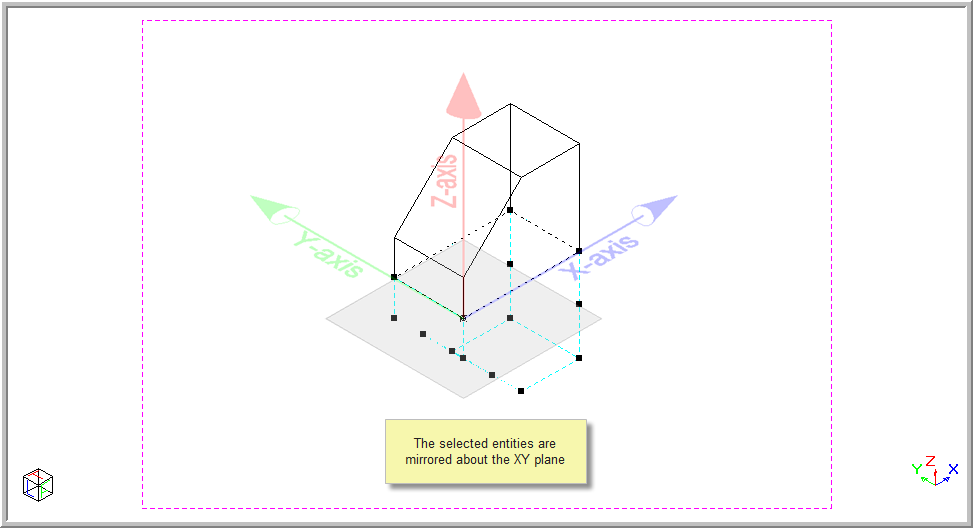
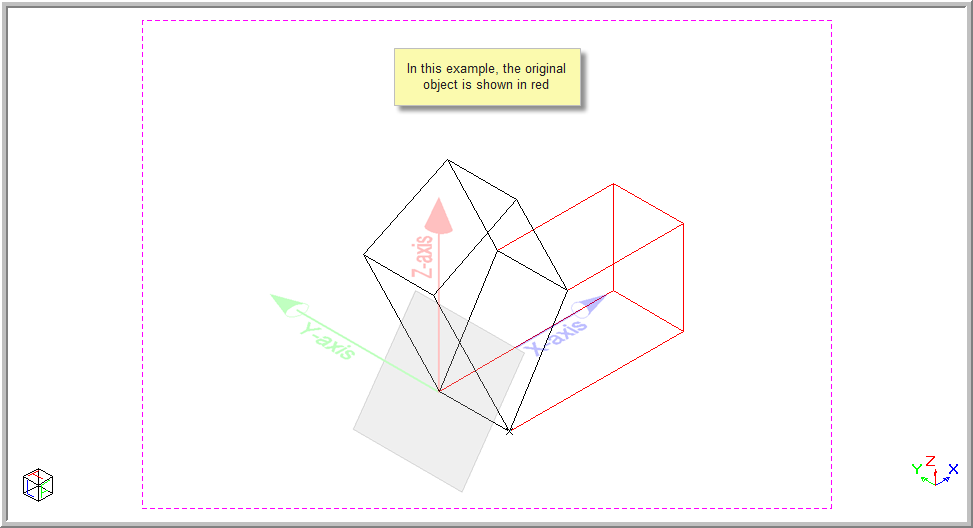
Press [Esc] to deselect the selected entities. The original object is shown in red below.
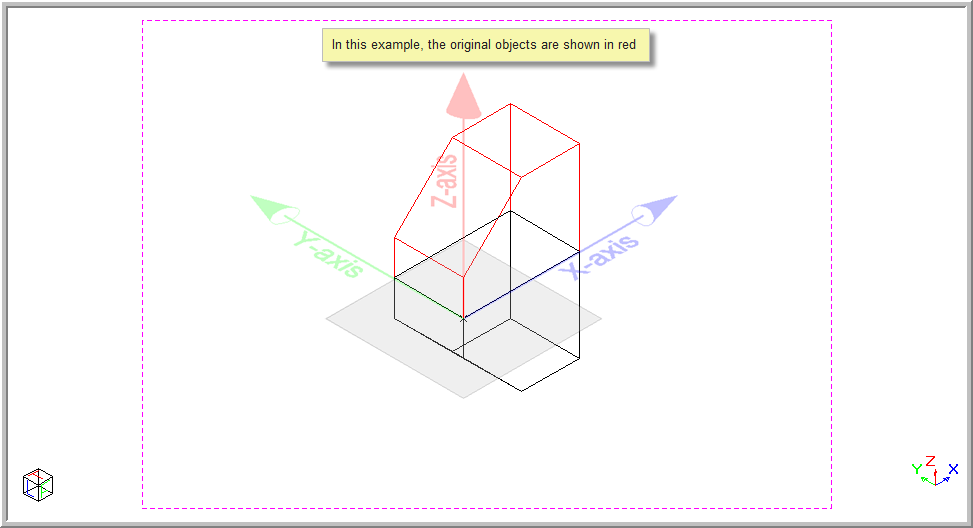

Position the cursor at the point about which to mirror the selection.
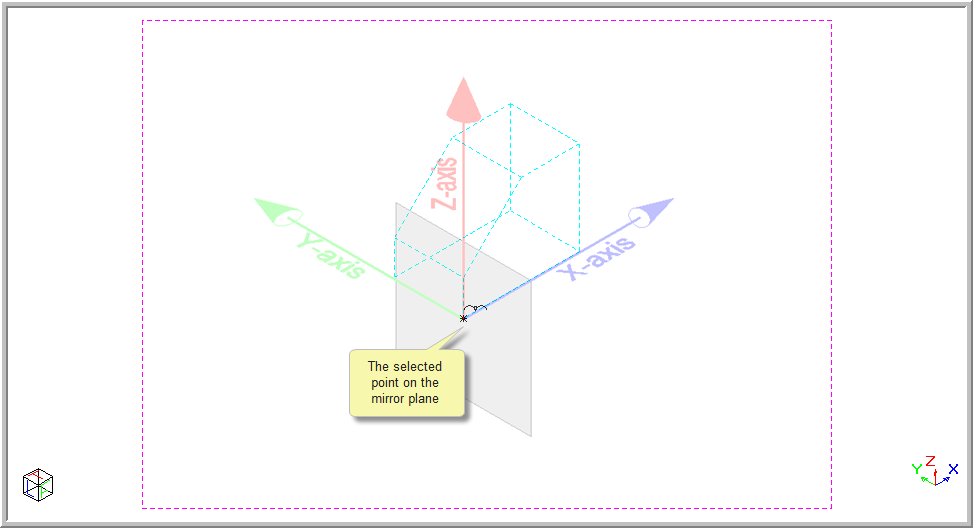
Press [Enter] or click to indicate the point on the mirror plane.
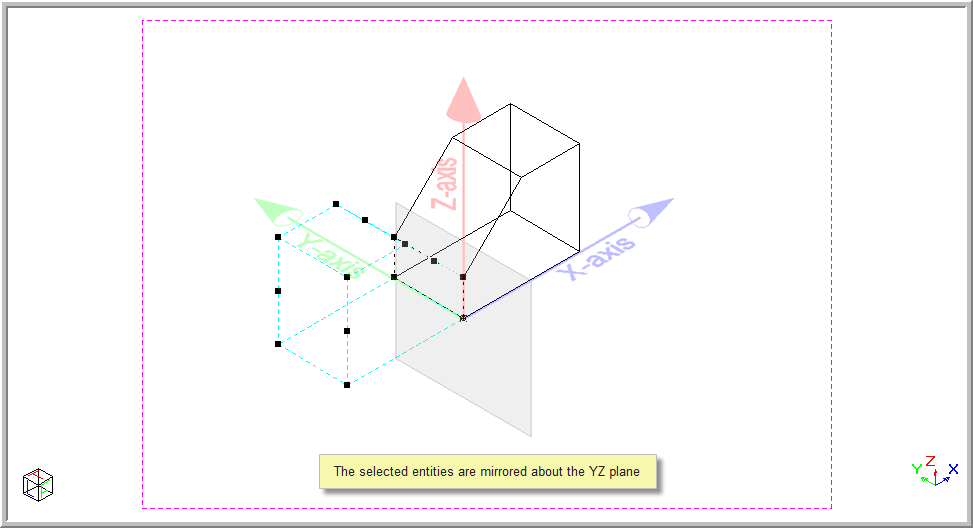
Press [Esc] to deselect the selected entities. The original object is shown in red below.
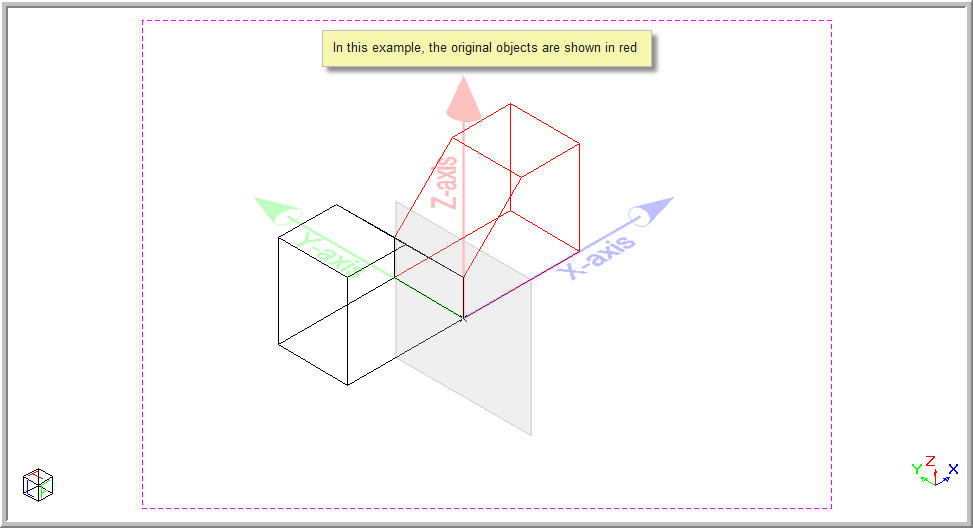
You are prompted to:

Position the cursor at the point about which to mirror the selection.
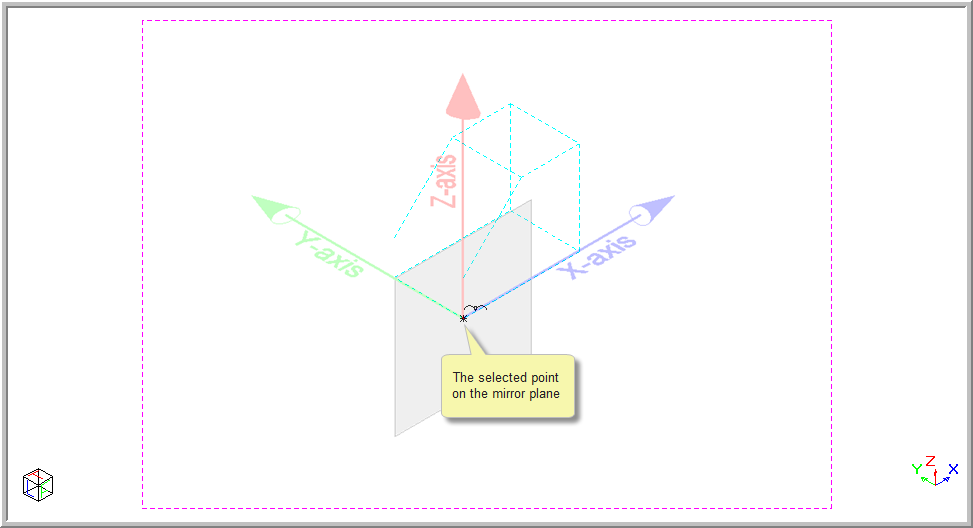
Press [Enter] or click to indicate the point on the mirror plane.
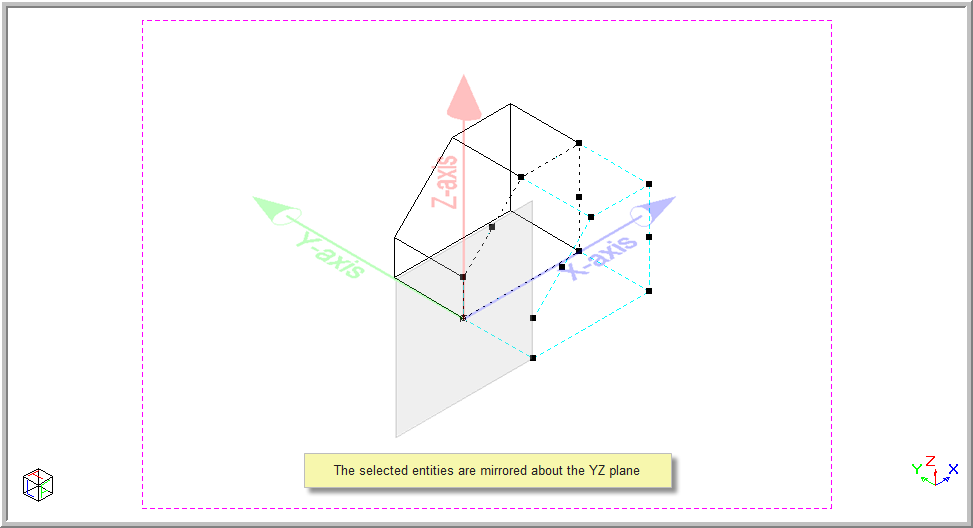
Press [Esc] to deselect the selected entities. The original object is shown in red below.
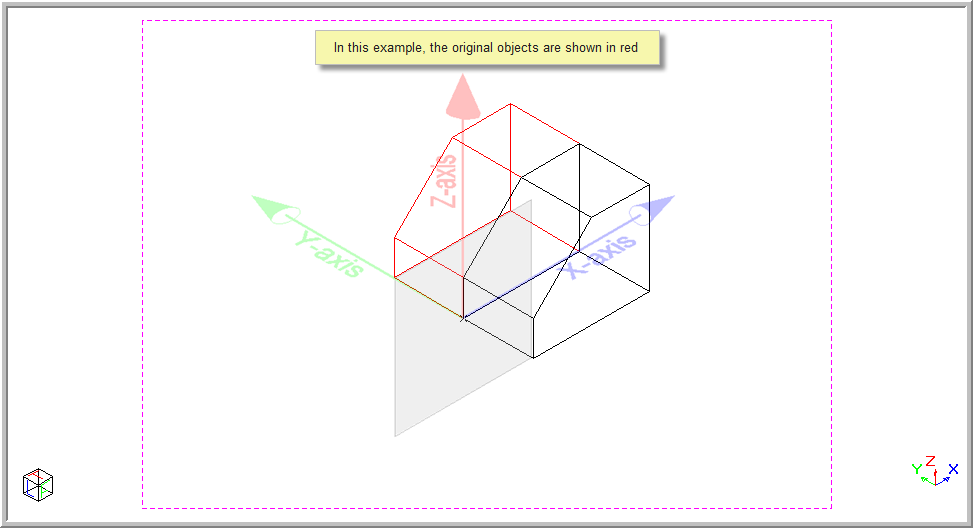
When using this option, its imperative you use the snaps and not the 2D jumps to indicate the points about which to mirror.
You are prompted to:

Position the cursor at the first point of the mirror plane Z-axis. You are now defining the plane about which to mirror the entities. The mirror plane is orientated perpendicular to a line drawn between the two points you are going to specify.
Use an appropriate snap when selecting the points. Do not use jumps to specify the points.
Press [Enter] or click to indicate the point on first the mirror plane.
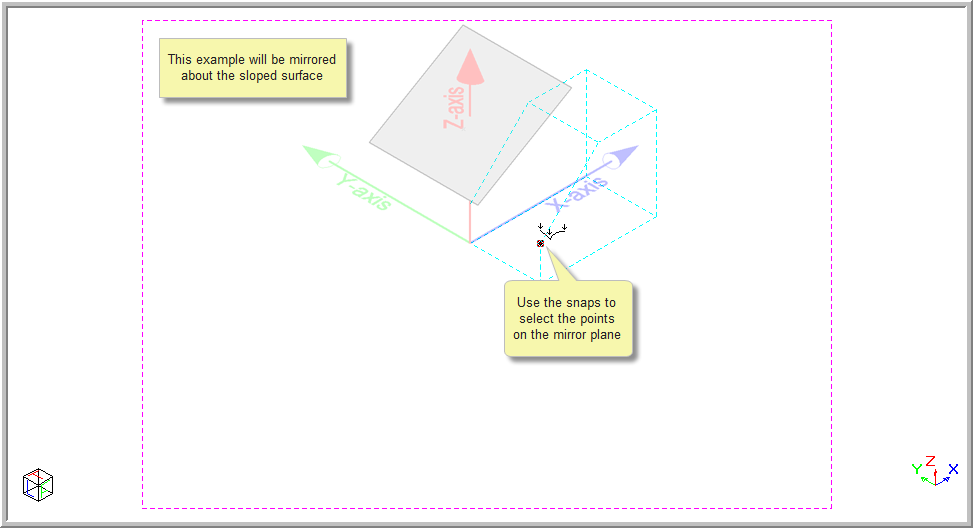
You are prompted to:

Position the cursor at the second point and press [Enter] or click to indicate the second point of the mirror axis.
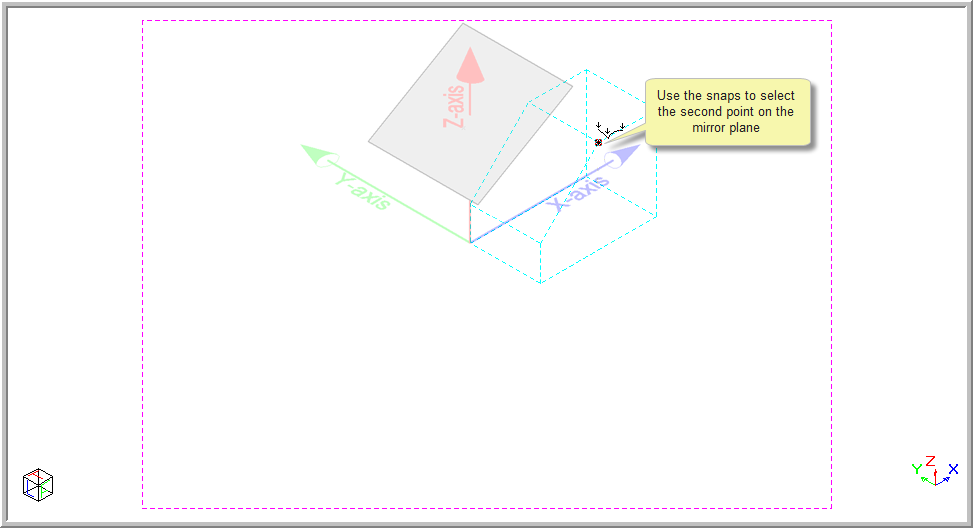
You are prompted to:

Position the cursor at the point about which the mirror must occur.
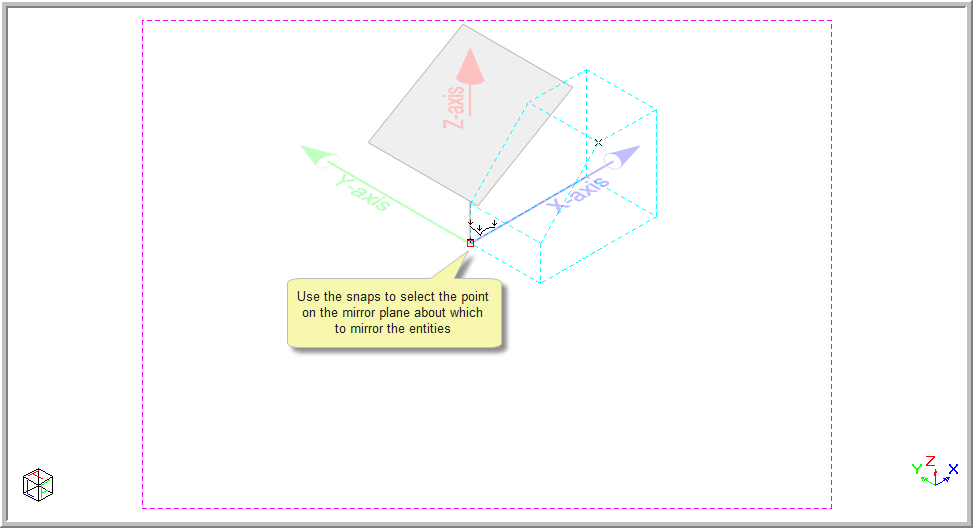
Press [Enter] or click to indicate the point about which the mirror must occur. The selected entities are mirrored about in the plane.
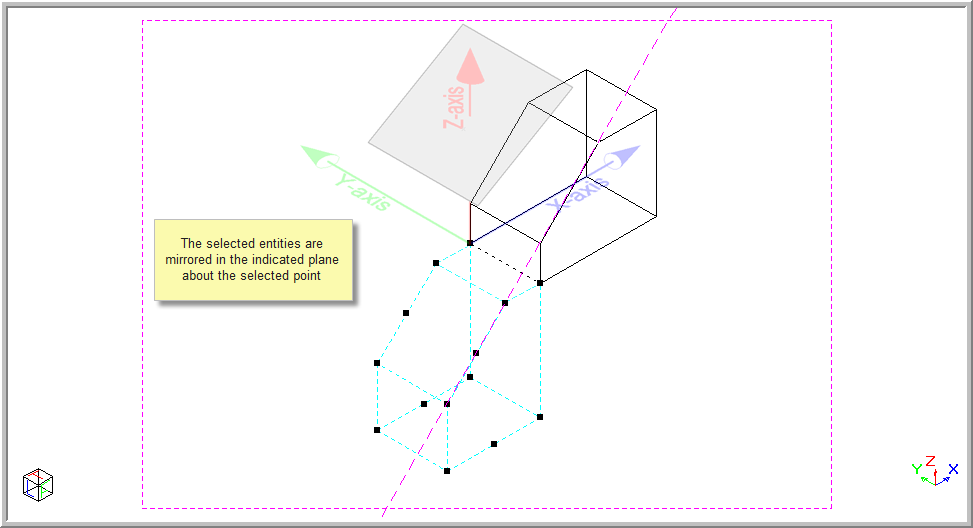
Press [Esc] to deselect the selected entities. The original object is shown in red below.
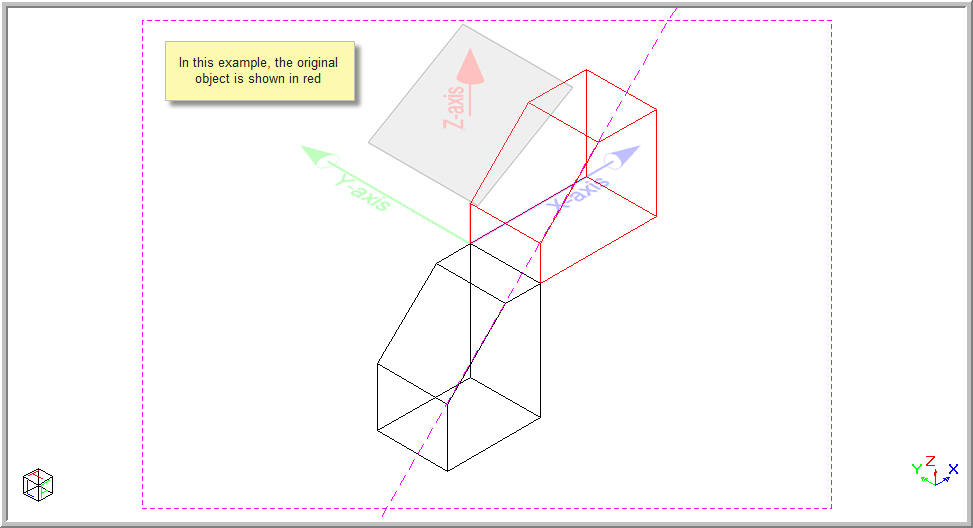
When using this option, its imperative you use the snaps and not the 2D jumps to indicate the points about which to mirror.
You are prompted to:

Position the cursor at the first point of the mirror plane, and then press [Enter] or click to indicate the first point on the mirror plane.
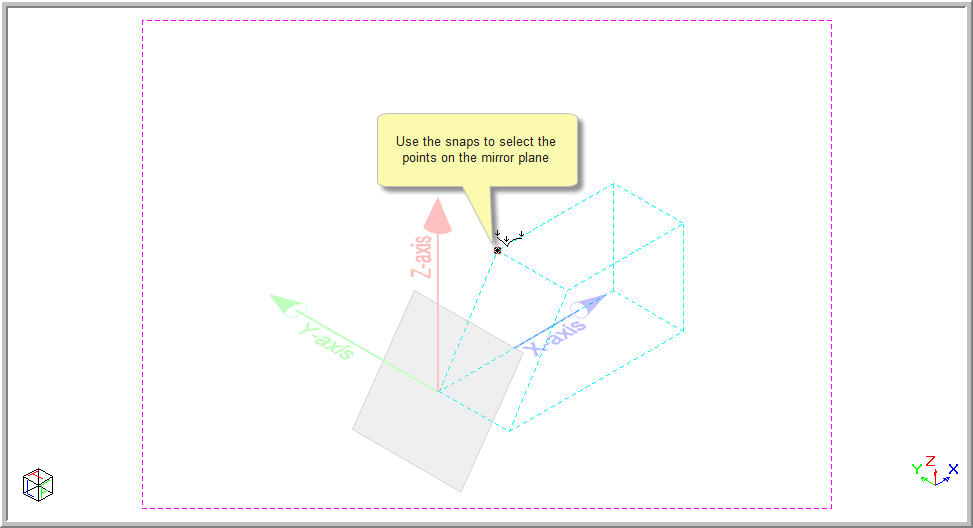
You are prompted to:

Position the cursor at the second point of the mirror plane, and then press [Enter] or click to indicate the second point on the mirror plane.
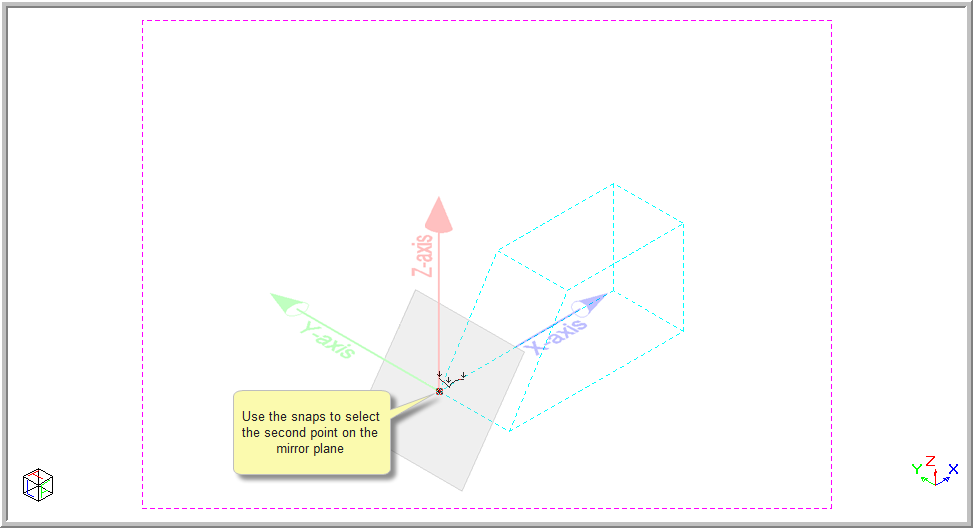
You are prompted to:

Position the cursor at the third point of the mirror plane.
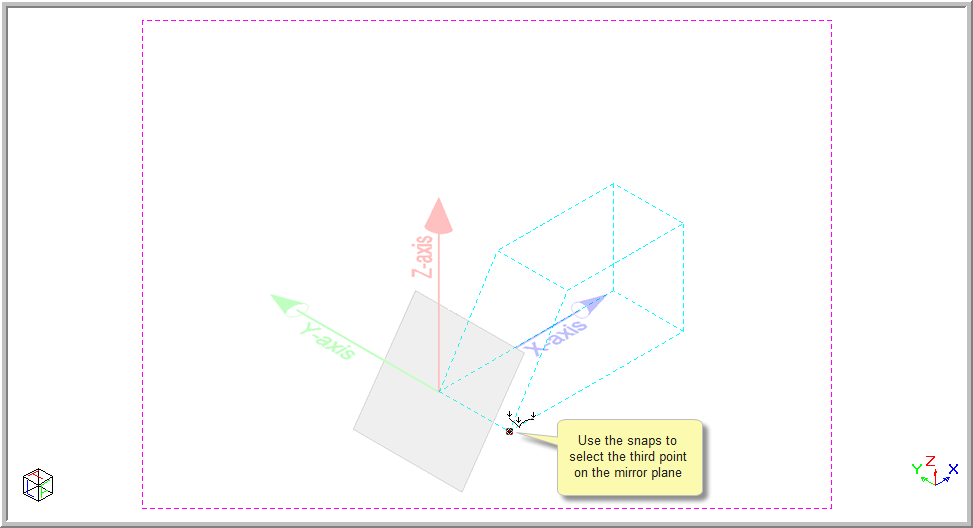
Press [Enter] or click to indicate the third point on the mirror plane. The selected entities are mirrored about in the plane.
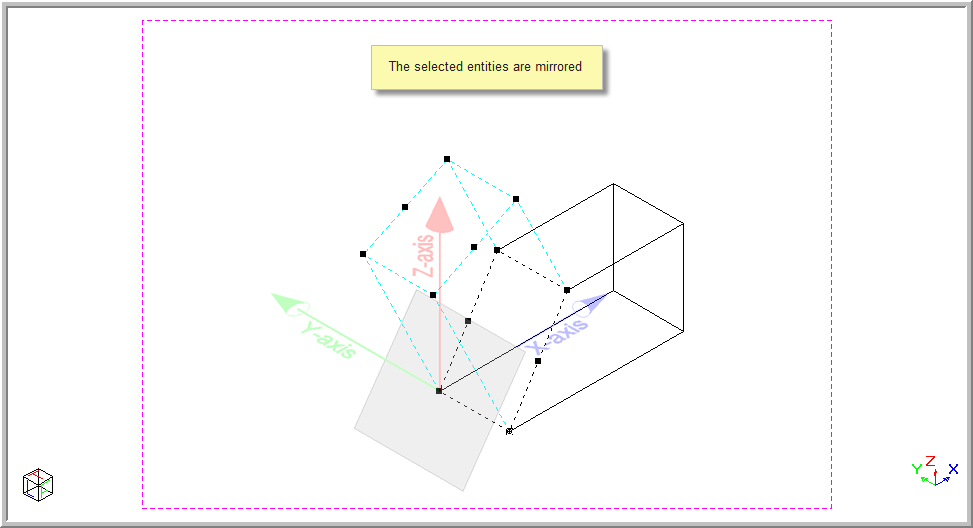
Press [Esc] to deselect the selected entities. The original object is shown in red below.