Icon
Command
Shortcut Key
Toolbar

GEOMCIRCLETANC
Geometry
Draw a geometry circle with a specified radius tangent to another geometry circle, through an indicated point.
|
Icon |
Command |
Shortcut Key |
Toolbar |
|
|
GEOMCIRCLETANC |
|
Geometry |
This function allows you to draw a geometry circle of given radius to touch another geometry circle tangentially, by indicating the circle and setting the radius of the tangential circle. Indicate the position the tangential circle must pass through and then select the correct tangential circle from the options available.
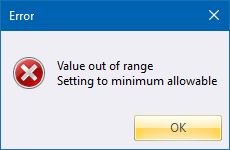
If the specified radius is too small the radius will be updated to the minimum value allowed.
The indicated through point must be on the same plane as the indicated geometry circle.
 Geometry lines are infinite lines that never print or plot, and are seen in all layers. To change the appearance of all geometry, see Geometry Settings under System Settings.
Procedure
To draw a geometry circle of given radius to touch a geometry circle tangentially:
Select Geometry ► Circles ► Tangent to ► Circle or click the icon in the Geometry toolbar.

You can set the radius of the circle by clicking in the text box, or pressing [Tab]to move into the text box, and then typing the required radius.
Position the cursor near the geometry circle to add the tangential circle to, and then press [Enter] or click to indicate the circle. The circle is highlighted.
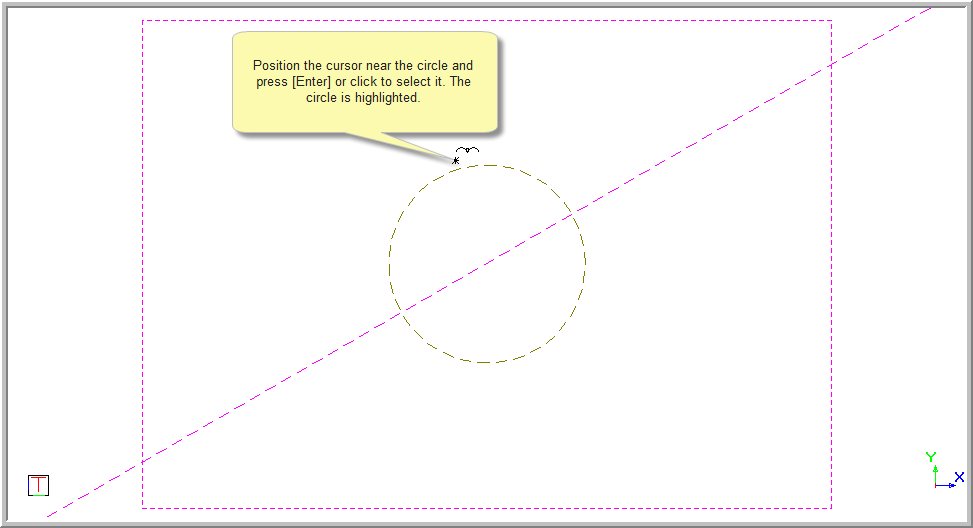
You are prompted to:

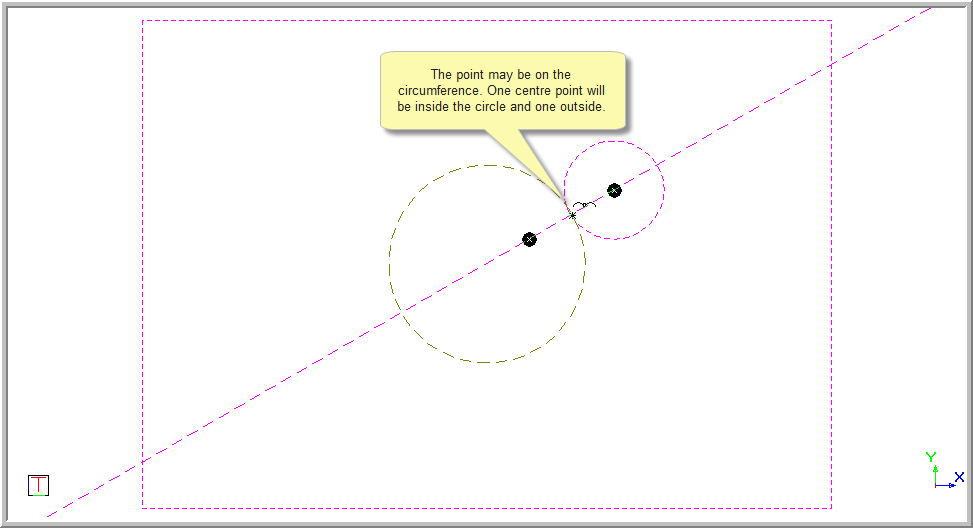
The point may be on the circumference of the circle.
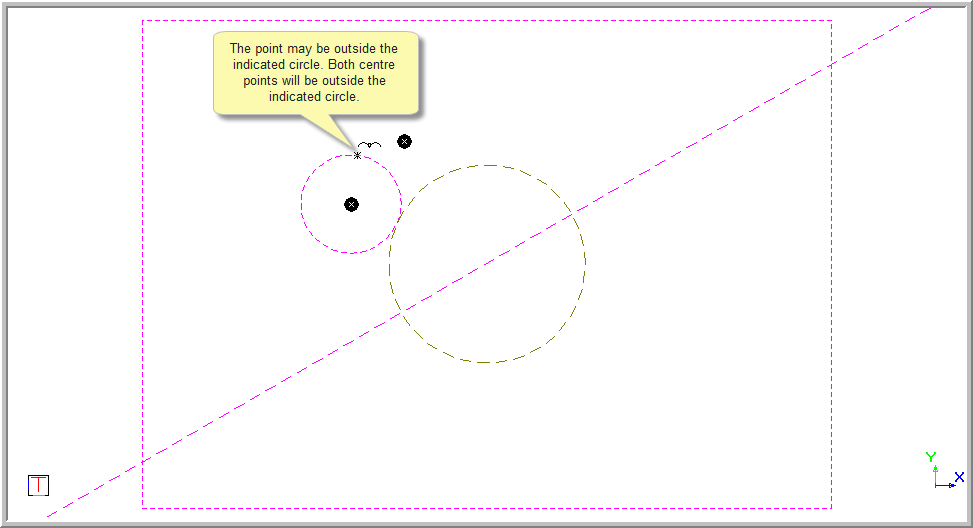
The point may be outside of the indicated circle.
The point may be inside of the indicated circle.
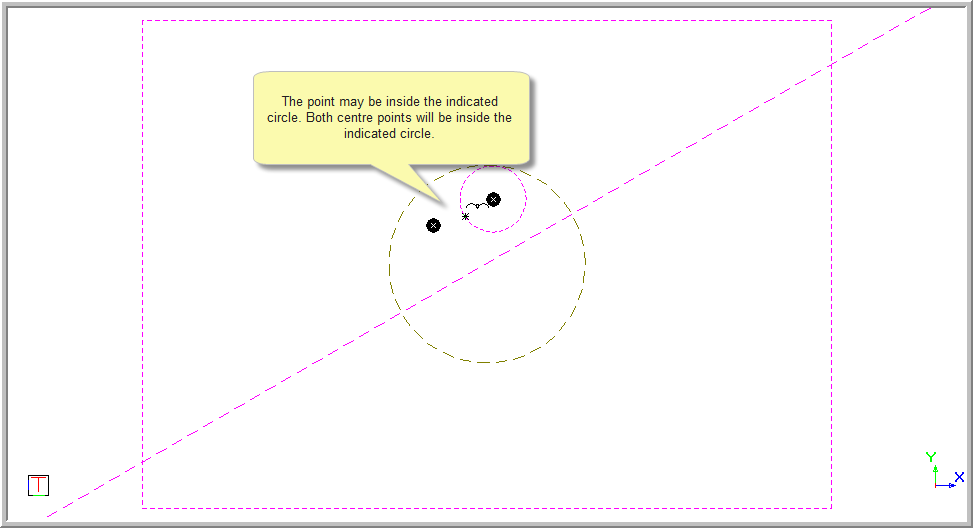
Position the cursor at the point through which the new geometry circle must pass, and then press [Enter] or click to indicate the position. The two tangential circle centre points are indicated and a rubberbanded preview of the circle is added to one of the centre points.
You are prompted to:

Position the cursor near the correct centre point, and then press [Enter] or click to select the point.
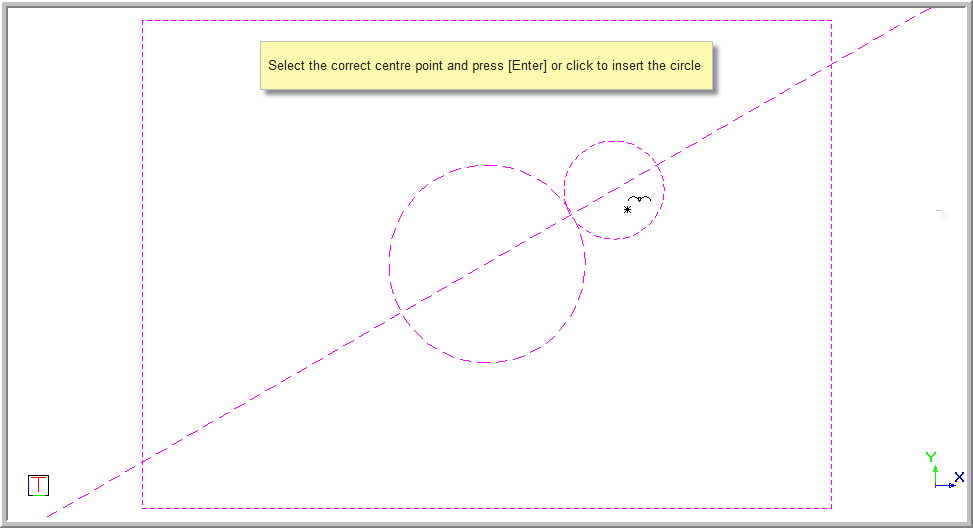
If the specified radius is to small you will receive the following error message. When you click OK, the radius is updated to the minimum value allowed for the indicated point.
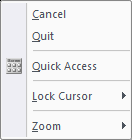
If the incorrect line or circle has been selected, right-click in the drawing area and select Cancel to return to the beginning and indicate the Geometry line.
The function repeats.
Right-click and select Quit to end the function. Alternatively, press [Esc].