Move to Front
Move selected entities in front of all other drawing entities with which it overlaps.
|
Icon
|
Command
|
Shortcut Key
|
Toolbar
|
|

|
MOVETOFRONT
|
|
Modify
|
This function allows you to move one or more selected entities in front of all the other entities in the drawing.
 The selected entities may only appear to be at the back after you have performed a Refresh or a Redraw.
Procedure
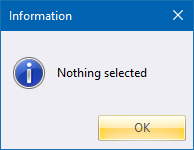
- Select the entities to be moved to the front by clicking on them or dragging a selection box around them. You can also use the standard selection functions, including Select All, Select by Polygon, Select by Filter and Invert Selection, to create the required selection of entities you want to save. If nothing is selected and you try to move it, AllyCAD displays the following message.
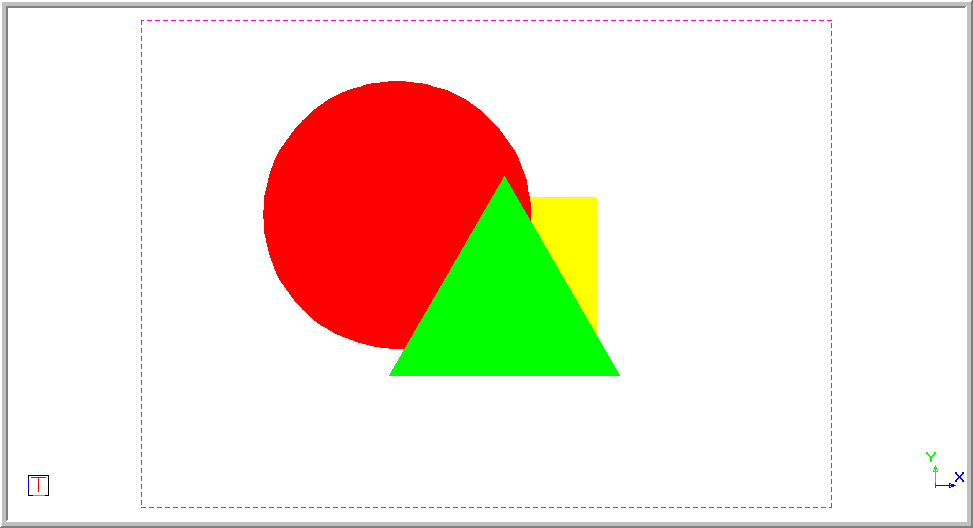
- This diagram shows the original drawing with a square at the back, the circle in the middle and the triangle in the front.
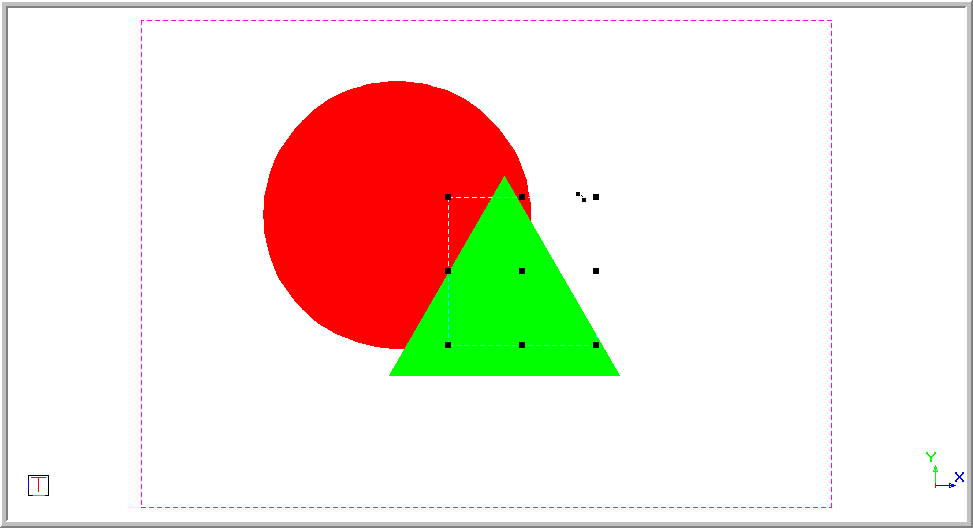
- Select the square.
- Move the entity to the back by selecting Edit ► Draw Order ► Move to Front or clicking the icon in the Draw Order toolbar. The selected entities now appear in front of the other entities in the drawing. The square is moved in front of the circle and triangle.
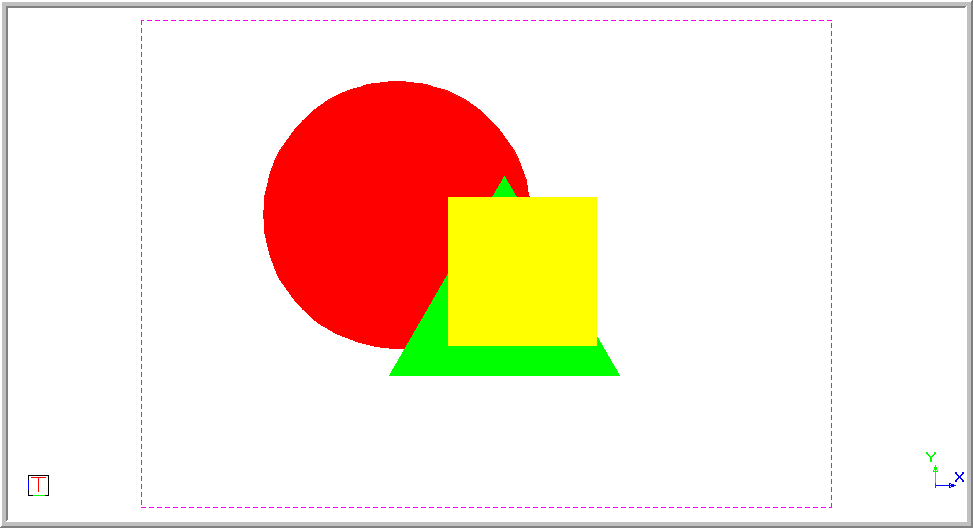
You may be required to perform a Redraw before the entities actually appear to be moved.