Icon
Command
Shortcut Key
Toolbar

SKETCH
Drawing
Draw freehand sketches.
Icon |
Command |
Shortcut Key |
Toolbar |
|
SKETCH |
|
Drawing |
This function allows you to sketch in freehand mode by entering the first point and then dragging the cursor around the screen as required.
 Sketch generates
lightweight
polyline entities.
Sketch generates
lightweight
polyline entities.
Procedure
To draw freehand sketches:
Select Draw ► Sketch or click the icon in the Drawing toolbar.
Indicate start position of sketch
Position the cursor on the start point for the arc, and then click or press [Enter]. You can jump to the desired point or use the snaps.
You are prompted to:
Move mouse to sketch (Click to end)
You can now move the mouse begin sketching. The sketch is generated as a continuous polyline by tracking the mouse position.
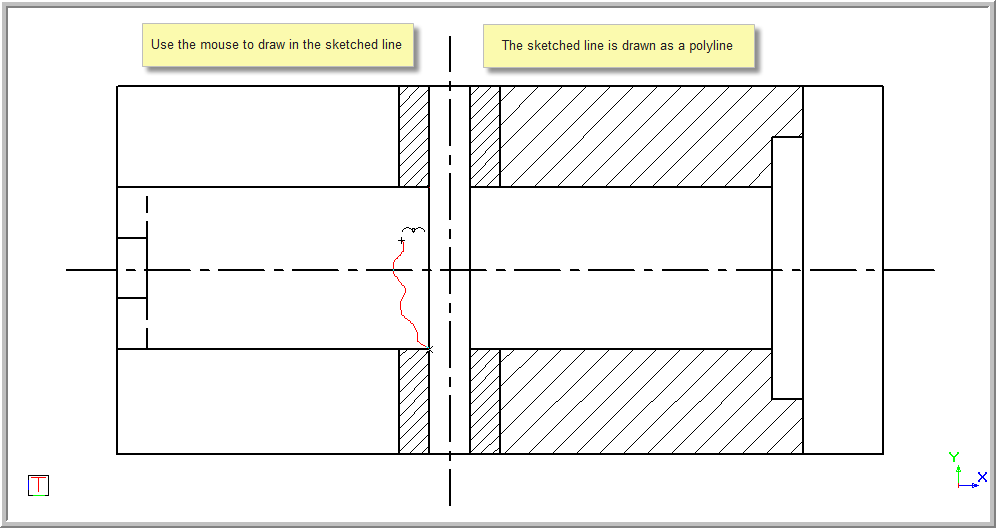
Position the cursor on the end point for the arc, and then click or press [Enter]. You can jump to the desired point or use the snaps to arrive at the desired position.
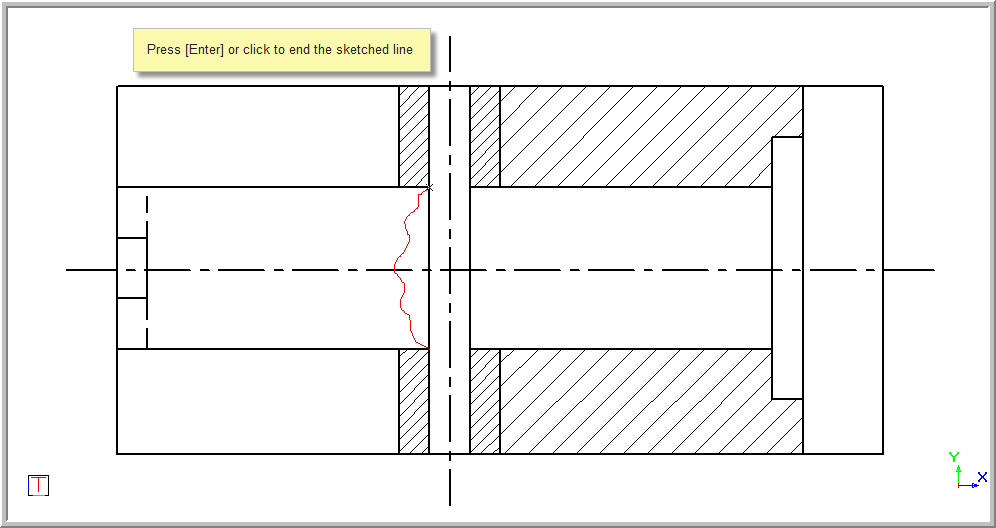
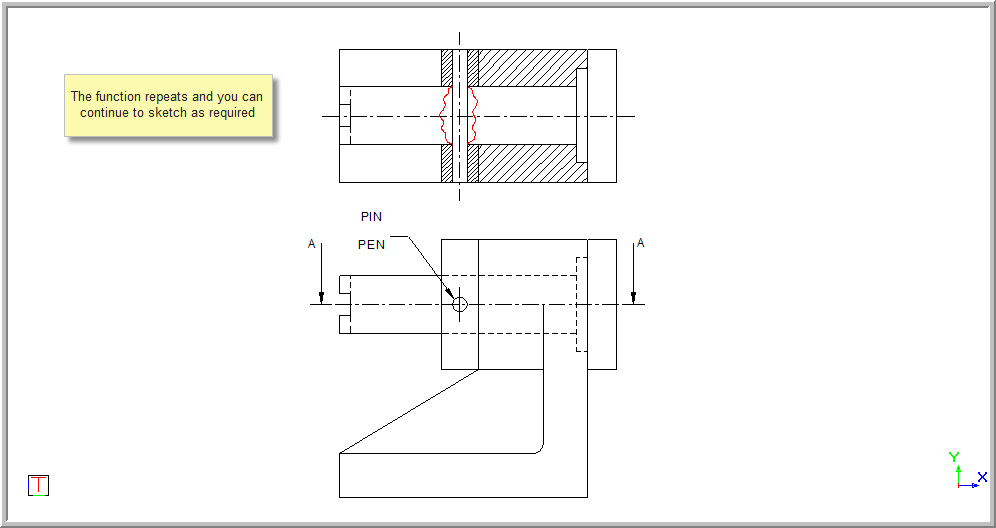
The function repeats and you can add more sketching as required.
By default, the Sketch function generates a lightweight polyline with segments that are approximately 2 screen pixels long.
However, you can specify a segment length (in drawing units) for the lightweight polyline, by entering a non-zero value in the Length option in the Control Bar:

Now, when you draw a sketch, a new lightweight polyline segment will only be added when the mouse cursor has moved further than the specified segment length away from the previous lightweight polyline point.
To revert to the default 2-pixel segment length, specify 0 (zero) as the segment length.