Icon
Command
Shortcut Key
Toolbar

FILLGEOMARCLINE
Drawing
Draw an arc or line over a geometry element.
|
Icon |
Command |
Shortcut Key |
Toolbar |
|
|
FILLGEOMARCLINE |
|
Drawing |
This function allows you to trace a geometry circle or geometry line, to create arc or line entities, by indicating the geometry element to be traced over and then indicating the start and end points.
 This function becomes very easy to use if you are filling geometry elements between geometry intersections.
Procedure
You can trace over an individual geometry arc or line element.
You are prompted to:
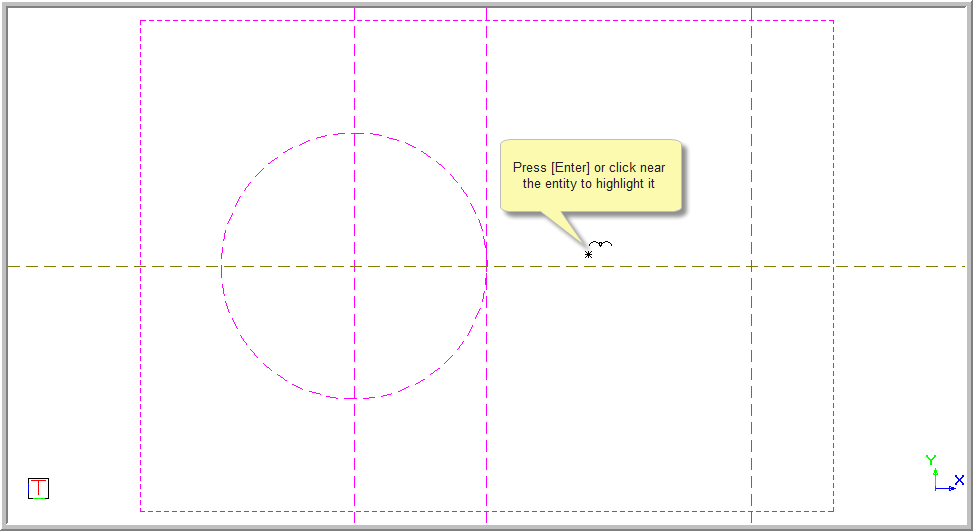
Indicate geometry
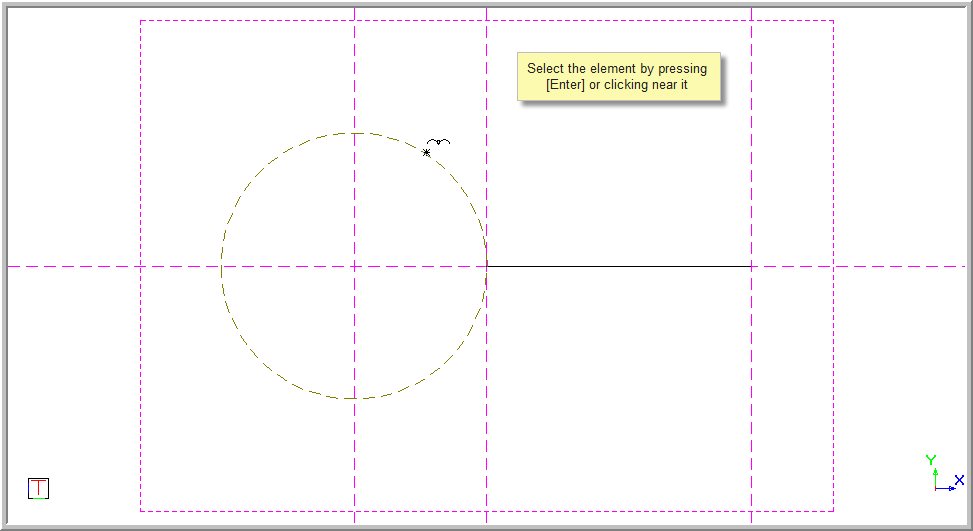
Position the cursor near the geometry line to be filled and click to select it. The element is highlighted.
Indicate start position of line
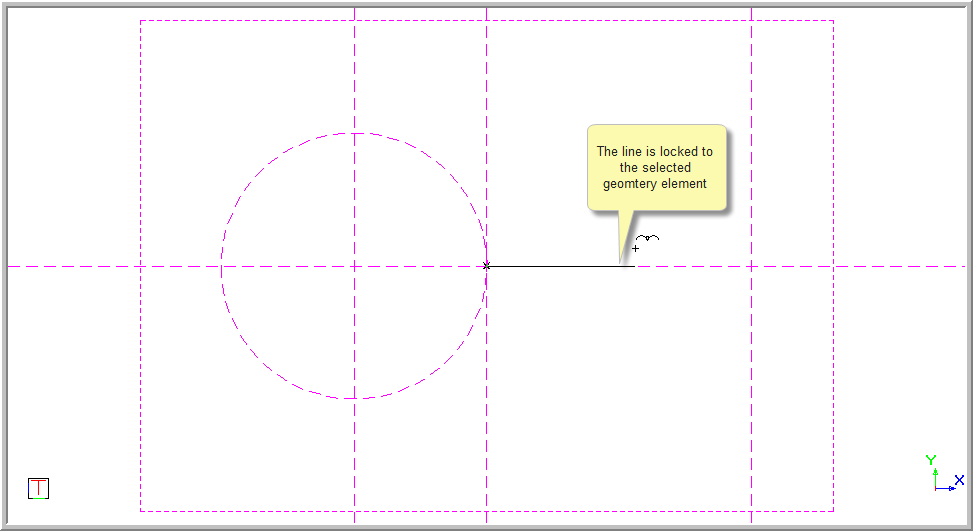
Use the snap or jump functions to move to the correct point, and then click to select the start position. The line is now locked to the geometry line.
Indicate end position of line
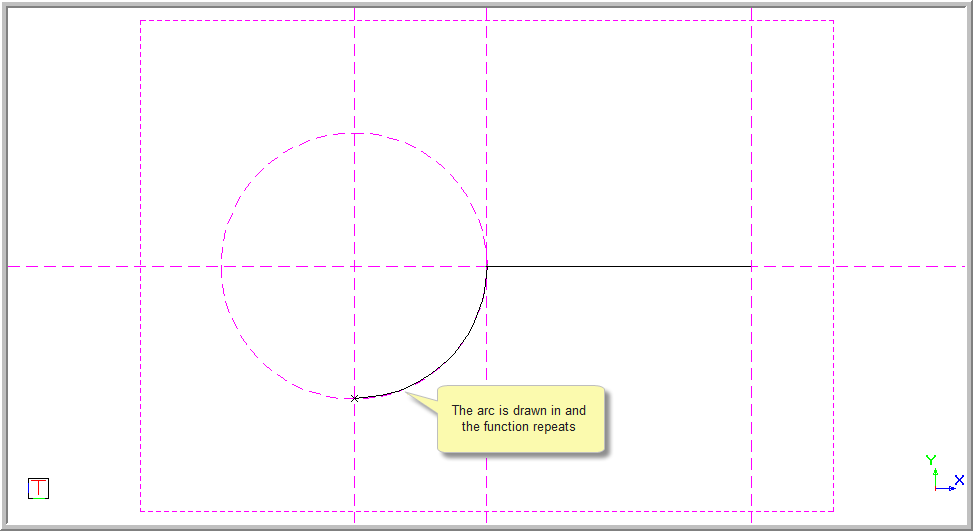
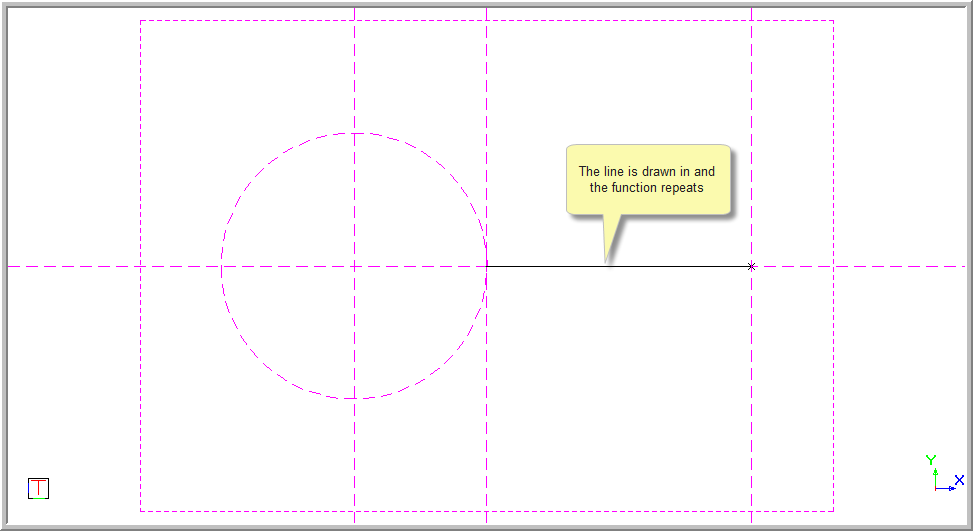
Use the snap or jump functions to move to the correct point, and then click to select to end position. The line is drawn in and the function repeats.
Select the circle by clicking near it. The circle is highlighted.
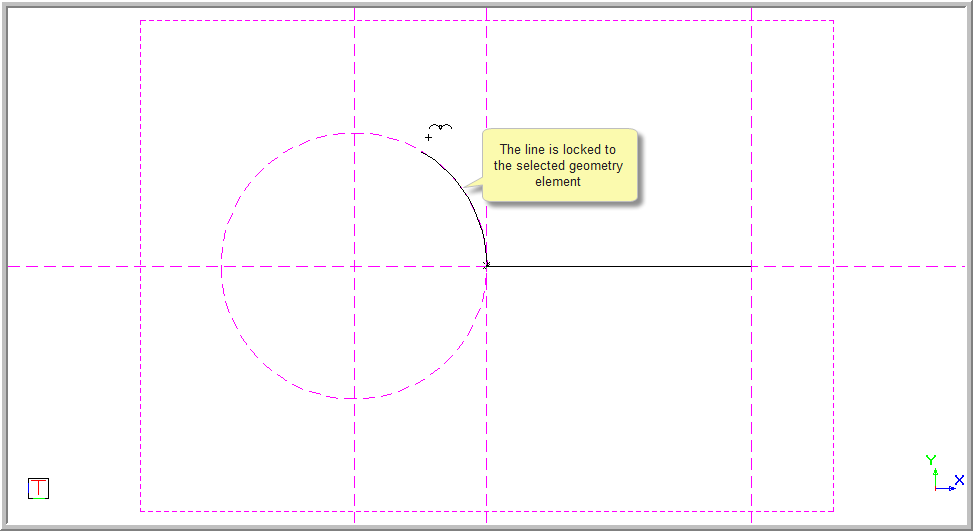
You are prompted to:
Indicate start position of arc
Use the snap or jump functions to move to the correct point and click to select the start position. The line is now locked to the geometry circle.
You are prompted to:

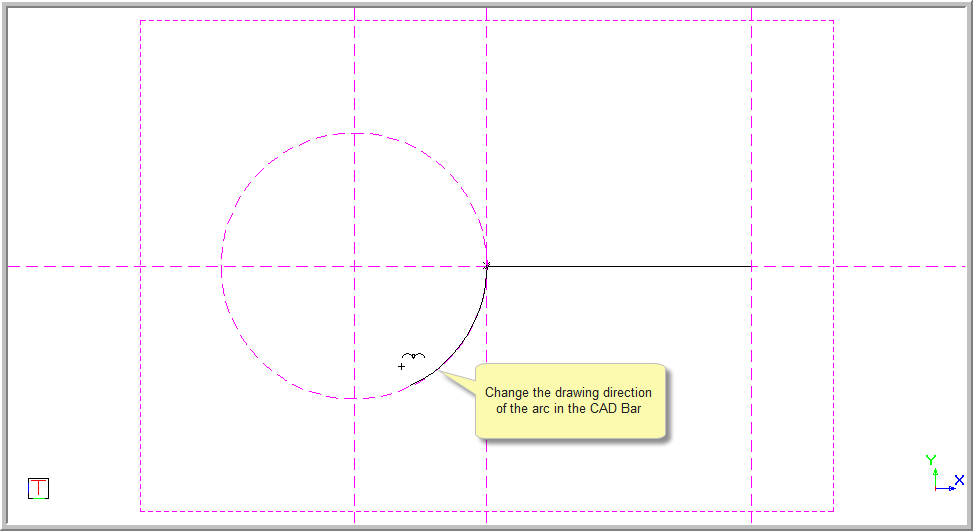
You can change the direction the circle is drawn in by clicking the dropdown arrow in the Control Bar.

The direction has been changed to clockwise in the below example.

Alternatively, click on the Arc length radio button to draw the arc to a specific measurement.

Use the snap or jump functions to move to the correct point and click to select to end position. The arc is drawn in and the function repeats.