Icon
Command
Shortcut Key
Toolbar

RECTANGLE
Drawing
Draw closed rectangular shapes.
|
Icon |
Command |
Shortcut Key |
Toolbar |
|
|
RECTANGLE |
|
Drawing |
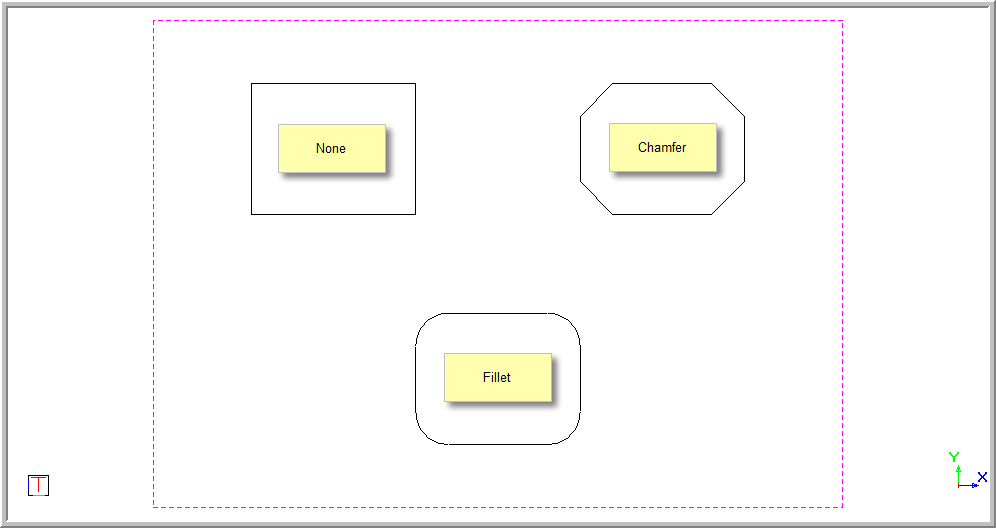
This function allows you to add a rectangle to the drawing, with an option to chamfer or fillet the corners. The rectangle is created as a polyline.
Procedure
To draw rectangles:
Select Draw ► Rectangle or click the icon in the Drawing toolbar.

Move to the desired start position and click or press [Enter]. Alternatively, use the coordinate snap to move to a specific position.
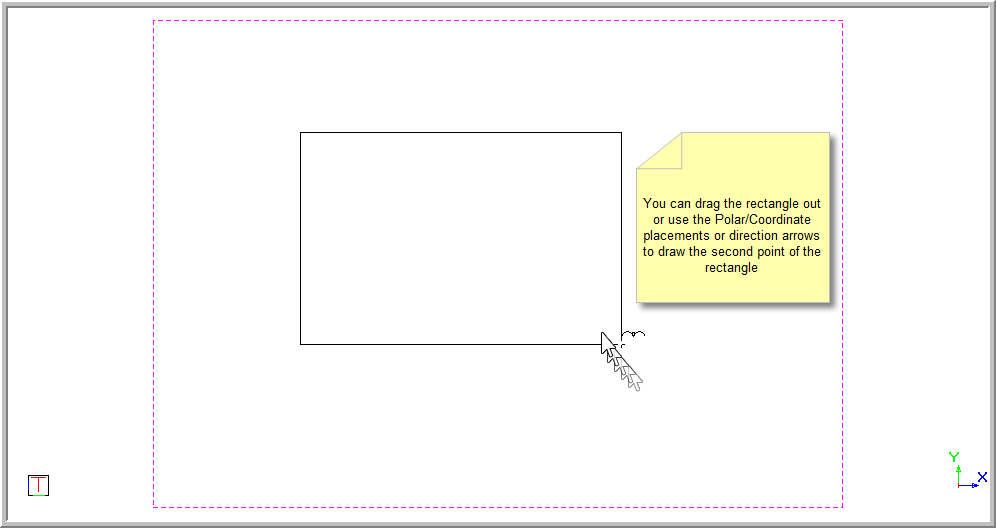

You can use the coordinate snap to draw between two specified coordinates, or the polar snap to move a set distance at a specified angle. Alternatively, you can use the [Up], [Down], [Left] and [Right] keys. The function will repeat once you have completed drawing a rectangle.
You are also able to chamfer and fillet the corners of rectangles. You can change the Finish in the Control Bar. To assign the chamfer or fillet a value, you can [Tab] across and type in the required value.
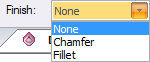
Once you have selected the finish, you can press [Enter] or click Enter. You can now draw the rectangle with your required finishes.