Icon
Command
Shortcut Key
Toolbar

ISOCIRCLE
Drawing
Draw an elliptical circle at 30°, 90°, or 150°.
|
Icon |
Command |
Shortcut Key |
Toolbar |
|
|
ISOCIRCLE |
|
Drawing |
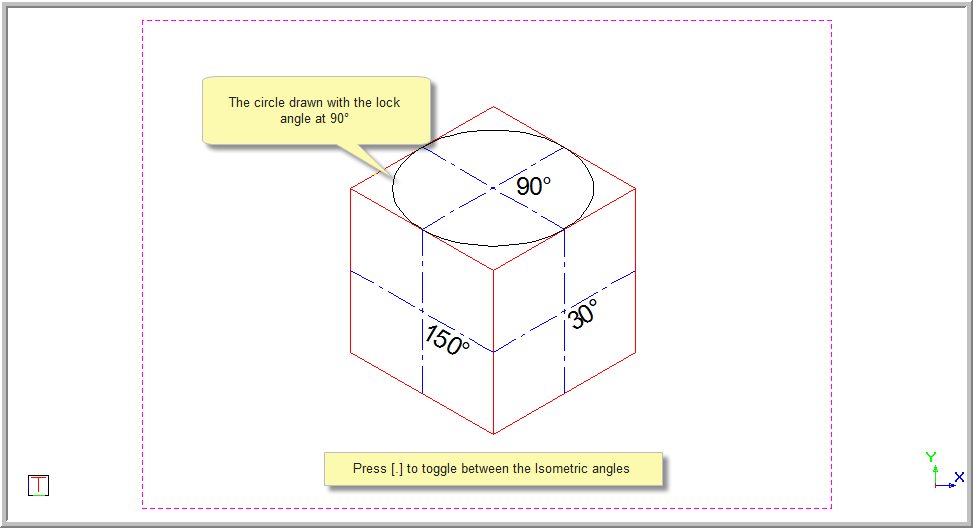
This function allows you to draw an isometric circle at either 30°, 90° or 150° angles.
 You can press [.] to toggle between 30°, 90° or 150°. Press [+] on the number pad to hold the cursor at a locked angle.
Procedure
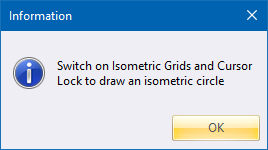
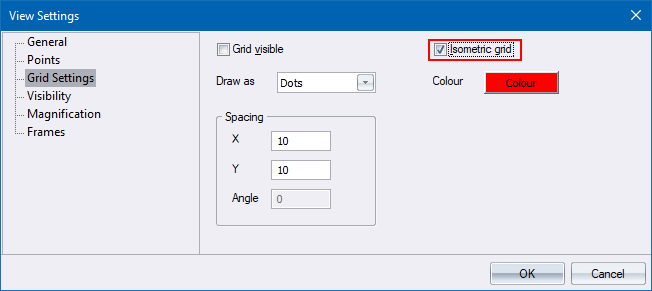
Make sure you have turned on the Isometric Grid function and locked the cursor to an Isometric angle (30°, 90° or 150°). If you have not done this, you will receive the following error when you select to draw an Isometric circle.
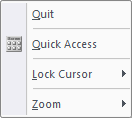
Select Tools ► Lock Cursor ► Lock to Keyboard.

 . The lock angle displays at the bottom of the screen.


Draw Isometric Circle
Select Draw ► Circles ► Isometric.

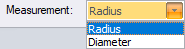
You can change the value of the circle by clicking in the text box or pressing [Tab] to move into the text box and typing the required value. When you click Enter or press [Enter], the circle changes to the new size.
You can add multiple circles at a time by leaving a space between the circle values.
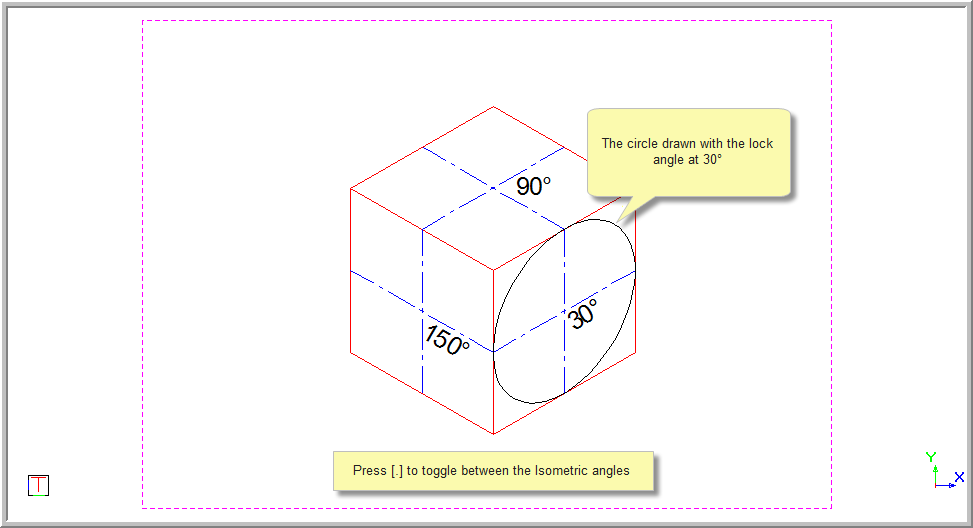
Indicate the centre of the circle and press [Enter] or click. If the lock angle is at 30° the circle is drawn as shown below.
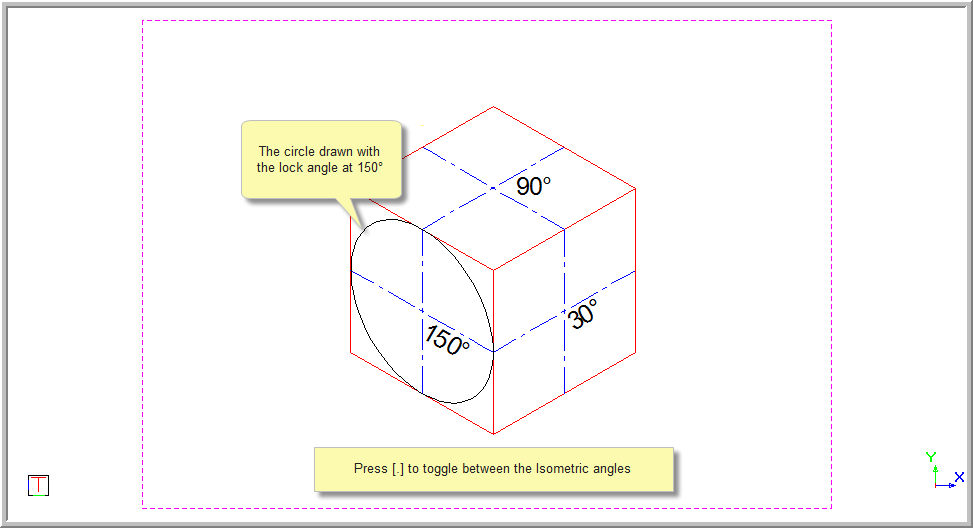
The function repeats. If you press [.] the lock angle changes to 150°. When you move the cursor the circle is drawn at the new angle.
Indicate centre point of circle
The function repeats. If you press [.] the lock angle changes to 90°. When you move the cursor the circle is drawn at the new angle.
Indicate centre point of circle