Icon
Command
Shortcut Key
Toolbar

DIMDIAMETRIC
Dimensions
Add diametric dimensions to the drawing.
Icon |
Command |
Shortcut Key |
Toolbar |
|
DIMDIAMETRIC |
|
Dimensions |
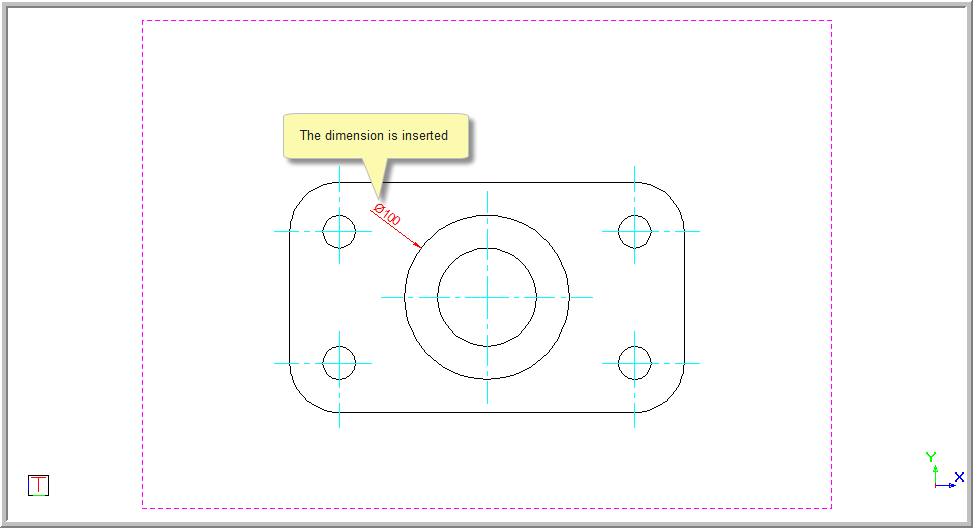
This function allows you to add diametric dimensions to an arc or circle, by indicating the arc or circle to be dimensioned and then indicating the position for the dimension text.
 Dimensions use
the current line style.
Dimensions use
the current line style.
Procedure
You are prompted to:

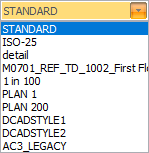
The dimension style can be selected
from the dropdown list. Alternatively, click  to change the dimension
style.
to change the dimension
style.
You can click
Pick
to copy dimension settings from an existing dimension entity.
Select the Text override checkbox if you want to be able to edit the text.
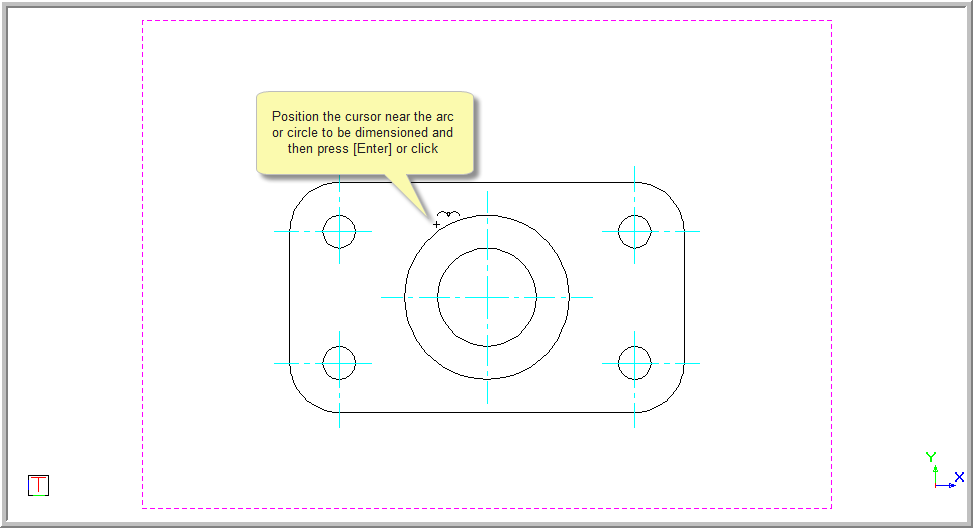
You are prompted to:

A rubberbanded preview of the dimension is drawn and you can move the mouse to indicate the dimension offset.
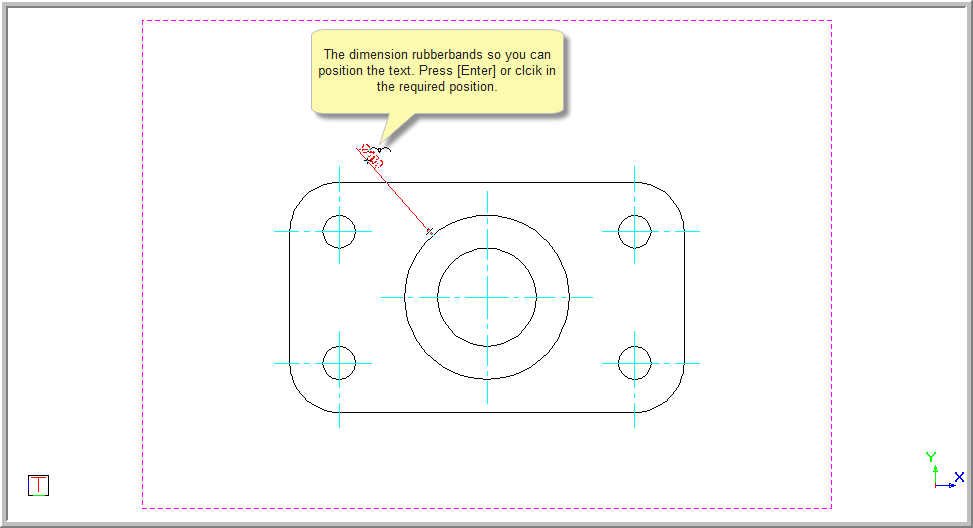
Press [Enter] or click in the drawing to indicate the final position of the text. The text can either be placed "externally" or "internally" depending on the position you indicate.
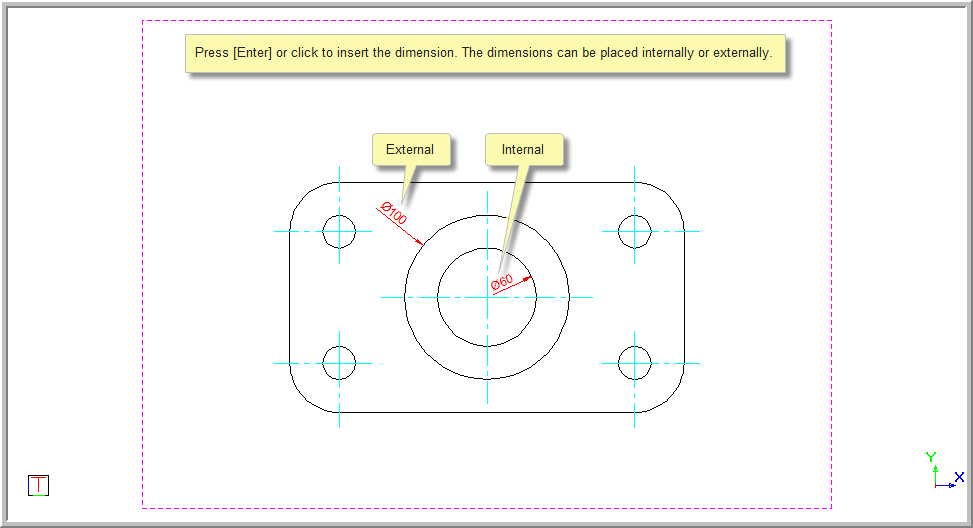
If you have selected the Text override option, you can now type over the text. Press [Enter] or click Enter to insert the dimension.
If Text override was not selected, the original measurement is inserted.
You are prompted to:
You can continue to add dimensions as the function repeats.
Select the Angle snap checkbox in the Prompt Bar. When you indicate the position of the radial dimension, the angle of the dimension line will be snapped to 15 degree increments. This allows you to easily draw radial dimensions at 30, 45 or 60 degrees from the horizontal, for example.