Icon
Command
Shortcut Key
Toolbar

DIMARCLENGTH3POINT
Dimensions
Add arc length dimension to the drawing.
Icon |
Command |
Shortcut Key |
Toolbar |
|
DIMARCLENGTH3POINT |
|
Dimensions |
This function allows you to add an arc length dimension to the drawing by indicating the centre point of the arc to be dimensioned, the start and end points of the length measurement, and where the dimension text must be placed.
Arc length dimensions can be:
Free - Each dimension is drawn individually.
Chained - Successive dimensions follow on the previous dimension.
Running - Dimensions are taken from the first point and offset from the previous dimension.
 Dimensions use
the current line style.
Dimensions use
the current line style.
Procedure

 next to the dropdown list.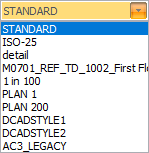
You can click
Pick
to copy dimension settings from an existing dimension entity.
Select the Text override checkbox if you want to be able to edit the dimension text.
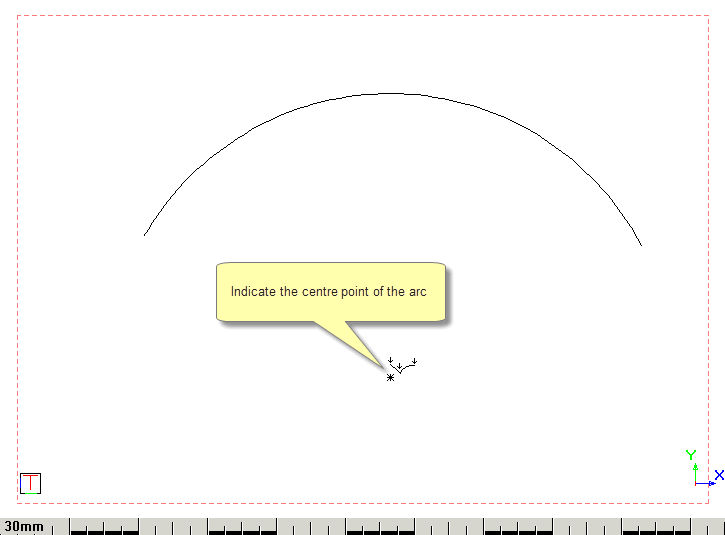

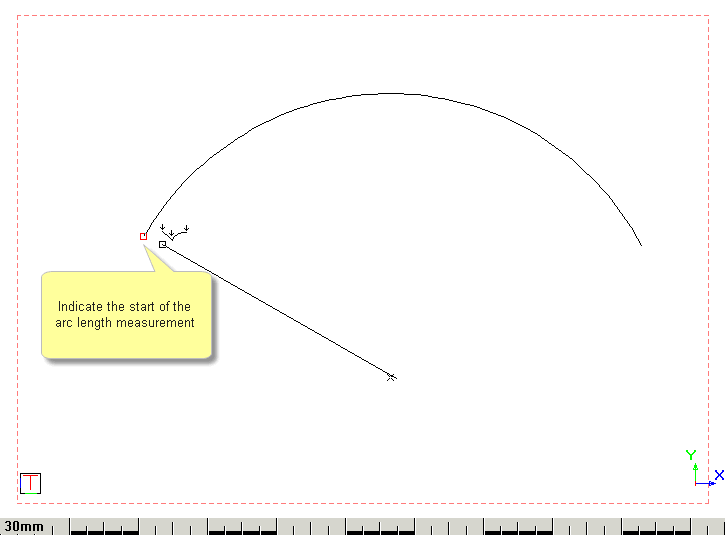

This can be any point on the arc or the end of the arc itself.
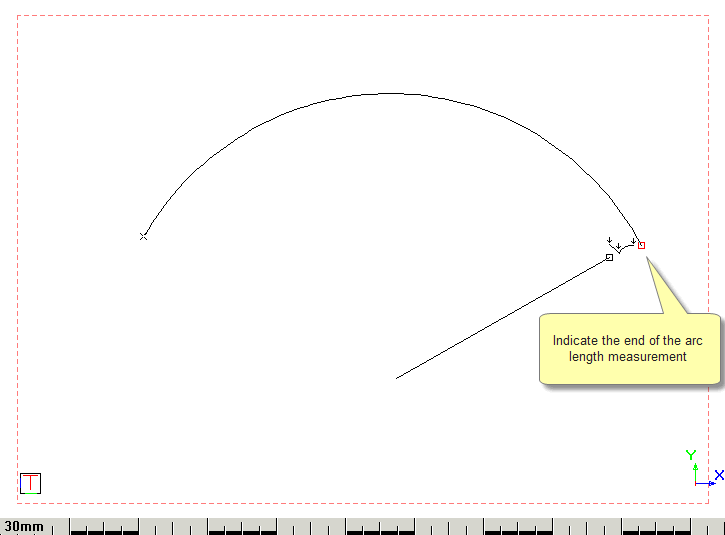

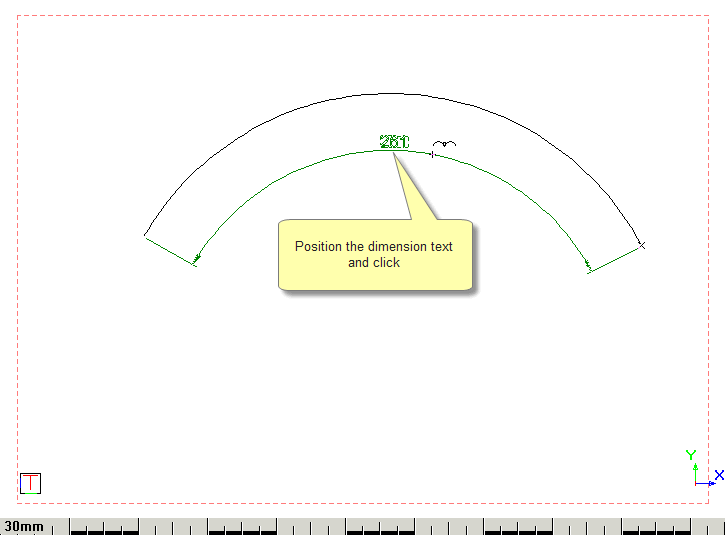
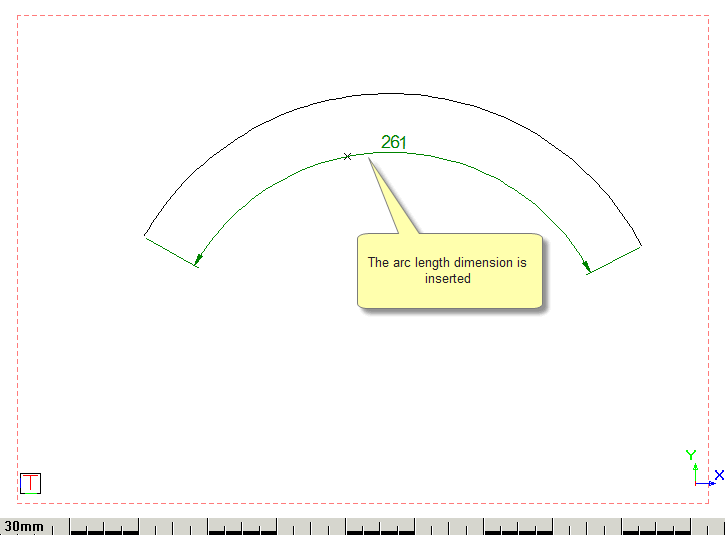
If you have selected the Text override option, you will be prompted to type over the text.
The function repeats.
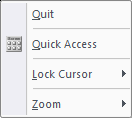
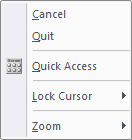
While inserting the dimension, you can right-click and select Cancel to discontinue with the current dimension and indicate a new arc. You are again prompted to indicate a arc or polyline arc segment to dimension.
Select Quit or press [Esc] to end the function completely.