Icon
Command
Shortcut Key
Toolbar

DIMANGULAR2LINE
Dimensions
Add angular dimensions between two lines.
Icon |
Command |
Shortcut Key |
Toolbar |
|
DIMANGULAR2LINE |
|
Dimensions |
This function allows you to add angular dimensions between two lines, by selecting the two lines and indicating the position for the dimension text. Use the radio buttons in the Control Bar to select a dimension style .
When using the Chained and Running dimension style it is important that the lines all form an angle around the same point.
 The dimension
uses the current line style.
The dimension
uses the current line style.
Procedure

 to change the dimension
style.
to change the dimension
style.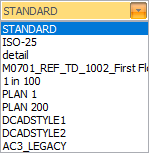
You can click
Pick
to copy dimension settings from an existing dimension entity.
Use the radio buttons in the Control Bar to select the style for the dimension.

Select the Text override checkbox if you would like to be able to edit the dimension text.
Free style dimensions are individual dimensions each defined by indicating the two dimension reference points.
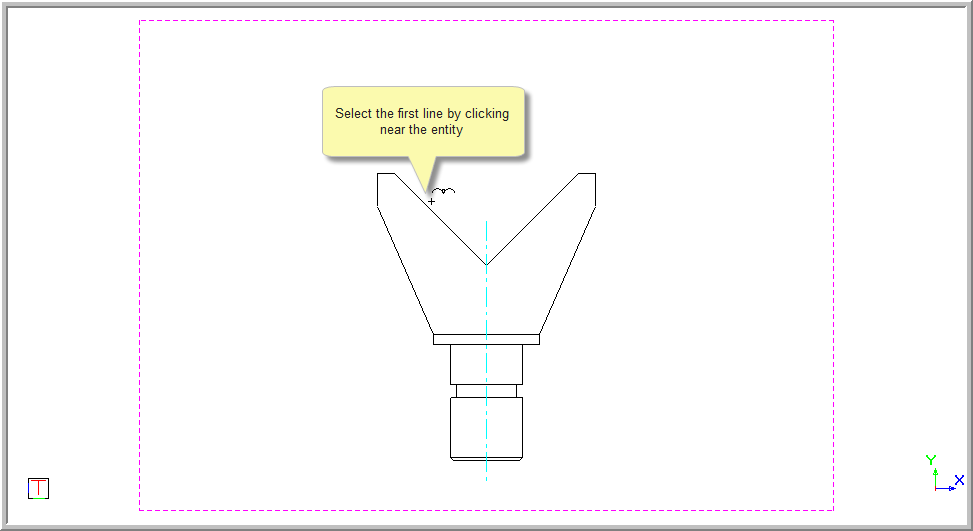

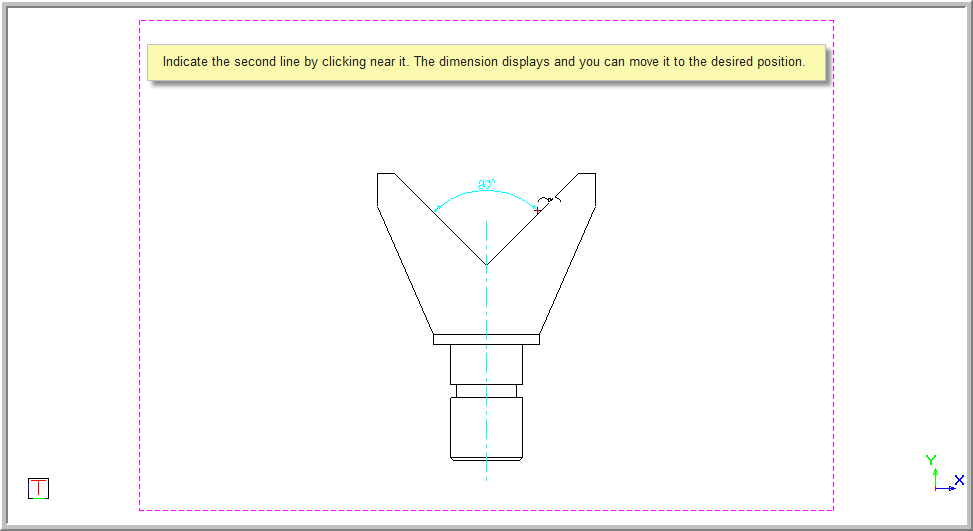

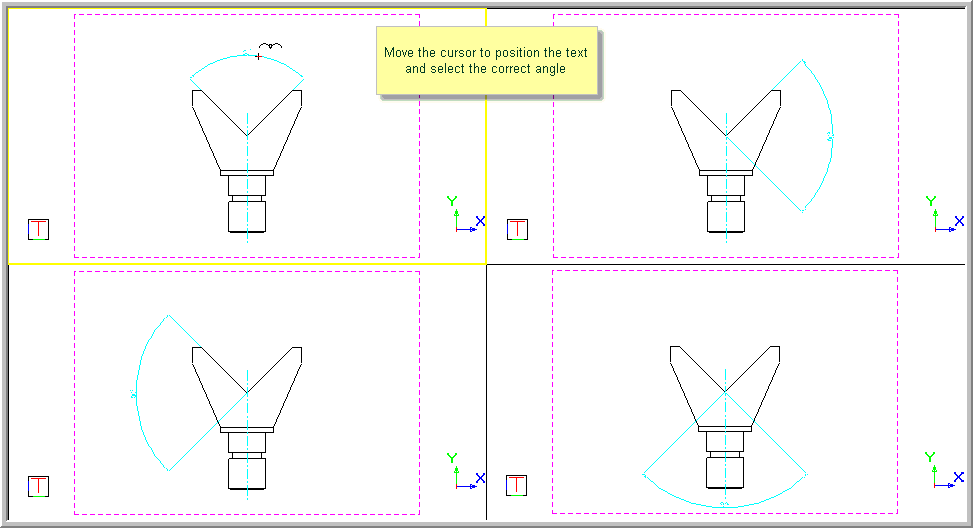
If you have selected the Text override option, you will now be able to type over the text. Press [Enter] or click on the [Enter] button to insert the dimension.
If the Text override option was not selected, the original measurement will be inserted.
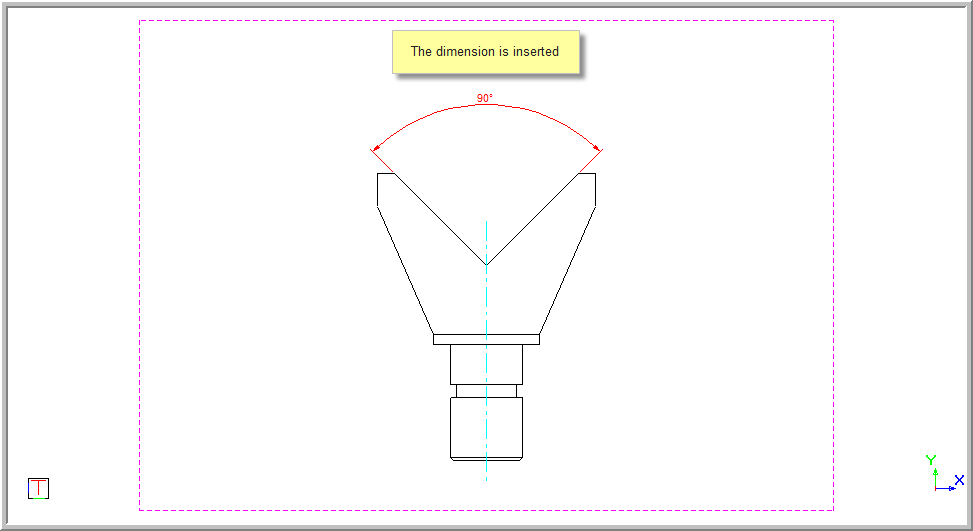
You are again prompted to:
You can continue to add dimensions as the function repeats.
The Chained
and Running options work if the
entities being selected all meet at a common centre point. This is because
the second line selected gives the intersection point of the angle. Use
the Free option if the lines
do not intersect at the same point.
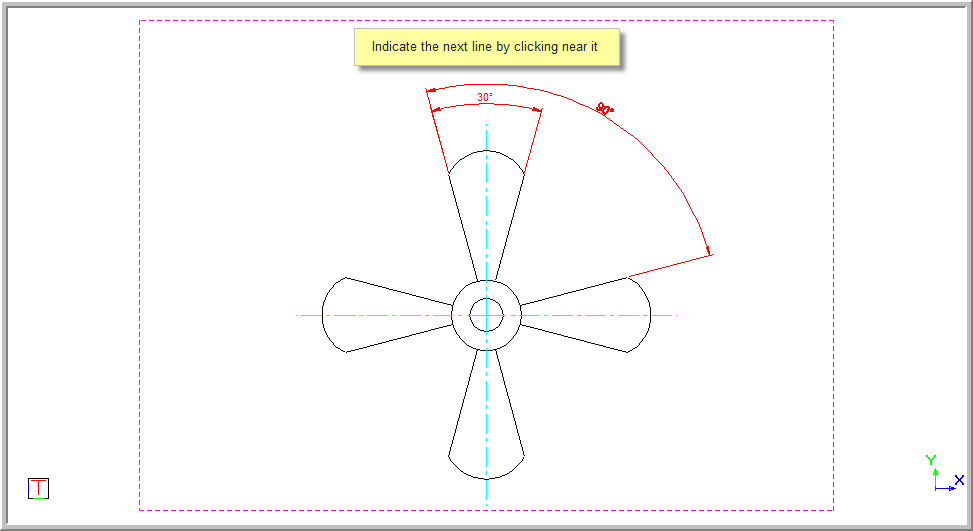
The Chained dimension option uses the second reference point of the first dimension as the first reference point of the subsequent dimension i.e. each dimension is chained to the last one.
The Chained option works in the same way as the Free option. The difference is the dimensions follow on from the last indicated point.

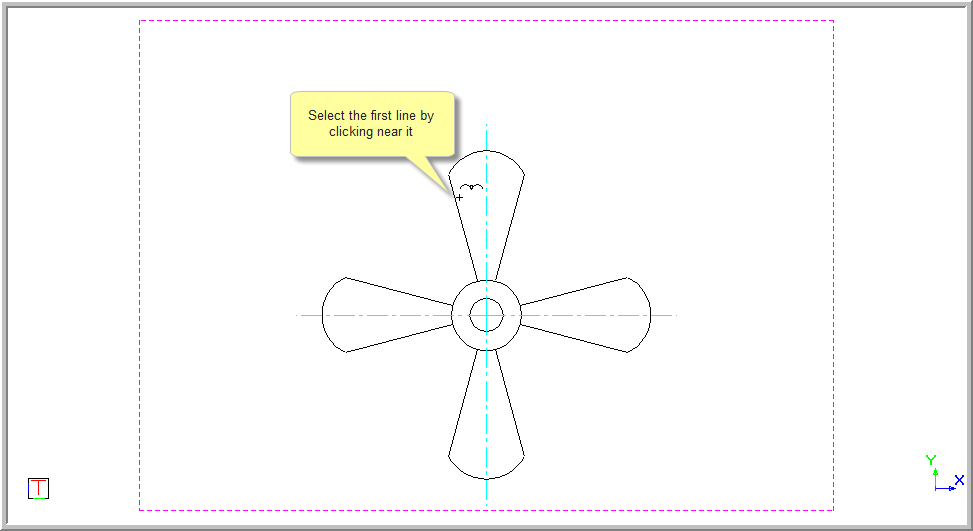

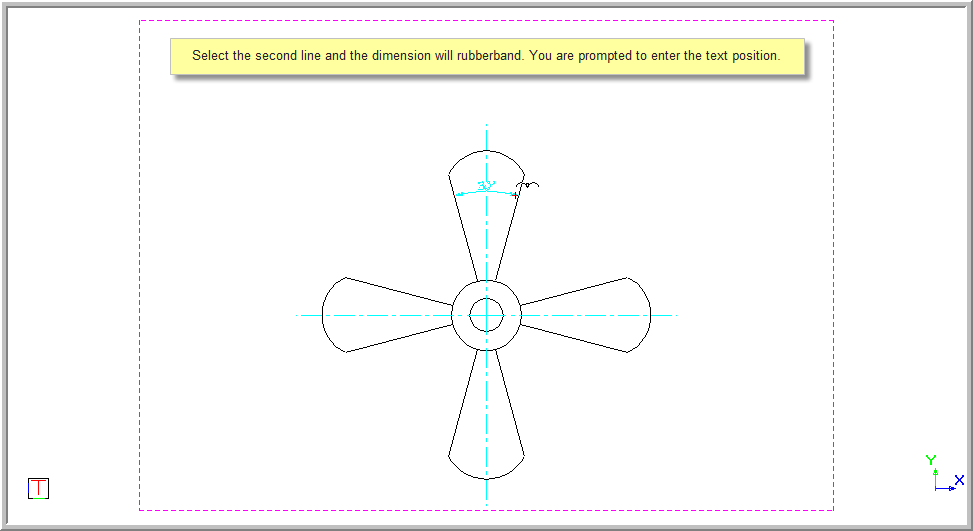

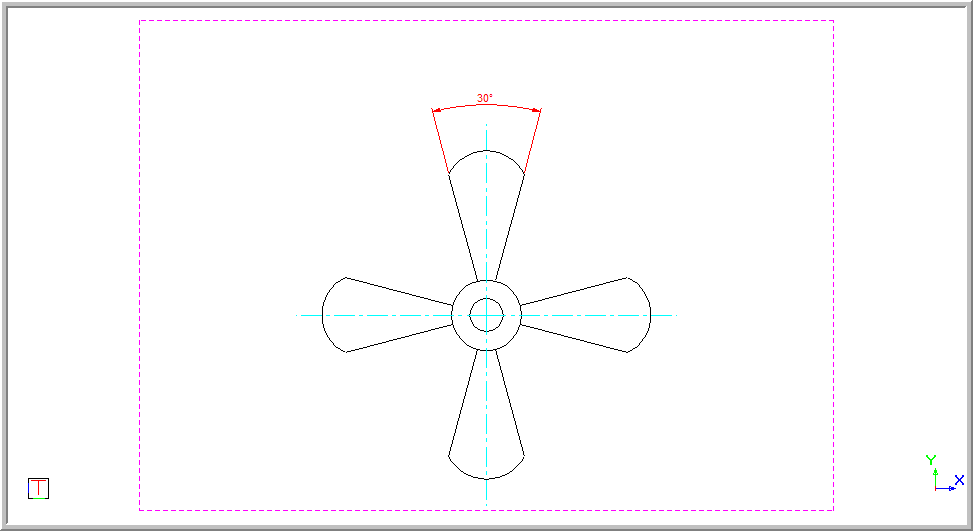
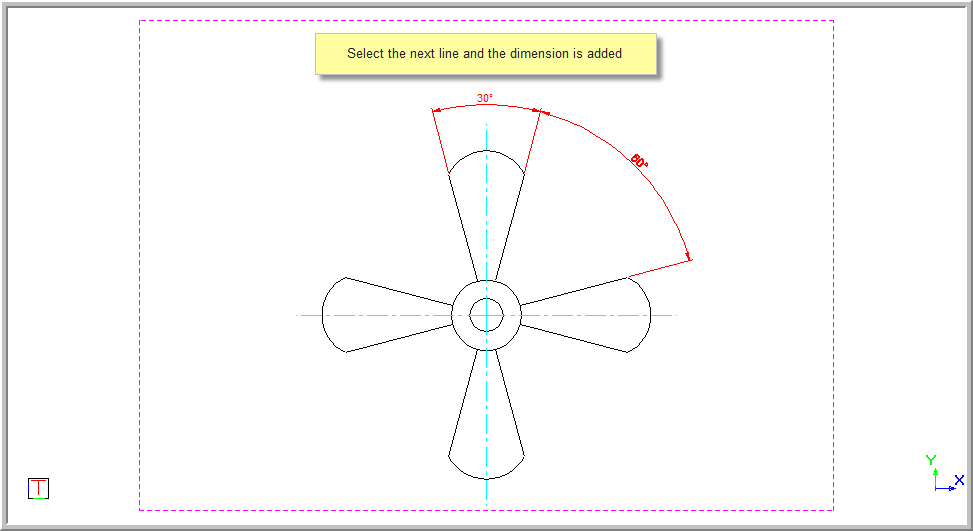
Continue to enter the points as the function repeats.
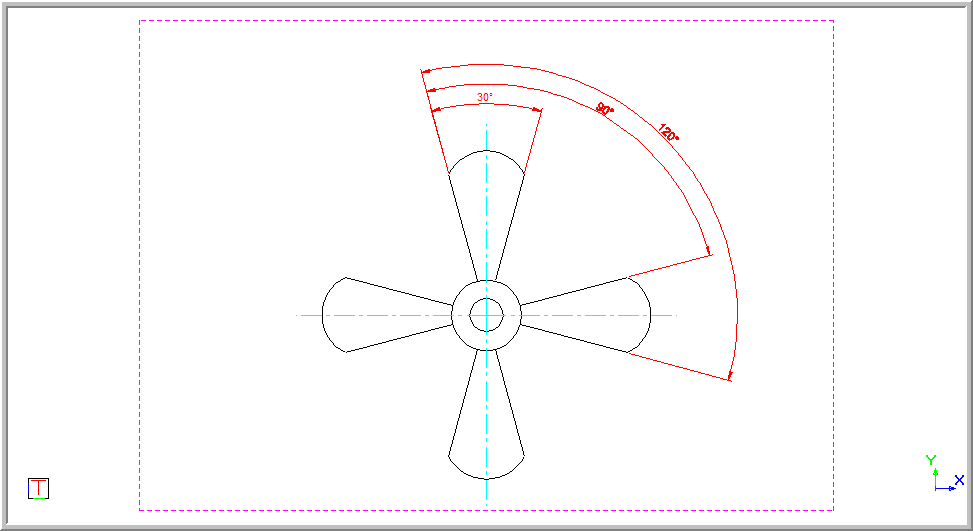
A running dimension is always taken from the very first reference point. The Running option works in the same way as the first two options. The difference is the dimensions are always taken from the very first point indicated.



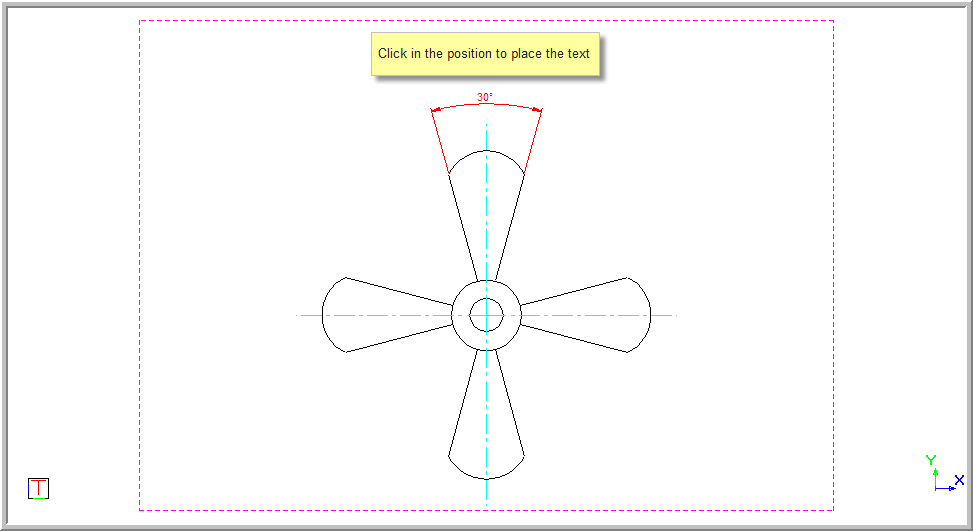

Select the next line. Remember, if you have the Text override option selected you will be able to change the text value.