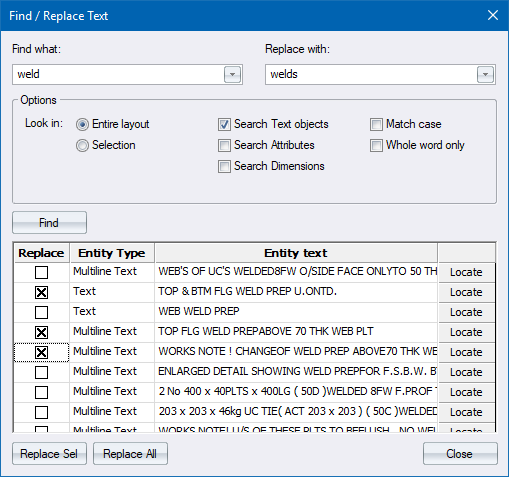
Find and optionally replace text in the drawing.
|
Option
|
Description |
|
Find what |
Enter the text to search for, or select a previous search term. |
|
Replace with |
Enter the text with which to replace the found text. |
|
Look in |
Select the search scope. |
|
Search Text objects |
Select this checkbox to search single line and multiline text entities. |
|
Search Attributes |
Select this checkbox to search attribute entities. |
|
Search Dimensions |
Select this checkbox to search dimension entities. |
|
Match case |
Select this checkbox to only find text whose case matches that of the search text. |
|
Whole word only |
Select this checkbox to find only text that exactly matches the search text. |
|
Find button |
Click to carry out the search. |
|
Replace column |
Select the checkboxes associated with the items to be replaced. |
|
Entity Type column |
Displays the type of entity where the search text was located. |
|
Entity text column |
Displays the complete text from the entity. |
|
Locate button |
Click to zoom the drawing to the found entity. |
|
Replace Sel button |
Click to replace text only in the selected entities. |
|
Replace All button |
Click to replace text in all found entities. |