Create or edit multiline text entities.
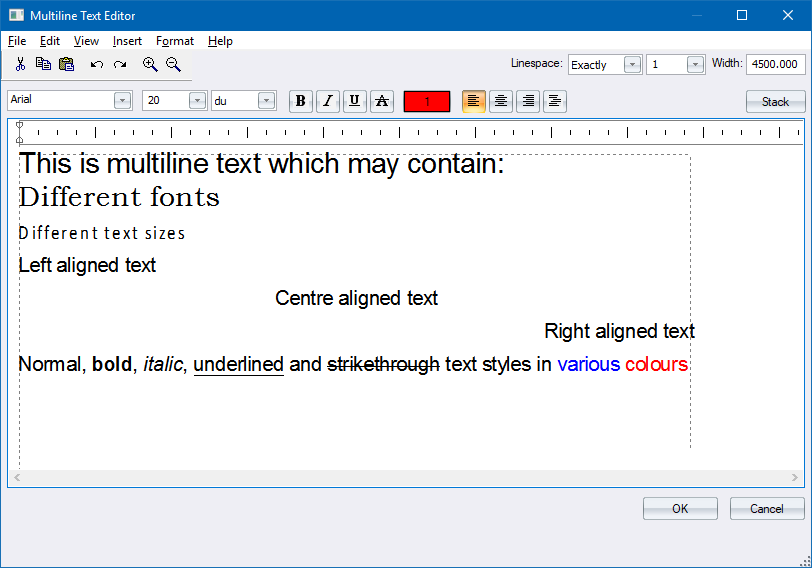
The Overall Style section applies to the entity as a whole.

The Fragment Style section applies to selected pieces of the text.

|
Option
|
Description |
|
Overall Style Bar |
|
|
Linespace |
Enter the spacing between successive lines of text as a ratio of the height. |
|
Width |
Enter the width of the text in drawing units. |
|
Fragment Style Bar |
|
|
Font |
Select the font for the text fragment from the dropdown list. |
|
Height |
Enter the height, in the selected units, for the text fragment. |
|
Units |
Select the unit of measure for the text height. |
|
Bold button |
Click to make the text fragment bold. |
|
Italic button |
Click to make the text fragment italic. |
|
Underline button |
Click to make the text fragment underlined. |
|
Strikethrough |
Click for text with a strikethrough line. |
|
Colour button |
Click to choose a colour for the selected text fragment. The Colour Selection displays. |
|
Left Align button |
Click to align the selected text fragment on the left of the text frame. |
|
Centre Align button |
Click to align the selected text fragment in the centre of the text frame. |
|
Right Align button |
Click to align the selected text fragment on the right of the text frame. |
|
Justify button |
Click to justify the selected text fragment between the left and right edges of the text frame. |
|
Stack button |
Click to apply stack formatting to the selected text fragment. |
|
Edit window |
Enter or edit the text in this window. Use the arrow keys, [Home], [End], [PgUp] and [PgDn] to navigate. Use [CTRL+C] and [CTRL+V] to copy and paste, respectively. Use [CTRL+A] to select all the text. Select text fragments by clicking and dragging. Right-click for the context menu. |
|
Import Text button |
Click to import text from an external file. |
|
Angle |
Enter the rotation angle for the text. The text will not be rotated in the editor, to make editing easier. |
|
Option
|
Description |
|
File |
|
|
Import Text |
Select this option to import text from an external file. |
|
Insert |
|
|
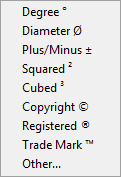
Insert Symbol |
Select this option to insert symbols such as diameter symbols, etc.
The Other... option displays the Character Map. |
|
Format |
|
|
Change Text Style |
Display the Text Style Editor to select another text style or edit the existing text style. |
|
Remove all formatting |
Remove all formatting from the multi-line text entity. |